

Employees can send their assigned shift to the open shifts list, making it available for other team members to pick up.
What Is This?
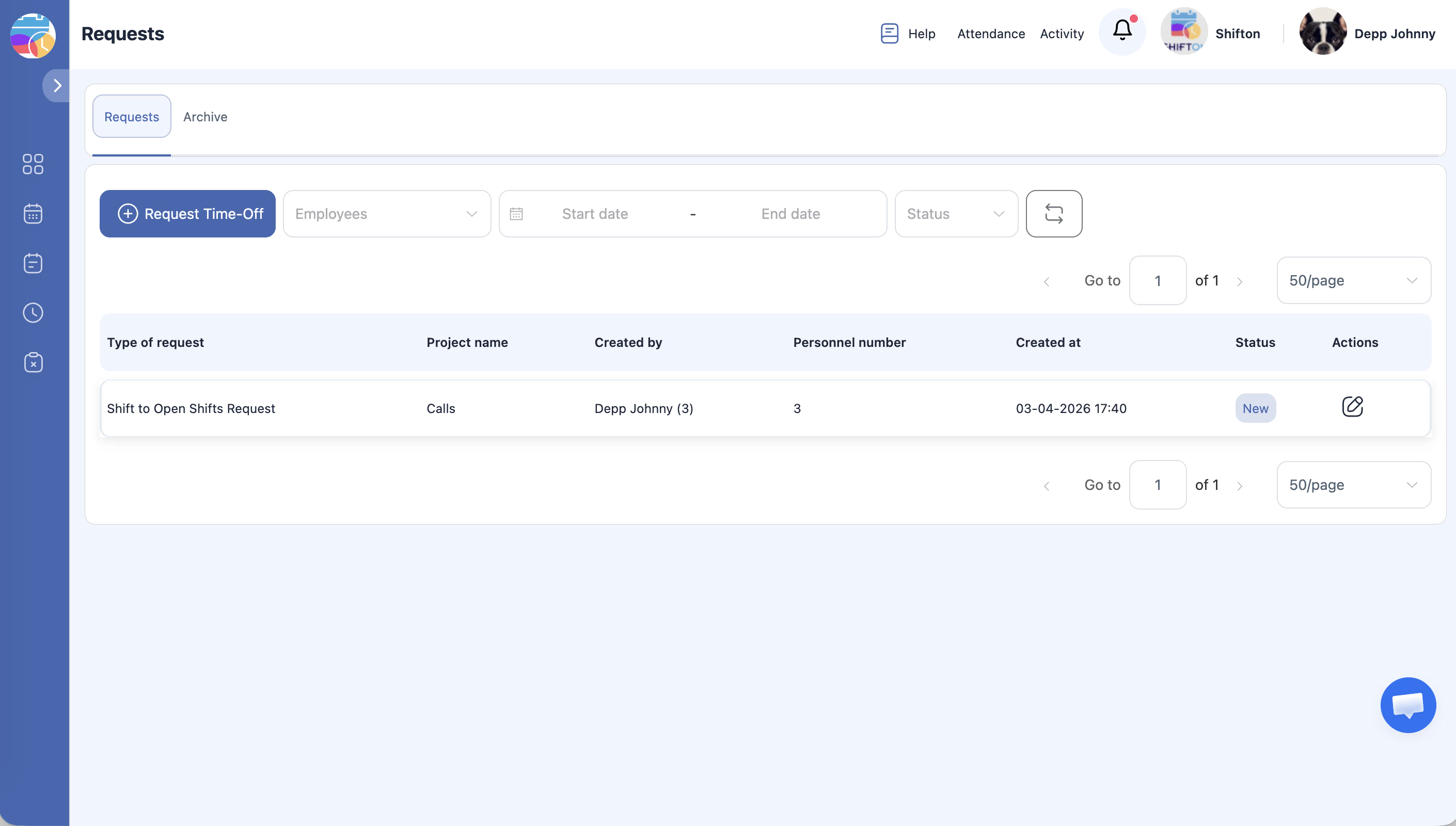
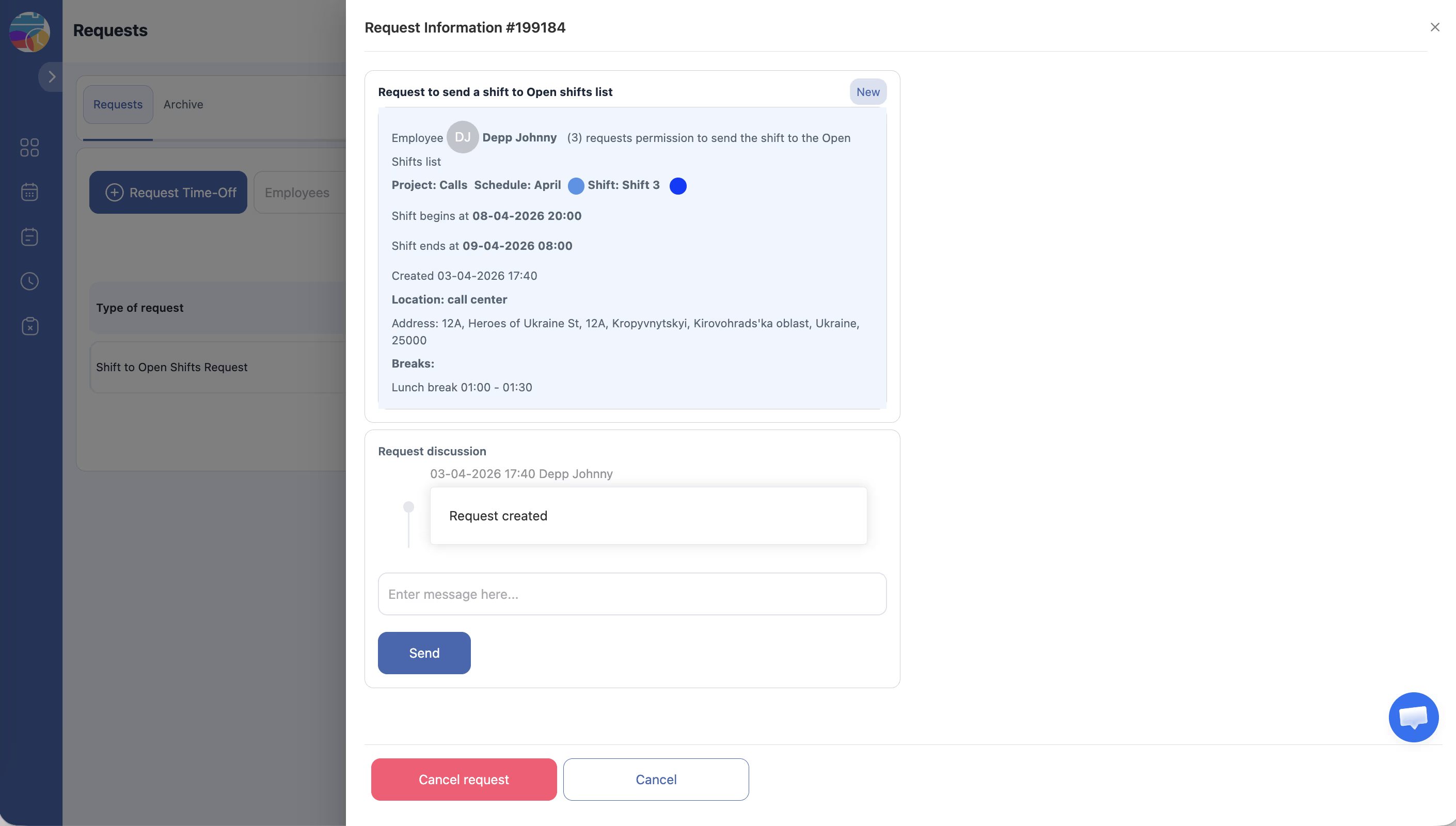
When an employee cannot work a scheduled shift, they can post it to the open shifts list instead of leaving the shift uncovered. The shift moves to the Open Shifts row in the schedule, where other qualified employees can claim it. This is a self-service way for employees to handle conflicts while ensuring coverage is maintained.
Prerequisites
| Requirement | Details |
|---|---|
| Module | Schedules module must be active |
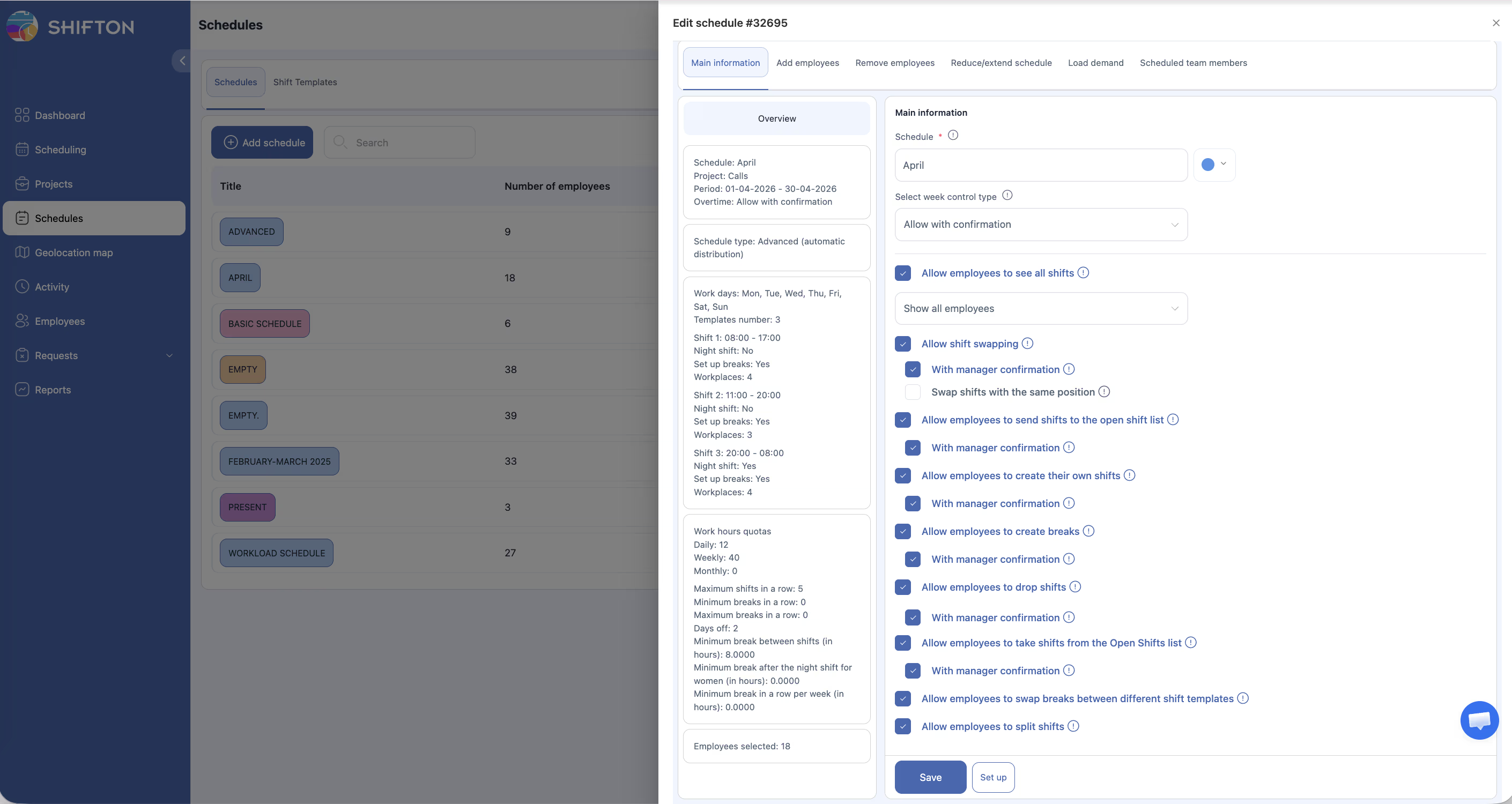
| Setting | “Allow employees to send shifts to the open shift list” must be enabled in schedule settings |
| Shift | The employee must have a published shift to post |
Step-by-Step Instructions
Enabling the Feature (Manager/Admin)
Posting a Shift to Open Shifts (Employee)
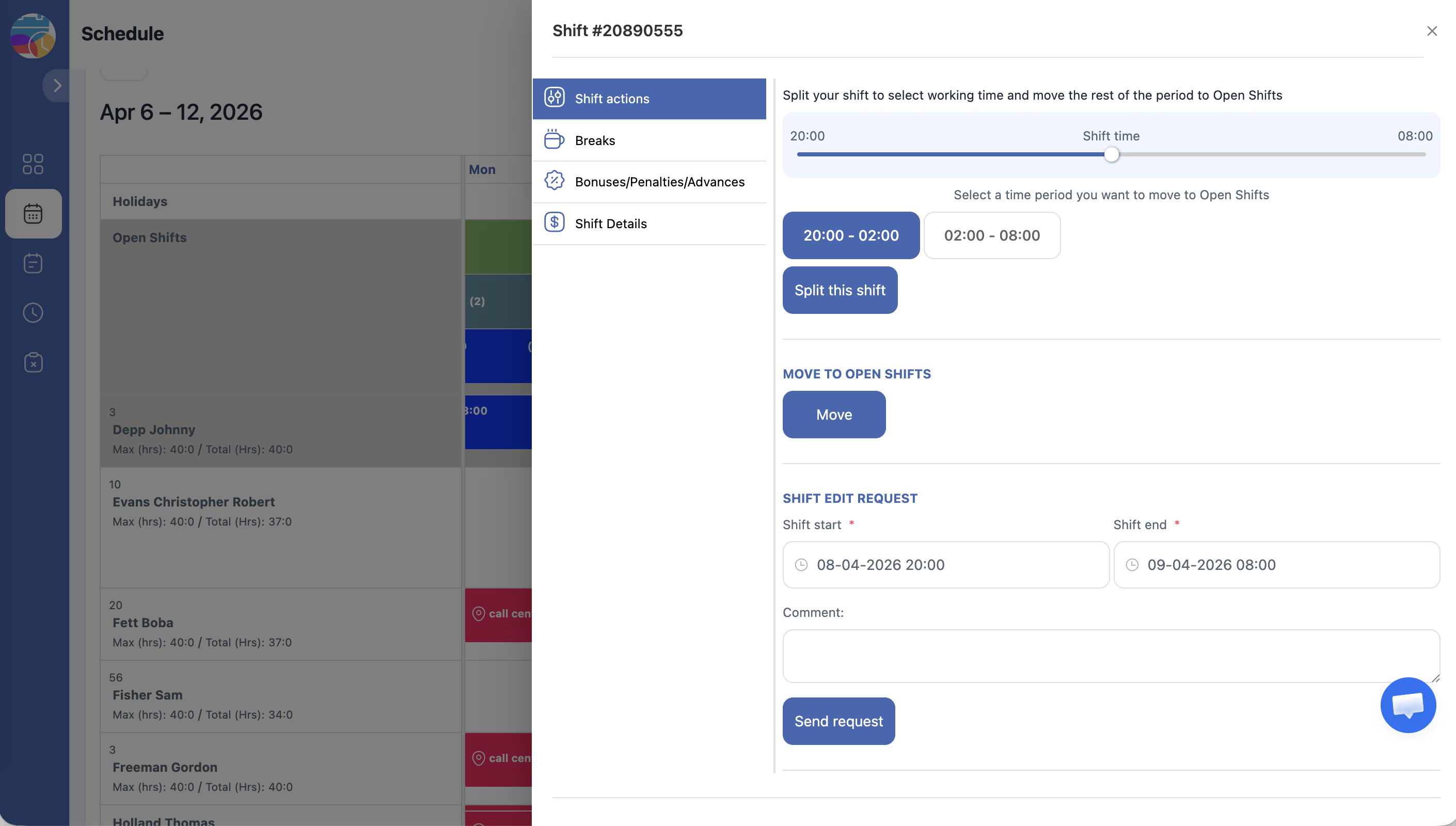
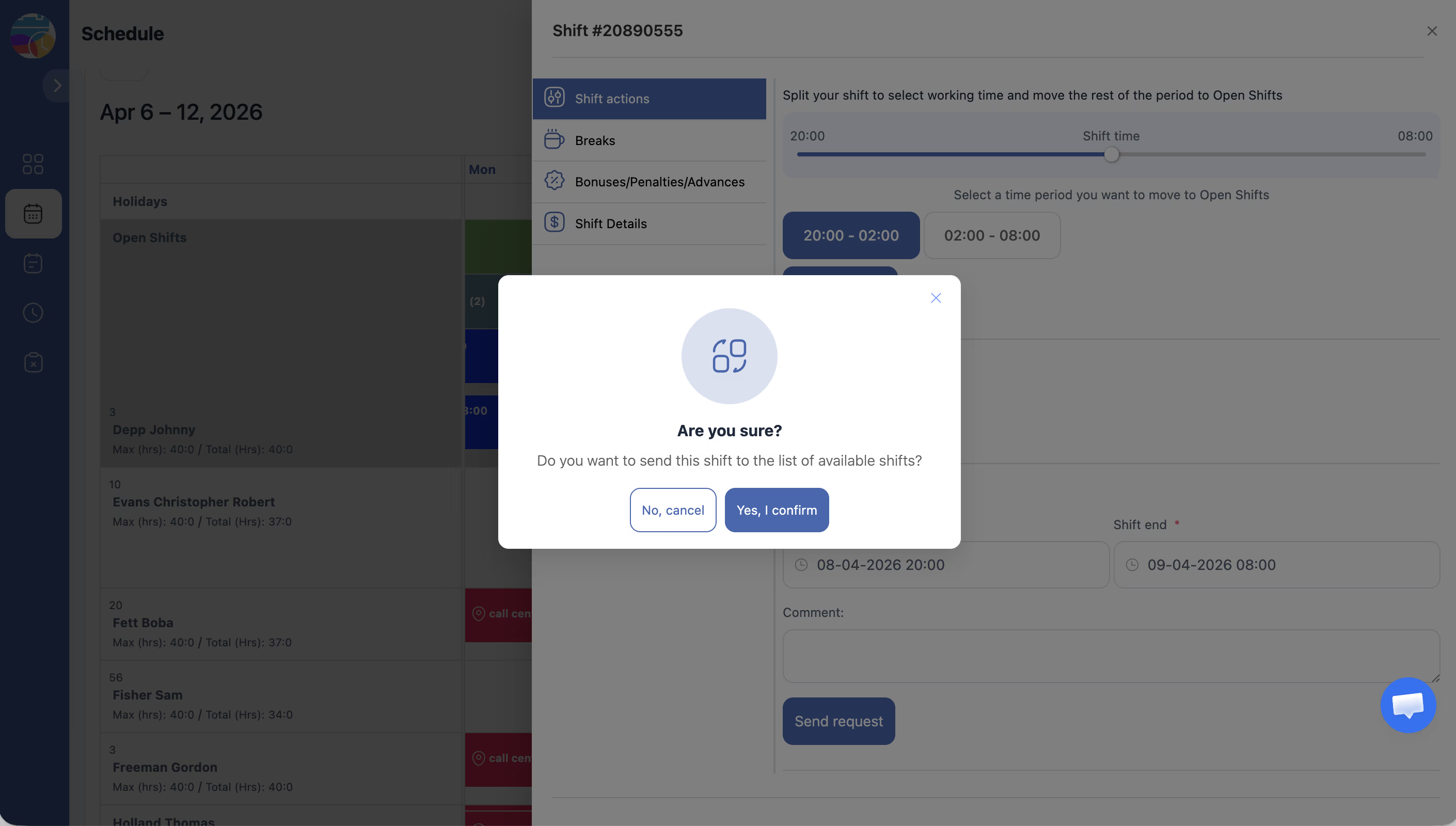
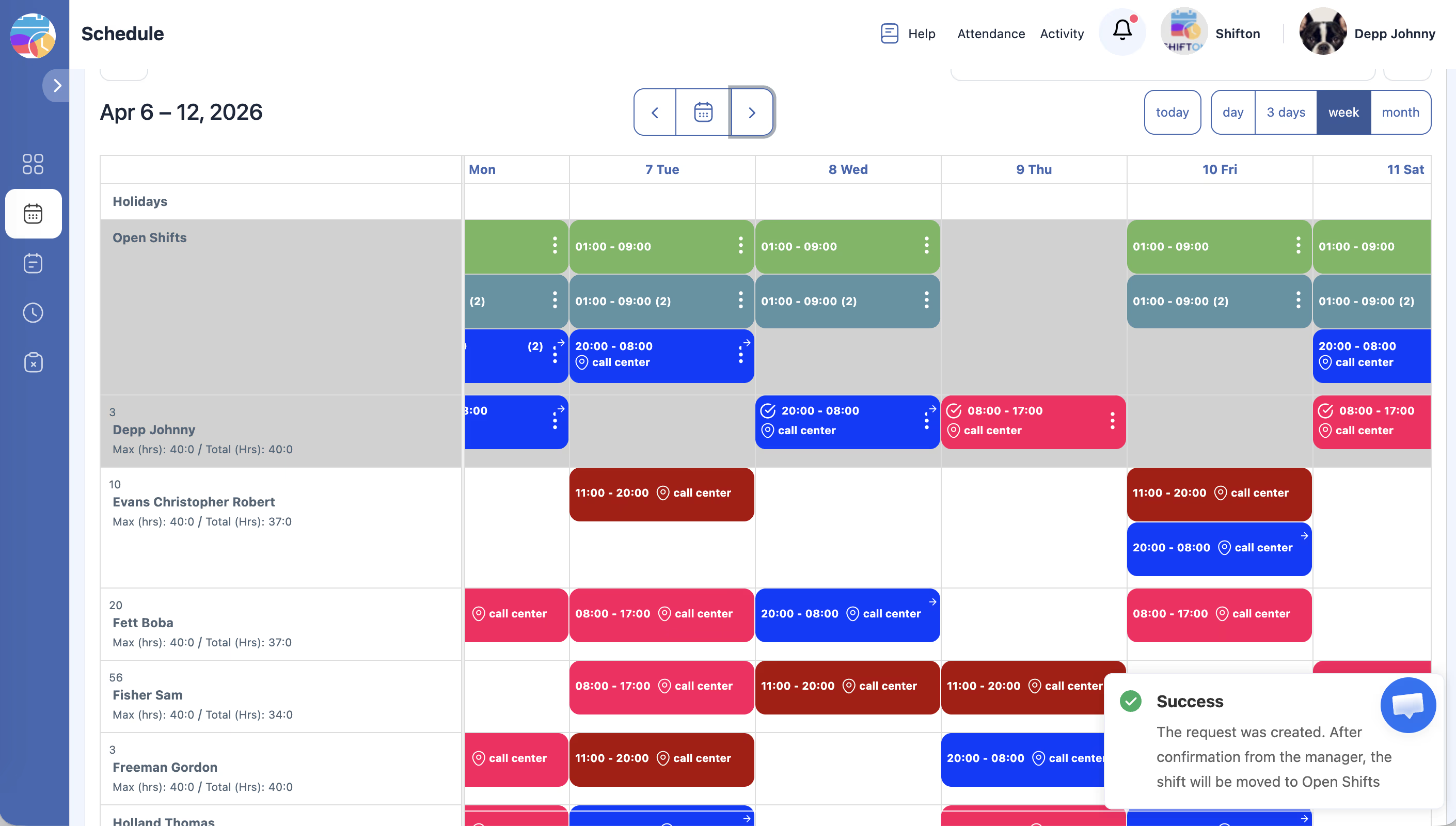
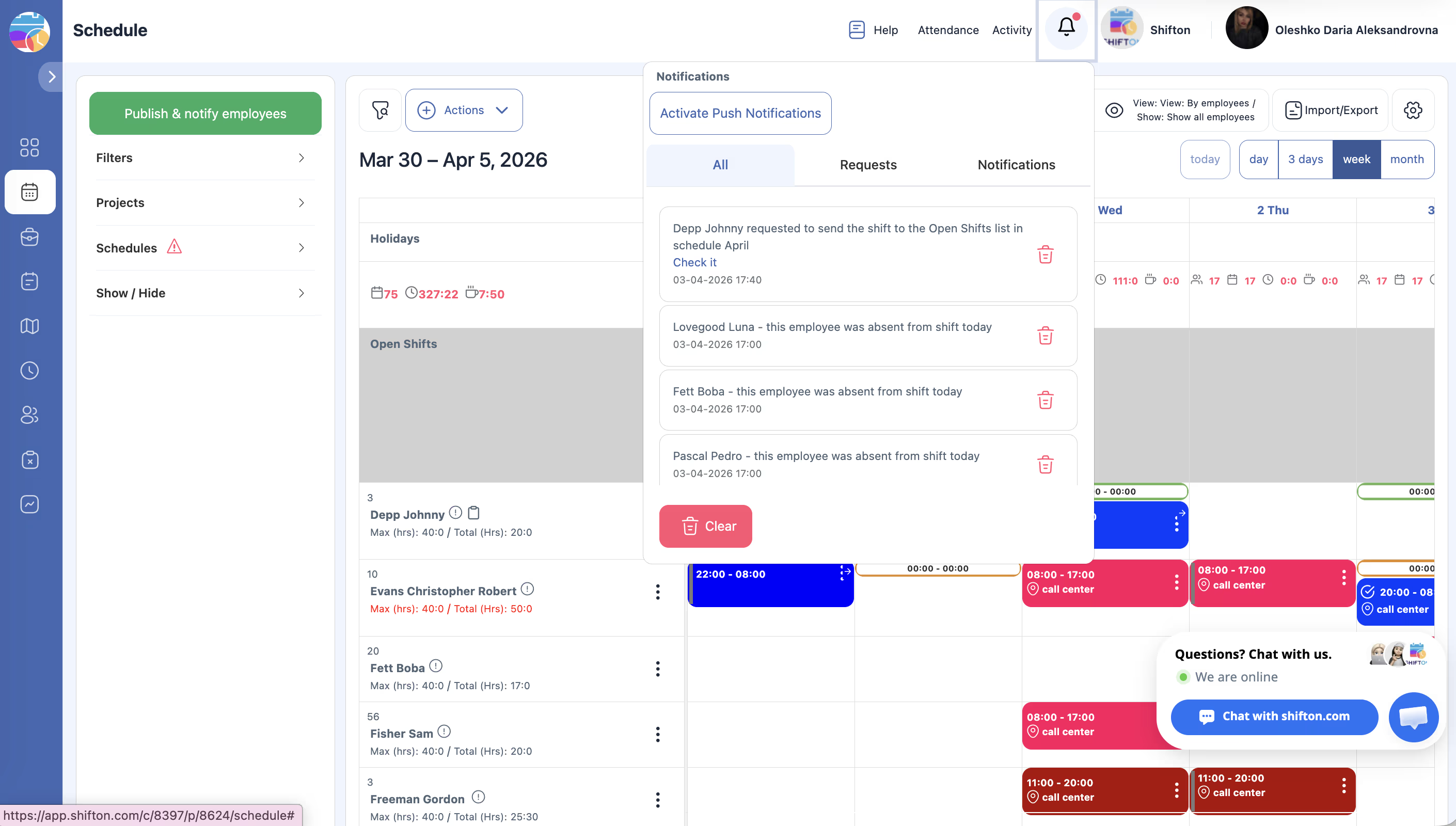
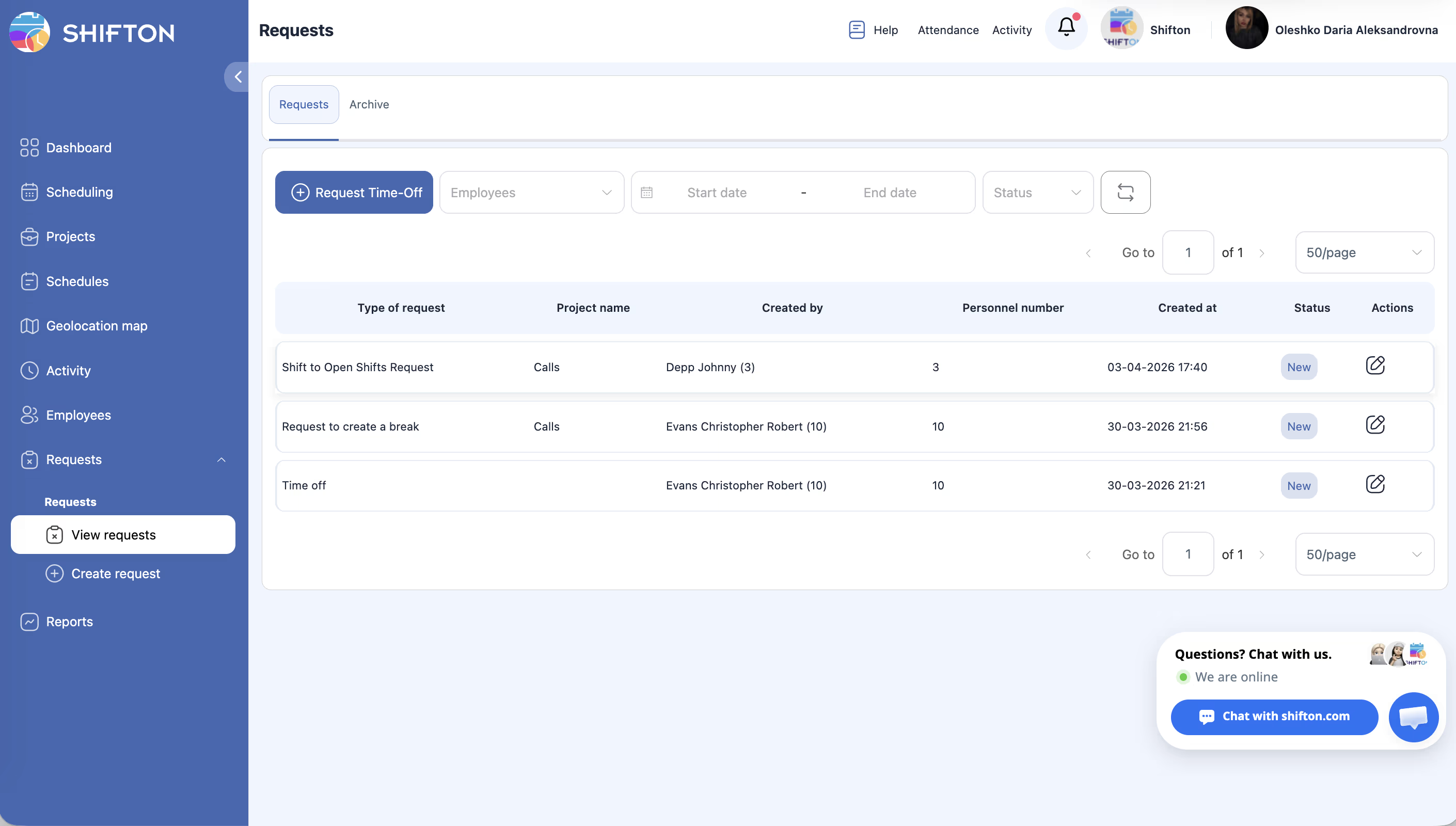
What Happens After Posting
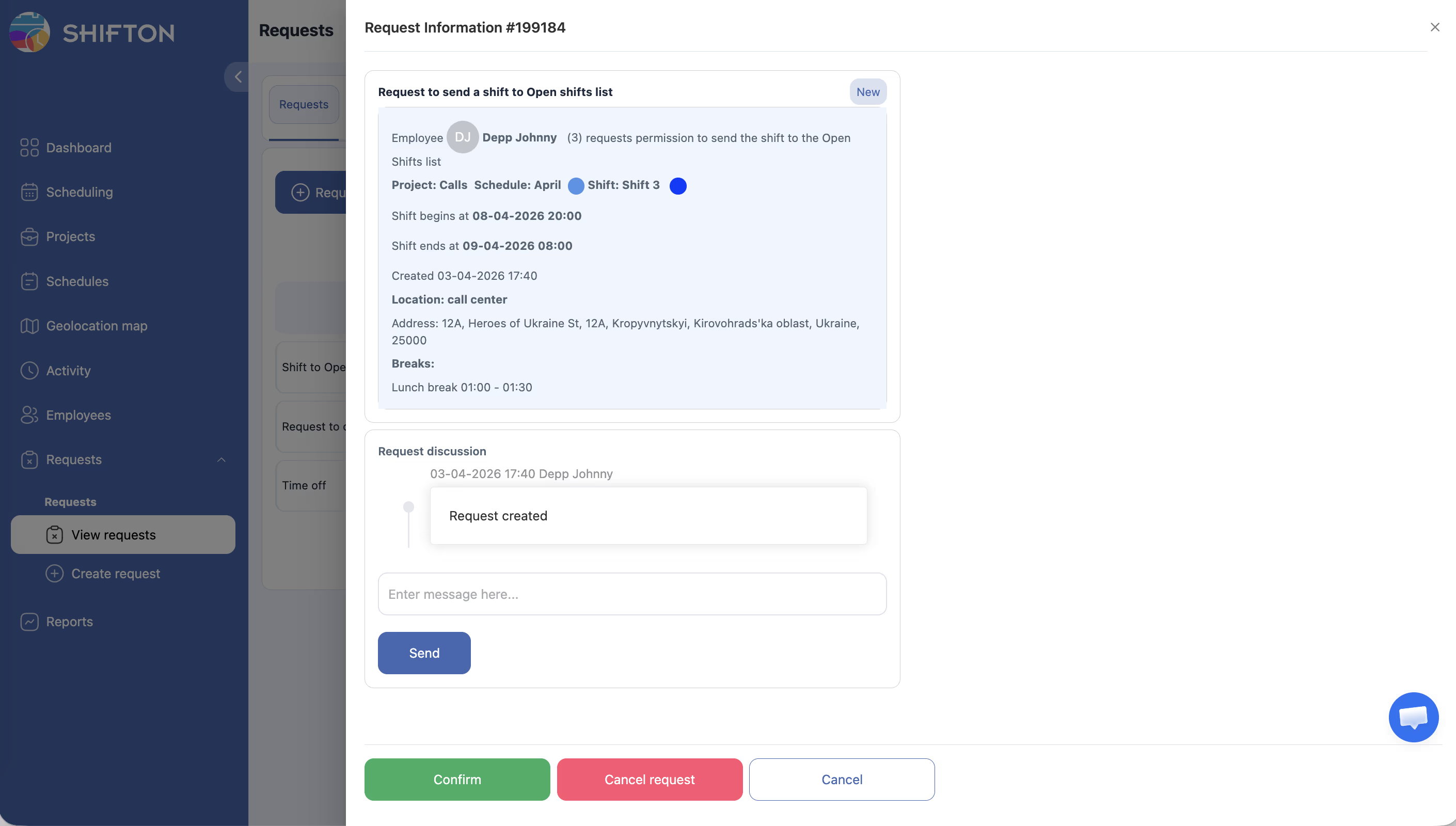
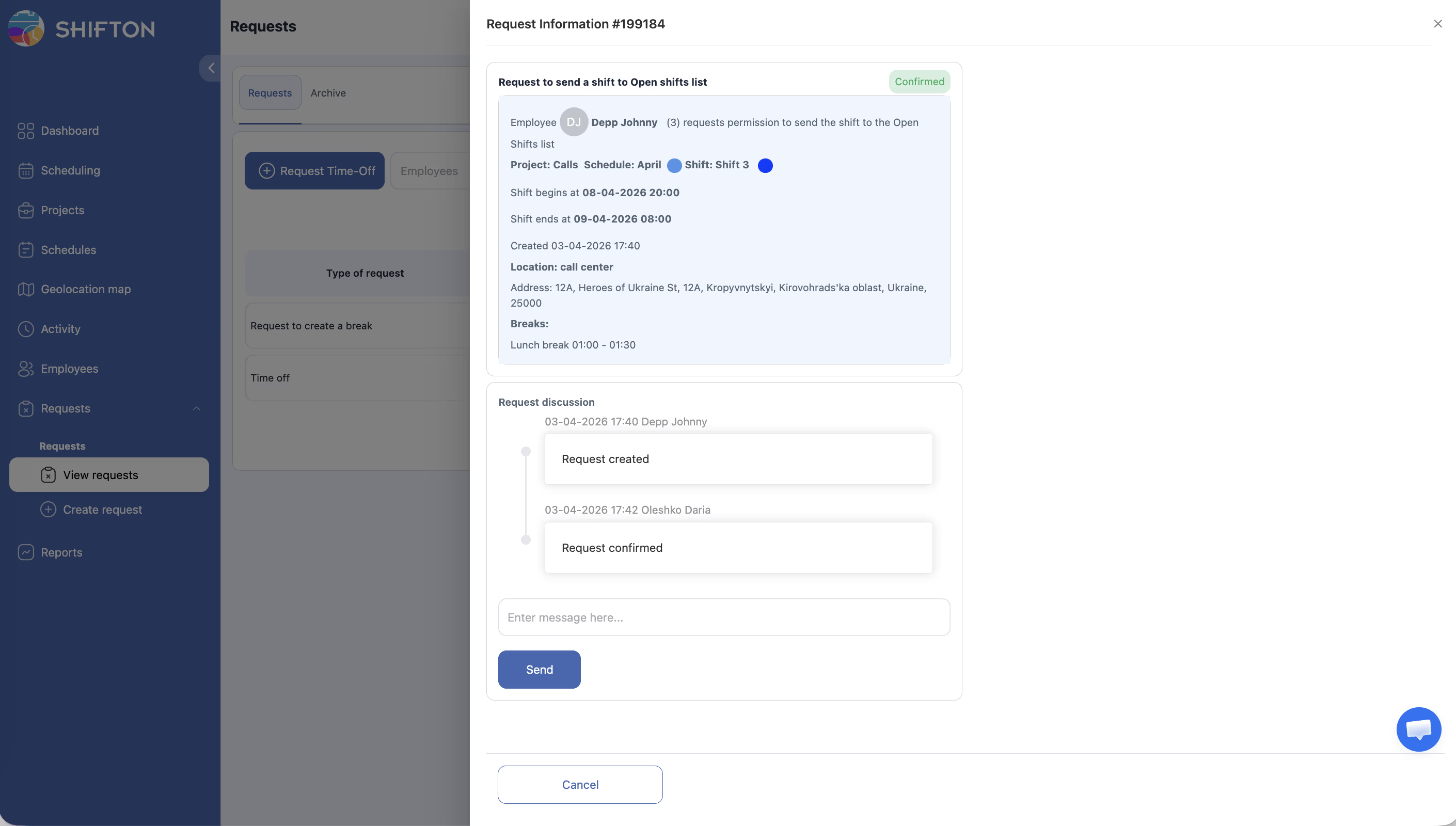
| Step | What Occurs |
|---|---|
| 1 | The shift appears in the Open Shifts row of the schedule |
| 2 | Eligible employees can see and request the shift |
| 3 | Depending on settings, the shift may be claimed automatically or require manager approval |
| 4 | Once claimed, the shift moves to the new employee’s row |
Access Permissions
| Role | Enable Setting | Post Shift to Open Shifts |
|---|---|---|
| Owner | Yes | Yes |
| Administrator | Yes | Yes |
| Manager | Yes (assigned schedules) | Yes |
| Employee | No | Yes (when enabled) |
FAQ
Q: Can I take back a shift after posting it to open shifts?
A: This depends on your company’s configuration. In most cases, once a shift is posted, it stays in the open shifts list until someone claims it. Contact your manager if you need the shift reassigned back to you.
Q: What if nobody takes my posted shift?
A: The shift remains in the Open Shifts row. Your manager can click Publish & Notify Employees to send push notifications to all eligible employees about the available shift. For urgent coverage needs, the Emergency Shifts & Notifications module can send automatic alerts to available employees.
Q: Does posting a shift require manager approval?
A: Posting the shift itself does not require approval if the feature is enabled. However, when another employee claims the shift, that step may require manager confirmation depending on the schedule settings.
Q: Can I post only part of a shift?
A: No, you must post the entire shift. If you need to adjust the shift hours, ask your manager to modify the shift before posting.
Q: What is the difference between “Post to Open Shifts” and “Drop Shift”?
A: “Post to Open Shifts” moves the shift to the open shifts list so another employee can claim it — coverage is maintained. “Drop Shift” simply removes the shift from your schedule without making it available to others. Use “Post to Open Shifts” when you want your shift covered.
Possible Issues and Solutions
| Issue | Possible Cause | Solution |
|---|---|---|
| “Post to open shifts” option missing | The feature is disabled in schedule settings | Ask a manager or admin to enable “Allow employees to send shifts to the open shift list” |
| Shift does not appear in Open Shifts row | Page not refreshed | Refresh the schedule page to see the updated Open Shifts row |
| No one is claiming the posted shift | Other employees may not be aware or available | Notify your manager so they can assign the shift manually |
| Employee posted the wrong shift | Shift was selected by mistake | Contact your manager to reassign the shift back to you |
| Open Shifts row not visible | Schedule view settings may hide it | Check the schedule display settings to ensure the Open Shifts row is shown |