

Track and manage your team’s competencies by creating skills in Shifton. Skills help you match the right employees to the right shifts based on their qualifications.
What Is This?
The Skills page lets you define a library of competencies, certifications, or abilities that can be assigned to individual employees. For example, you might create skills like “Forklift Certified,” “First Aid Trained,” or “Spanish Speaker.” Once skills are assigned to employees, managers can use them to make better scheduling decisions and ensure every shift has the right coverage.
Prerequisites
| # | Prerequisite | Details |
|---|---|---|
| 1 | Active Shifton account | You must have a registered company account |
| 2 | Admin or Owner role | Only Admins and Owners can create and manage skills |
| 3 | Employees added to the system | Skills are assigned to existing employee profiles |
Step-by-Step Instructions
Viewing Skills
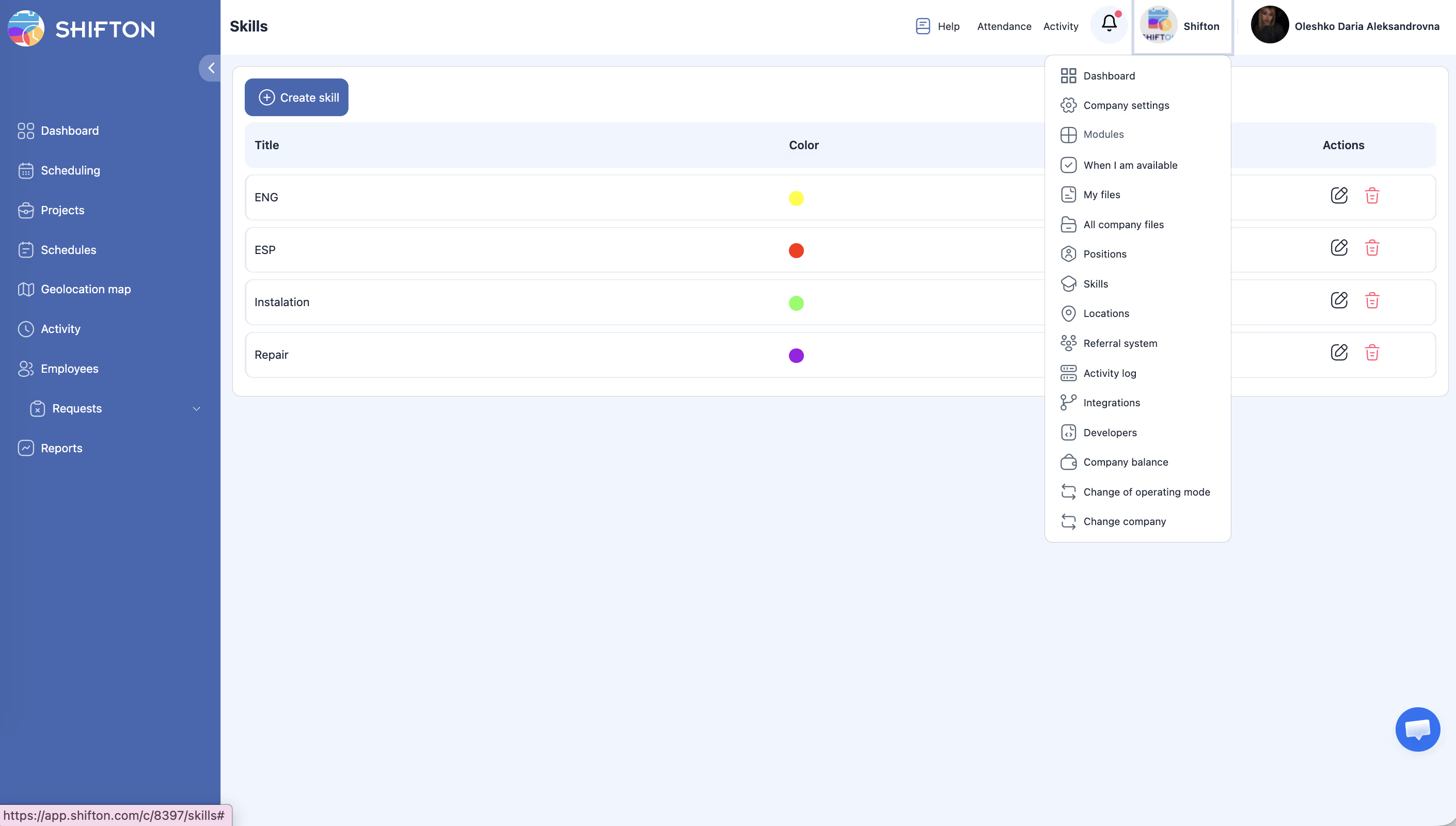
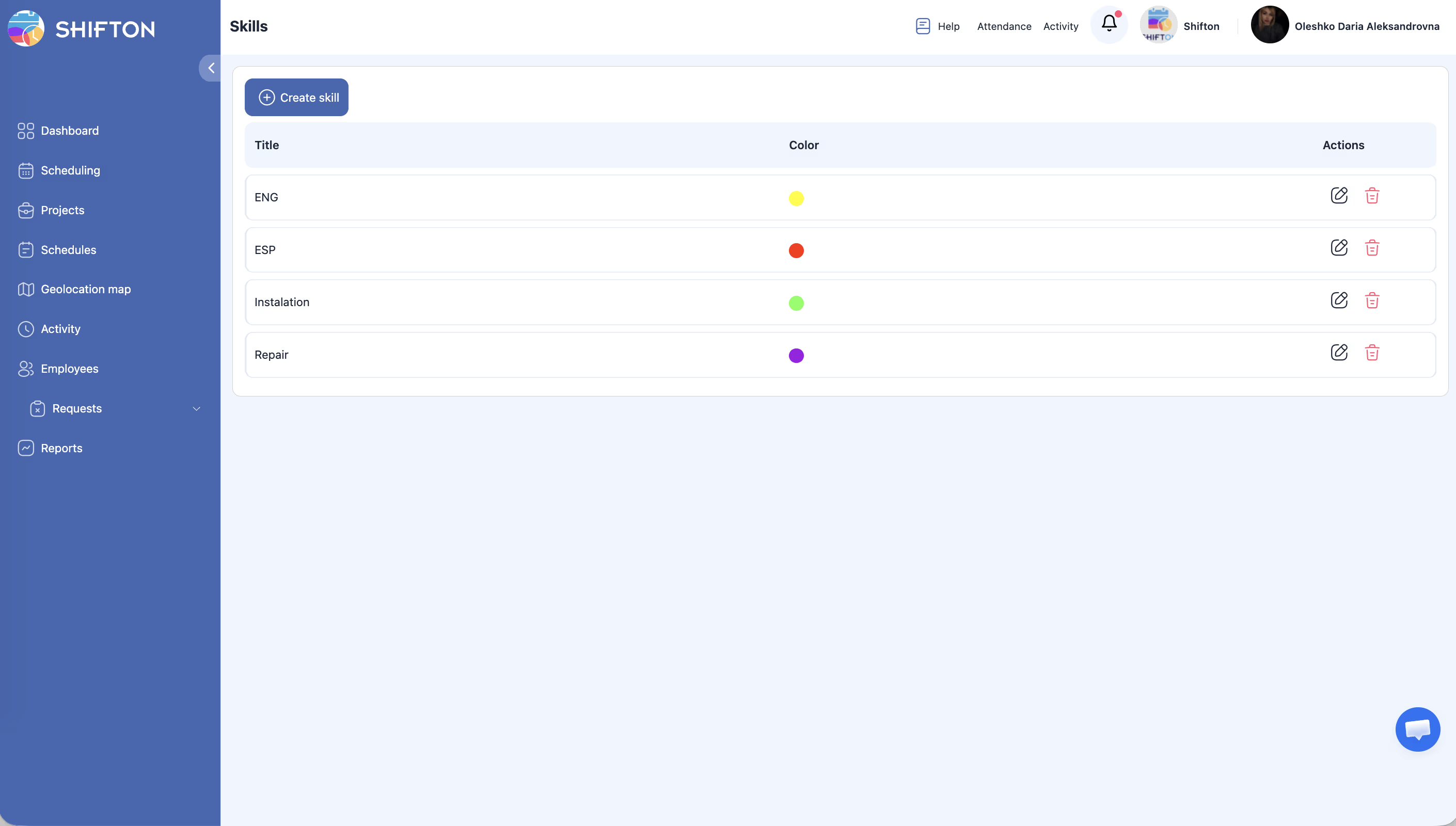
The skills table displays the following columns:
| Column | Description |
|---|---|
| Title | The name of the skill (e.g., “Barista Training,” “POS System”) |
| Color | A color label used to visually identify the skill |
| Actions | Available operations: Edit, Delete |
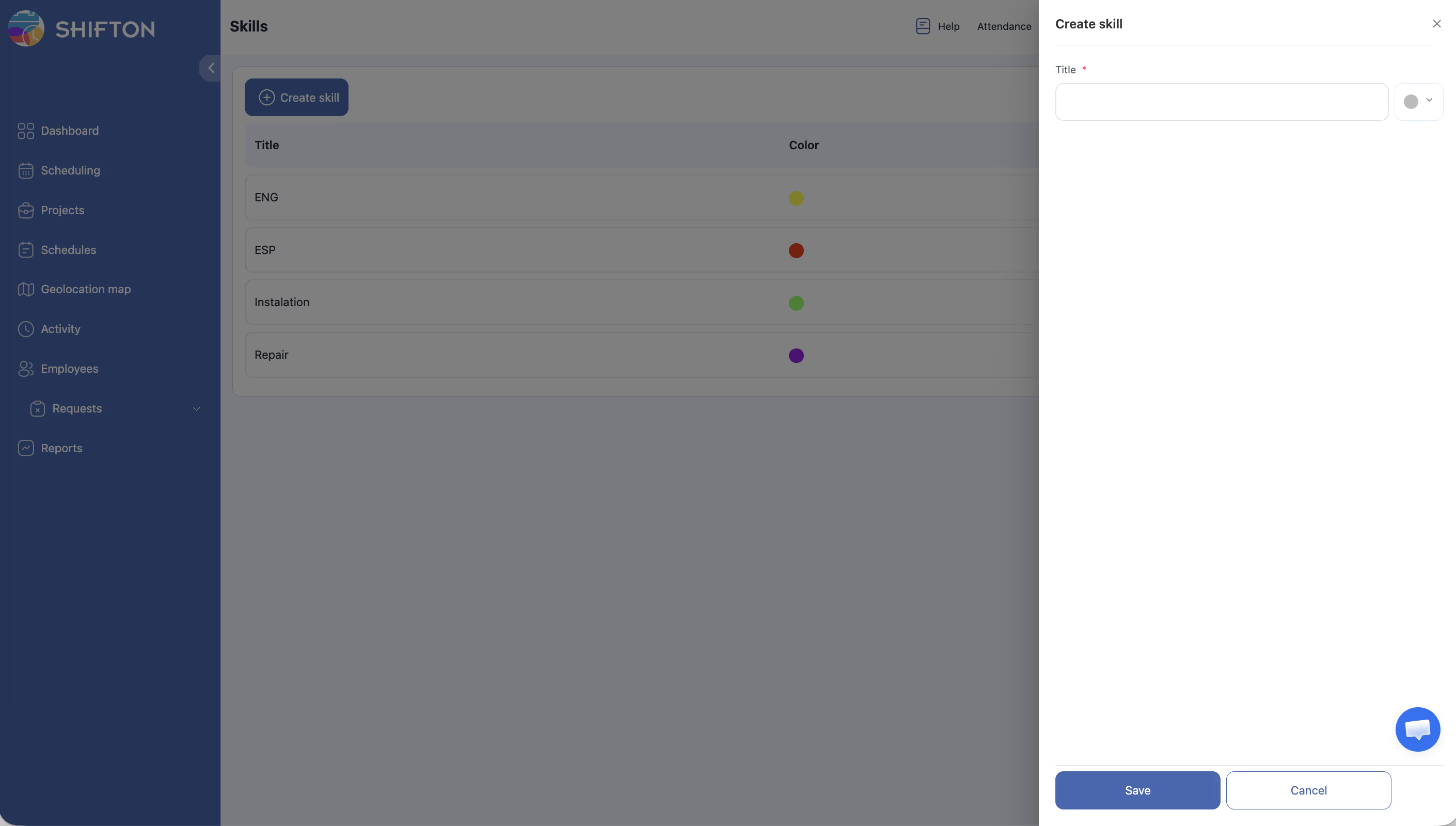
Creating a New Skill
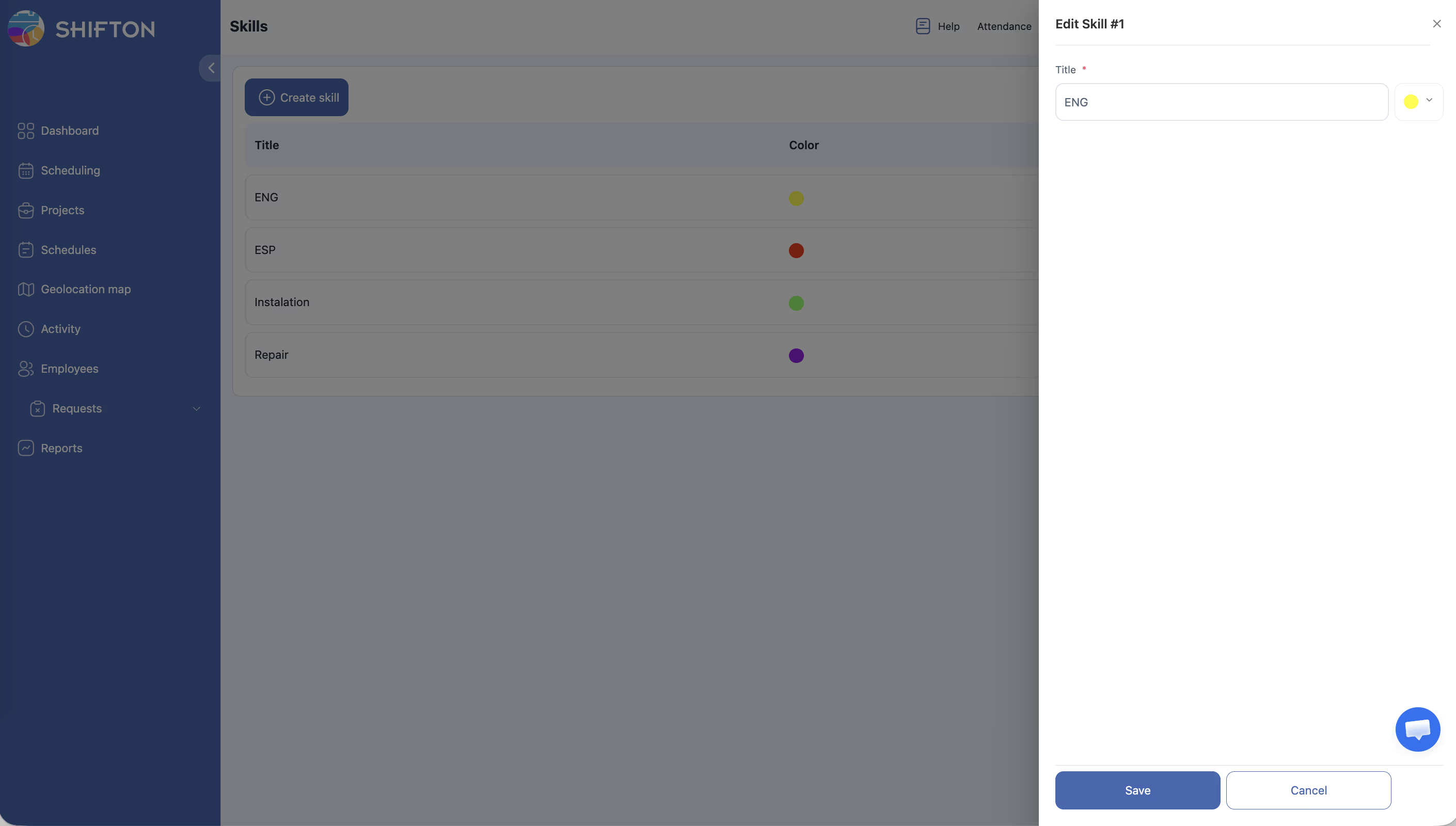
Editing a Skill
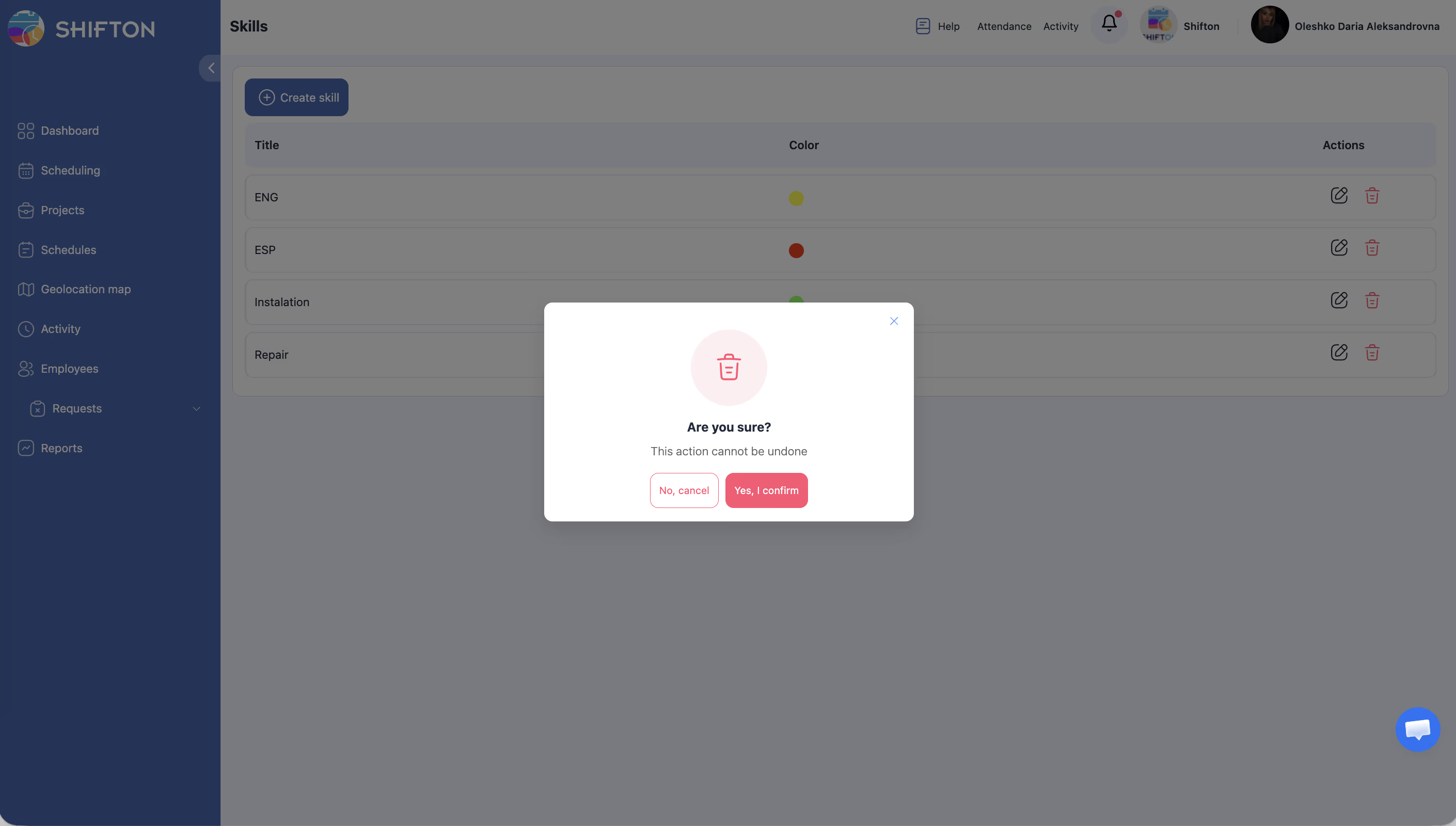
Deleting a Skill
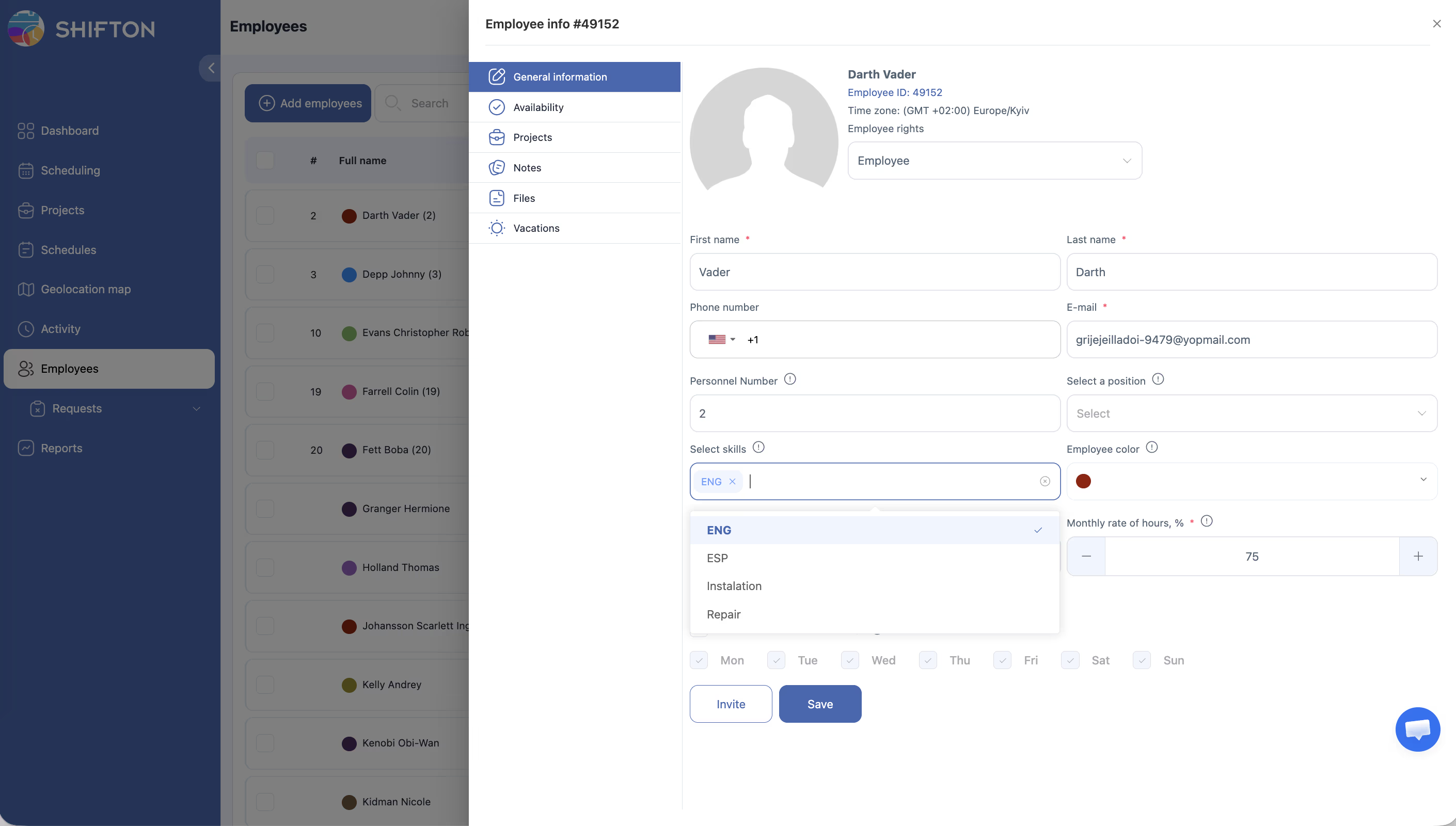
Assigning Skills to Employees
Access Permissions
| Role | View Skills | Create Skill | Edit Skill | Delete Skill | Assign to Employees |
|---|---|---|---|---|---|
| Owner | Yes | Yes | Yes | Yes | Yes |
| Admin | Yes | Yes | Yes | Yes | Yes |
| Manager | Yes | No | No | No | Limited (assigned employees only) |
| Employee | No | No | No | No | No |
FAQ
Q: How many skills can I create?
A: There is no hard limit on the number of skills you can define. Create as many as your organization needs.
Q: Can one employee have multiple skills?
A: Yes. Employees can be assigned any number of skills. This is useful for team members who hold multiple certifications or have diverse competencies.
Q: Are skills used automatically when creating schedules?
A: Skills are not used by the automatic schedule builder when generating shifts. However, skills are used in the Activity module. When creating an Activity Template (Activity → Activity Templates tab → Create a template), you can assign a required skill. This allows the system to match activities to employees who have the appropriate skills. Skills also serve as a reference for managers when manually assigning shifts.
Q: Where exactly are skills used in Shifton?
A: Skills are used in three places:
1. Employee profiles — assigned in the General Information tab to track competencies.
2. Activity Templates — each template has a Skills field, allowing you to specify which skill is required for that activity.
3. Activity calendar filters — managers can filter the activity view to find employees with specific skills.
Q: What happens to employee profiles when I delete a skill?
A: The deleted skill is removed from all employee profiles automatically. No other employee data is affected.
Q: Can employees see their assigned skills?
A: Employees can view their own profile information, including any skills assigned to them, depending on your company’s visibility settings.
Possible Issues and Solutions
| Issue | Possible Cause | Solution |
|---|---|---|
| Cannot create a new skill | Insufficient permissions | Confirm you have an Admin or Owner role |
| Skill does not appear in employee profile options | The skill was just created and the page has not refreshed | Refresh the employee profile page |
| Deleted skill still shows on an employee’s profile | Browser cache displaying old data | Refresh the page or clear your browser cache |
| Cannot assign skills to an employee | You do not have edit access to that employee’s profile | Check your role permissions or ask an Admin to assign the skill |
| Too many skills making selection difficult | No search or filter available in the skills dropdown | Use clear, consistent naming conventions and consider consolidating similar skills |