

Define the job roles within your organization so you can assign employees, filter schedules, and generate accurate reports. Positions are a fundamental building block of workforce management in Shifton.
What Is This?
The Positions page allows you to create and manage all job titles and roles used across your company. Each position can have a color, a base hourly rate, expected monthly working hours, and a sort priority. Once created, positions can be assigned to employee profiles, used in schedule filters, and referenced in payroll and attendance reports.
Prerequisites
| # | Prerequisite | Details |
|---|---|---|
| 1 | Active Shifton account | You must have a registered company account |
| 2 | Admin or Owner role | Only Admins and Owners can create and manage positions |
Step-by-Step Instructions
Viewing Positions
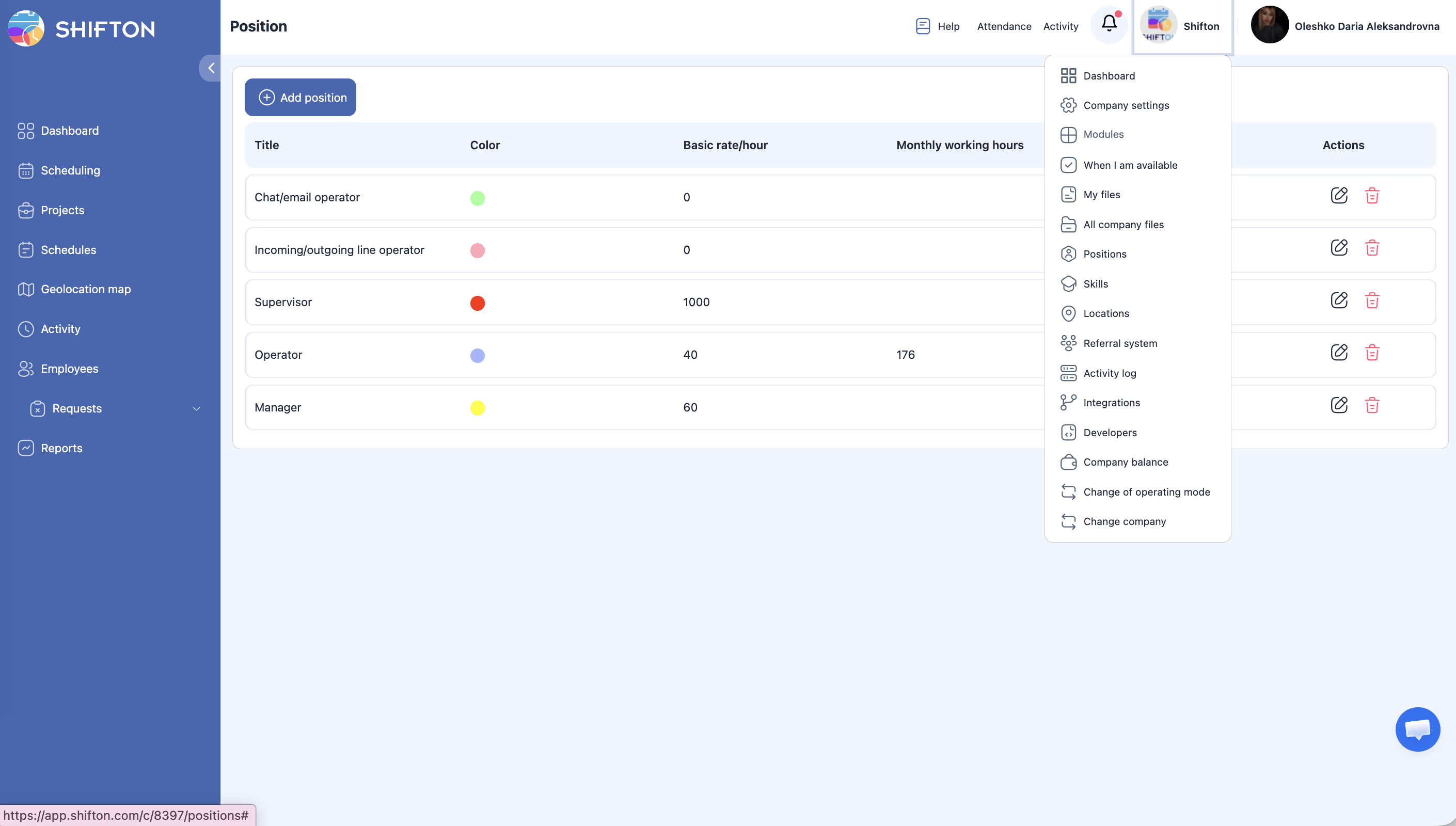
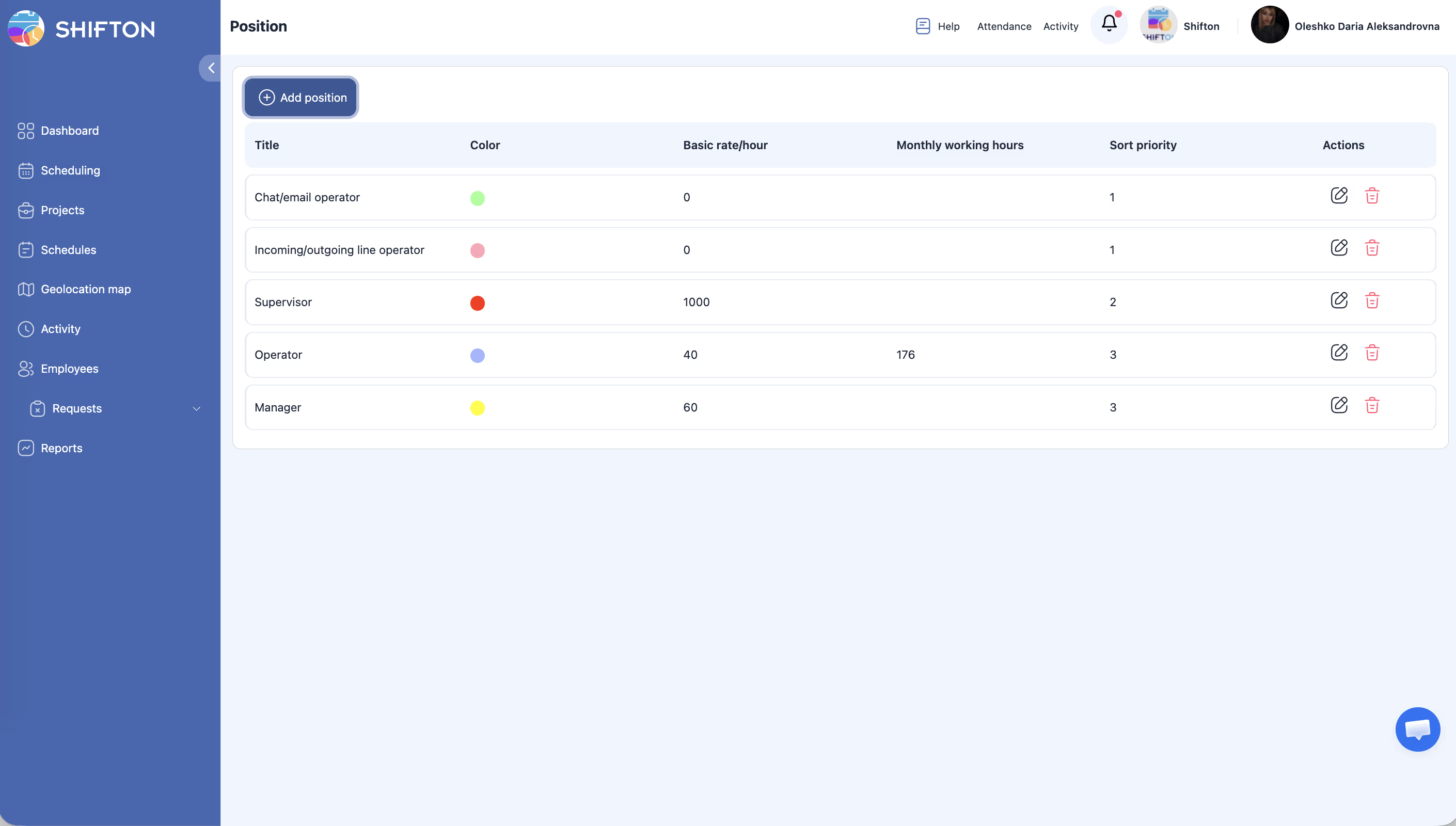
The positions table displays the following columns:
| Column | Description |
|---|---|
| Title | The name of the job position (e.g., “Barista,” “Shift Supervisor”) |
| Color | A color label used to identify the position visually on schedules |
| Basic rate/hour | The default hourly pay rate assigned to this position |
| Monthly working hours | The expected number of working hours per month for this position |
| Sort priority | A numeric value that controls the order positions appear in dropdowns and lists (lower numbers appear first) |
| Actions | Available operations: Edit, Delete |
Adding a New Position
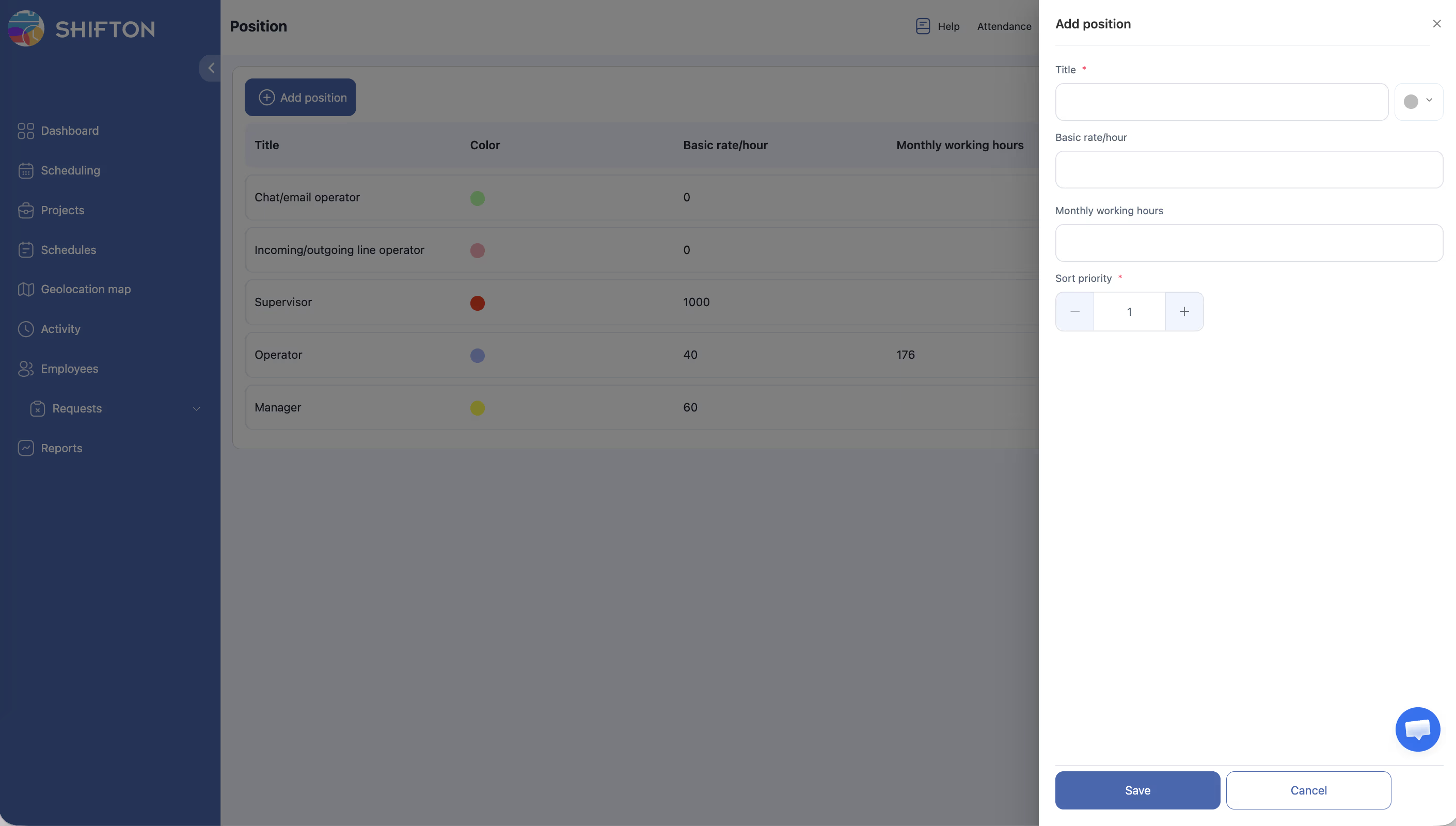
Editing a Position
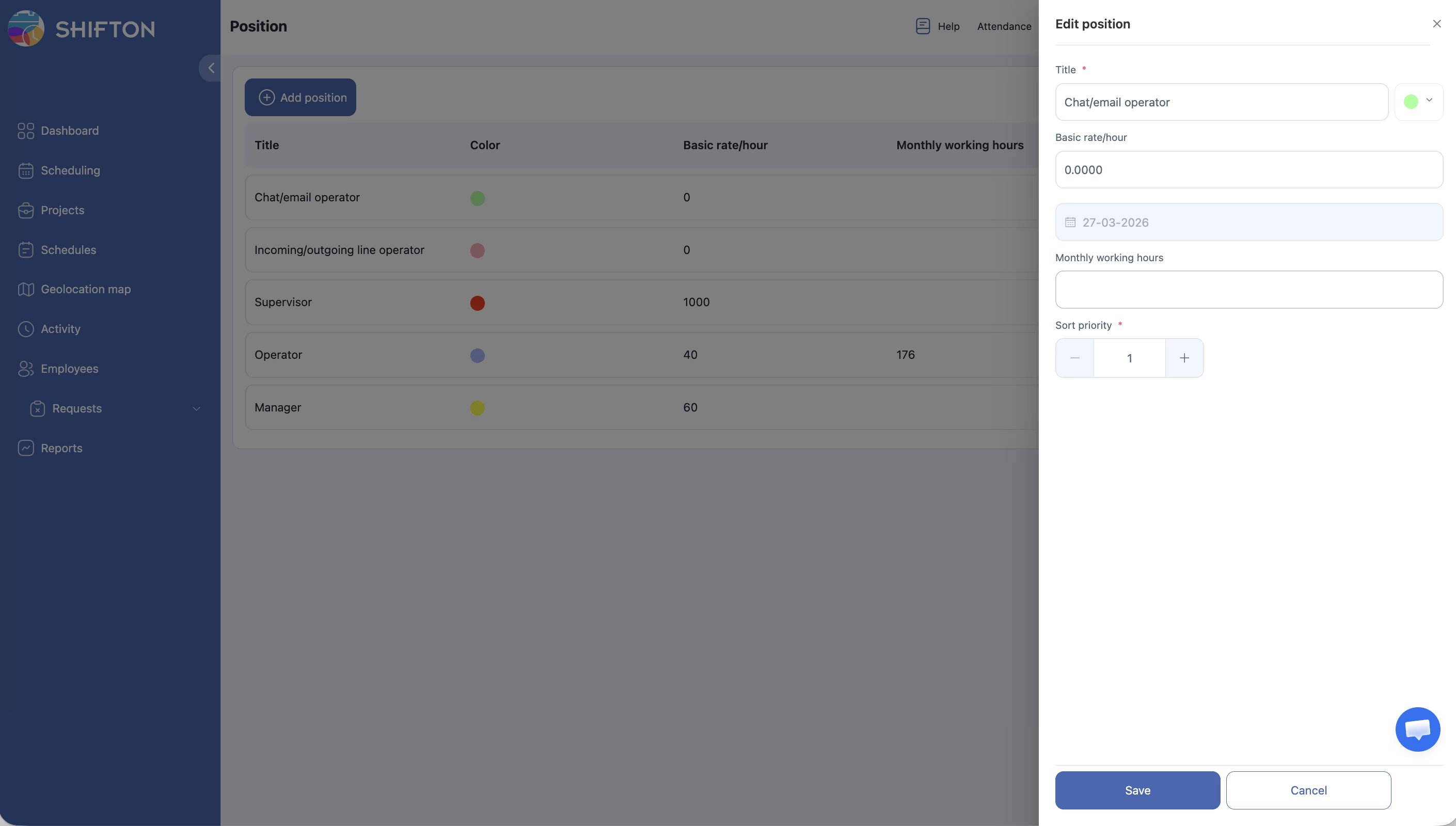
Deleting a Position
Where Positions Are Used
Positions appear throughout Shifton in several key areas:
| Area | How Positions Are Used |
|---|---|
| Employee profiles | Each employee can be assigned one or more positions |
| Schedule filters | Filter the schedule view by position to see only relevant employees |
| Reports | Generate reports grouped or filtered by position for payroll and attendance |
| Shift templates | Associate shift templates with specific positions |
Access Permissions
| Role | View Positions | Add Position | Edit Position | Delete Position |
|---|---|---|---|---|
| Owner | Yes | Yes | Yes | Yes |
| Admin | Yes | Yes | Yes | Yes |
| Manager | Yes | No | No | No |
| Employee | No | No | No | No |
FAQ
Q: Can an employee hold more than one position?
A: Yes, employees can be assigned multiple positions. This is useful for team members who are cross-trained or who cover different roles on different days.
Q: Does changing the hourly rate on a position affect past payroll data?
A: No. Changes to the basic rate per hour apply going forward. Historical records retain the rate that was in effect at the time.
Q: What does the sort priority do exactly?
A: The sort priority controls the order in which positions appear in dropdown menus and lists throughout Shifton. Positions with lower priority numbers appear first, making the most commonly used positions easier to find.
Q: Can I merge two positions into one?
A: There is no automatic merge feature. You would need to reassign employees from one position to the other, then delete the unused position.
Q: Will deleting a position remove employees from the system?
A: No. Deleting a position does not delete employees. However, affected employees will no longer have that position listed in their profile and should be reassigned.
Possible Issues and Solutions
| Issue | Possible Cause | Solution |
|---|---|---|
| Cannot add a new position | Insufficient permissions | Confirm you have an Admin or Owner role |
| Position color not showing on the schedule | The position is not assigned to any employees in the filtered view | Assign the position to employees and check your schedule filters |
| Hourly rate shows as 0 | The field was left empty during creation | Edit the position and enter the correct rate |
| Positions appear in the wrong order in dropdowns | Sort priority values need adjustment | Edit each position and set the desired sort priority numbers |
| Deleted position still appears in reports | Historical data retains position references | This is expected behavior — past records preserve the original position name |