

Create reusable shift configurations with pre-defined times, breaks, and colors. Shift templates save time when you manually add shifts to any schedule.
What Is This?
Shift Templates are pre-configured shift setups that you can reuse whenever you add a shift to a schedule. Instead of entering the same start time, end time, break duration, and color every time, you select a template and the fields are filled in automatically.
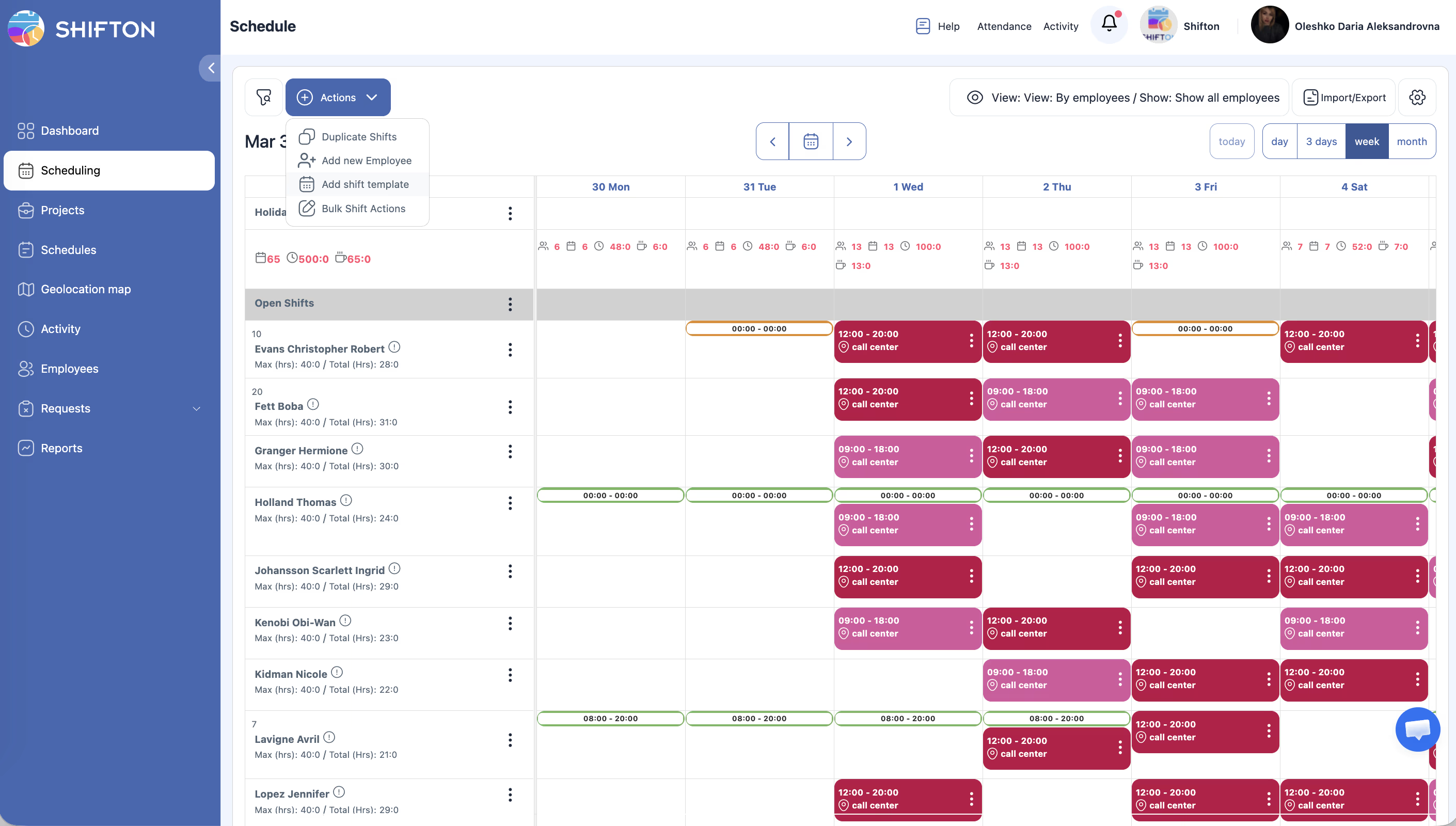
Shift templates are managed from the Shift Templates tab on the Schedules page. Once created, they appear in the shift template dropdown when adding or editing shifts on any schedule.
Prerequisites
| # | Prerequisite | Details |
|---|---|---|
| 1 | Active Shifton account | You must have a registered company account |
| 2 | Admin, Owner, or Manager role | You need permissions to create and manage shift templates |
Step-by-Step Instructions
Viewing Shift Templates
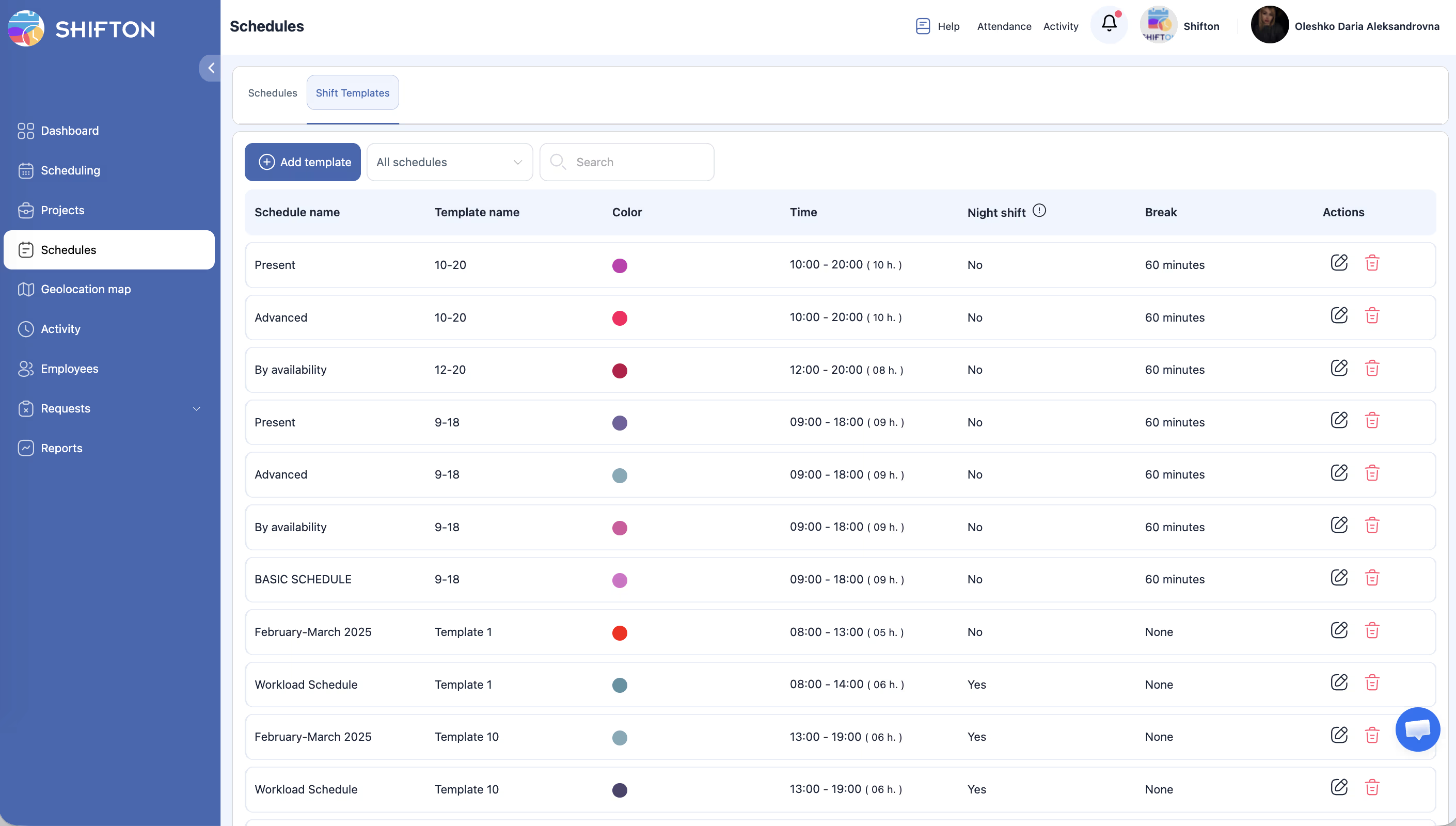
Each template displays the following information:
| Field | Description |
|---|---|
| Name | The template name (e.g., “Morning Shift,” “Night Shift”) |
| Time range | The start and end time of the shift (e.g., 8:00 AM — 4:00 PM) |
| Break duration | The length of the break included in the shift (e.g., 30 minutes) |
| Color | A color that visually represents this shift type on the schedule |
| Actions | Edit, Delete |
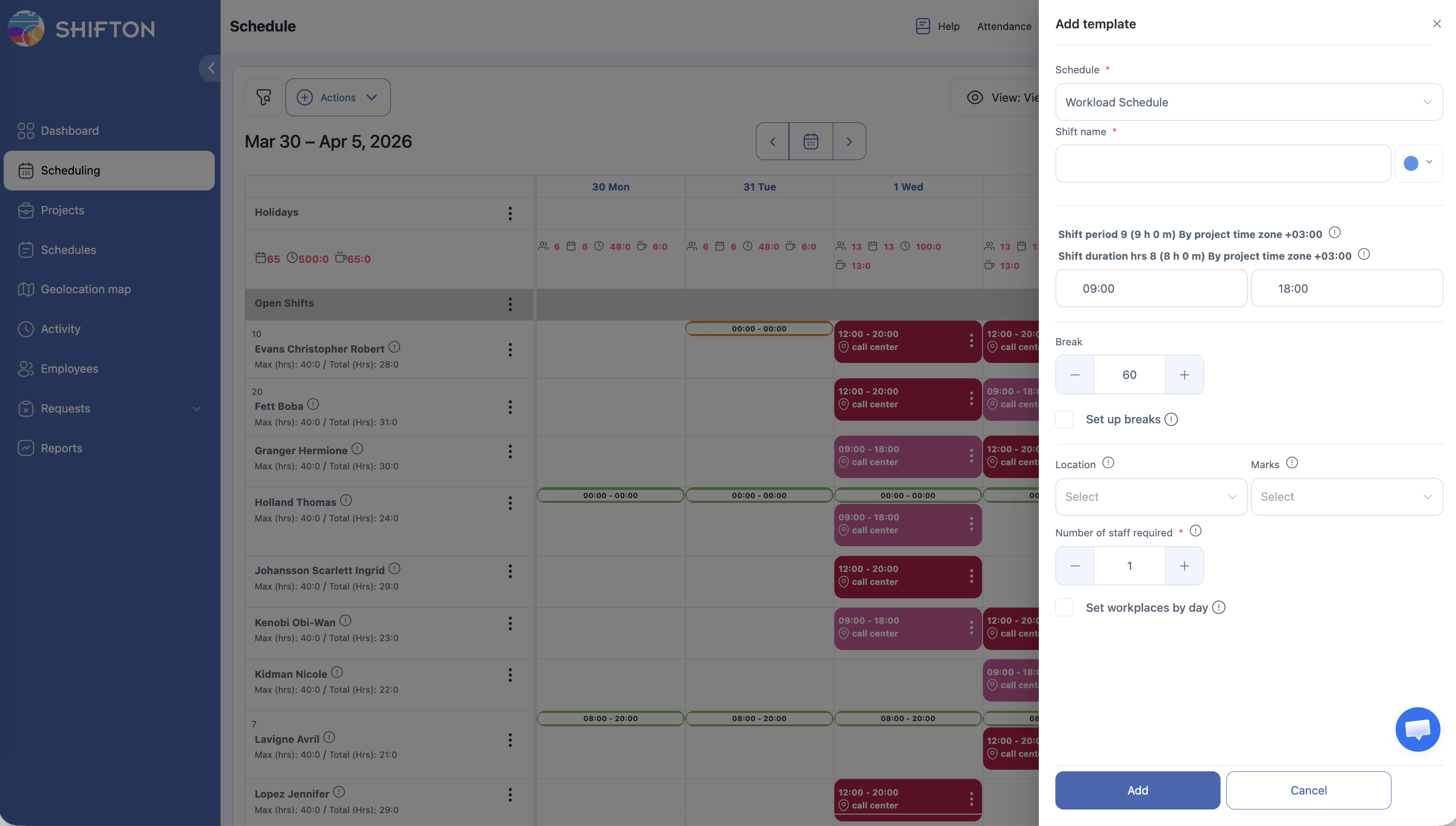
Creating a New Shift Template
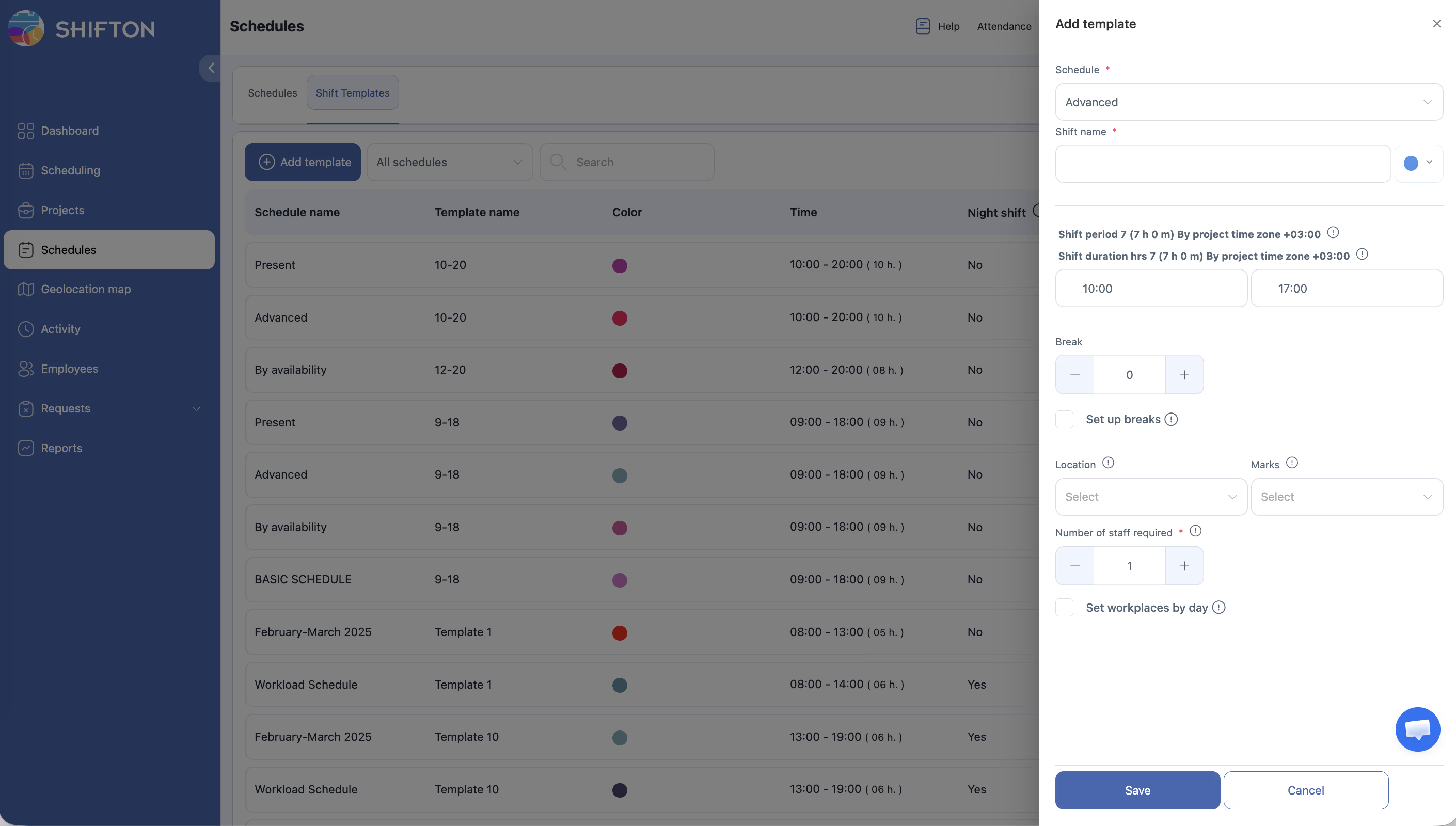
| Field | Description |
|---|---|
| Name | A descriptive name for the template (e.g., “Evening 4-12”) |
| Start time | The time the shift begins |
| End time | The time the shift ends |
| Break duration | The length of the break in minutes (e.g., 30, 45, 60) |
| Color | Choose a color to distinguish this template on the schedule grid |
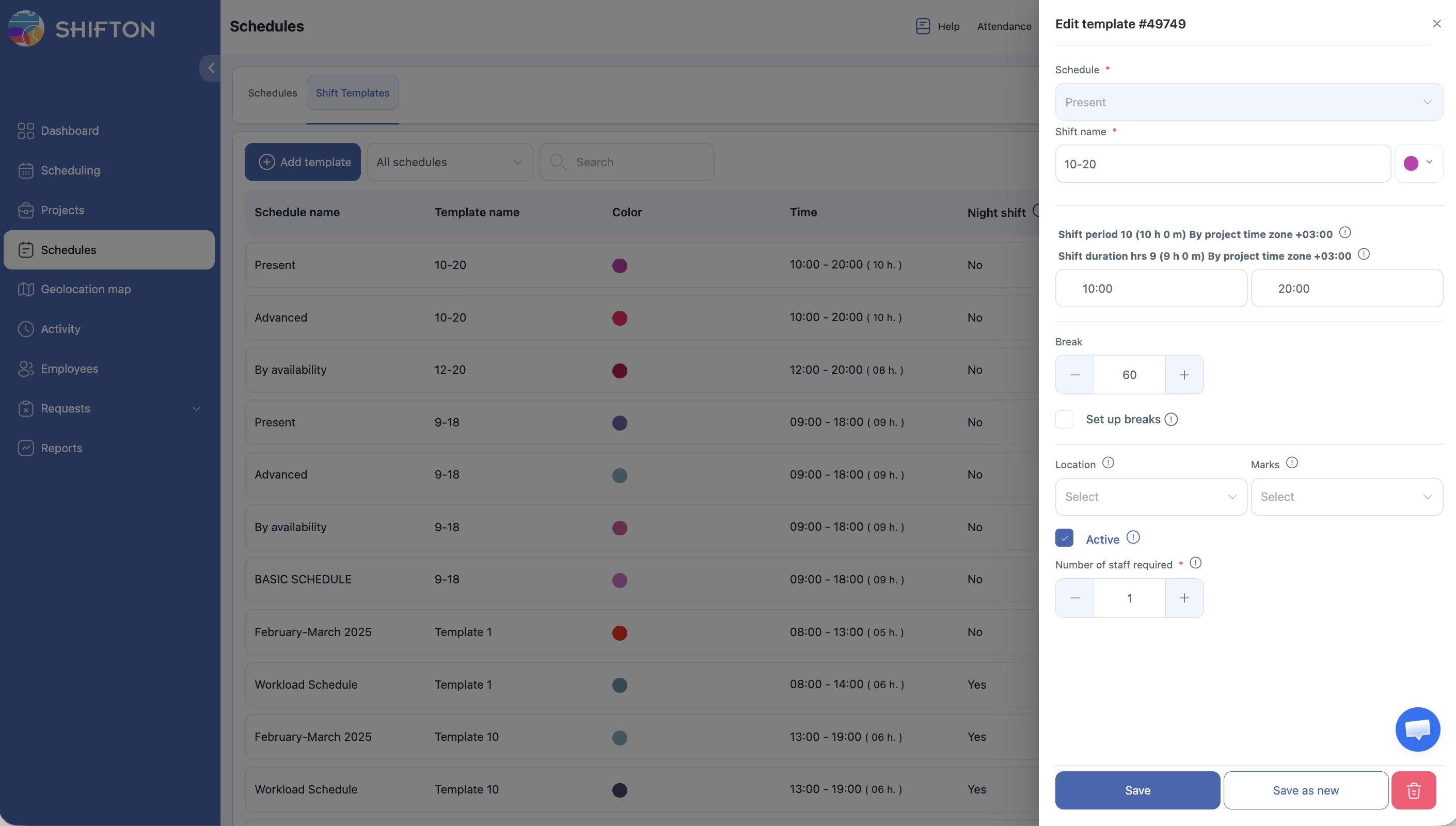
Editing a Shift Template
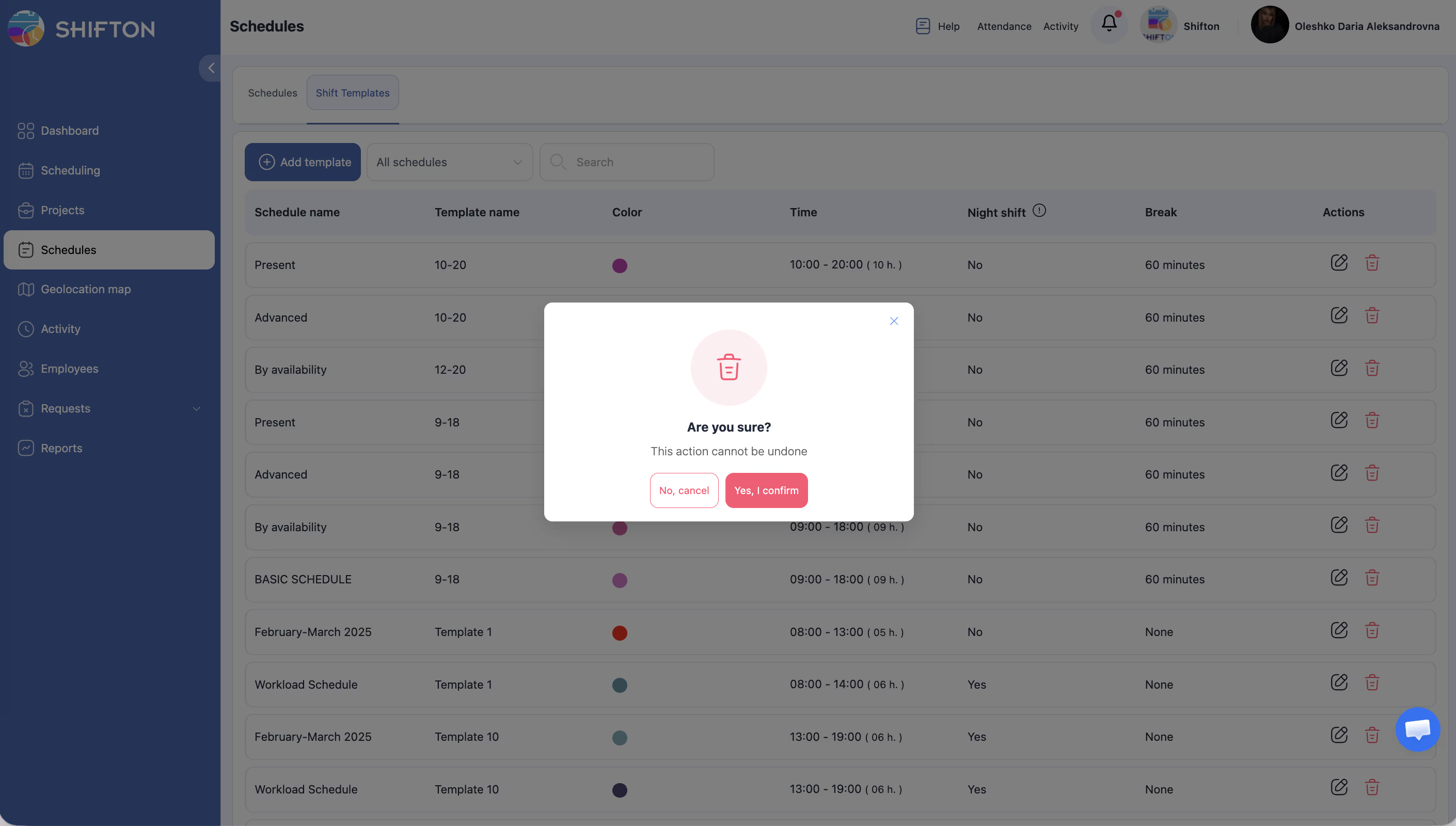
Deleting a Shift Template
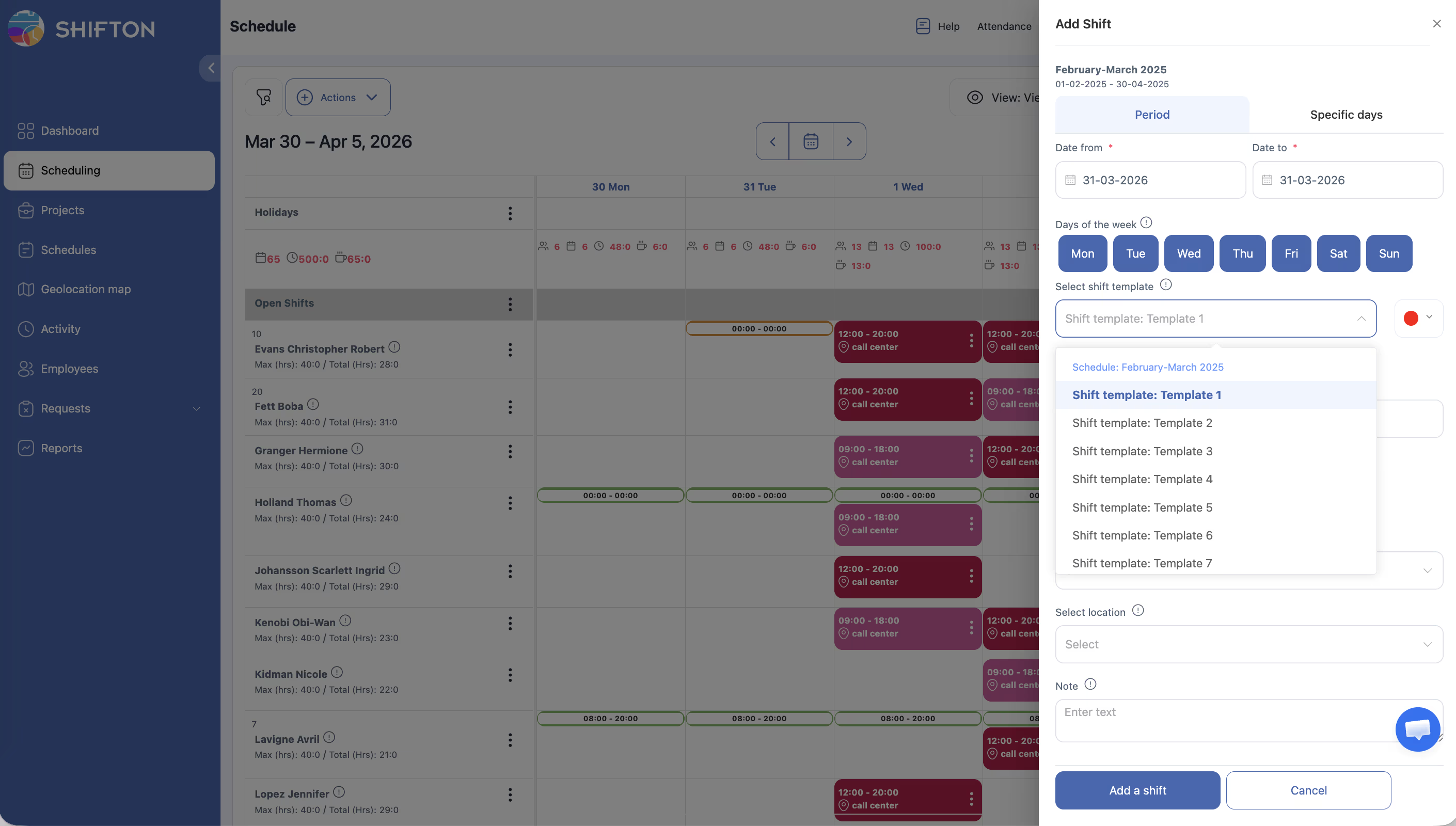
Using a Shift Template When Adding Shifts
Access Permissions
| Role | View Templates | Create Template | Edit Template | Delete Template | Use Template |
|---|---|---|---|---|---|
| Owner | Yes | Yes | Yes | Yes | Yes |
| Admin | Yes | Yes | Yes | Yes | Yes |
| Manager | Yes | Yes | Yes | Yes | Yes |
| Employee | No | No | No | No | No |
FAQ
Q: Are shift templates required to create a schedule?
A: No. Shift templates are optional. They are a convenience tool that saves time when manually adding shifts. Automatic schedule types generate shifts without needing templates.
Q: If I update a shift template, will existing shifts change?
A: No. Changes to a template only affect shifts created with that template in the future. Existing shifts retain the settings they were created with.
Q: Can I use the same shift template across different projects?
A: Yes. Shift templates are available company-wide and can be used when adding shifts to any project’s schedule.
Q: Is there a limit to how many shift templates I can create?
A: There is no hard limit. Create as many templates as you need to cover your various shift configurations.
Q: Can I override template values when adding a shift?
A: Yes. After selecting a template, all fields are editable. You can change the time, break, or any other setting before saving the individual shift.
Possible Issues and Solutions
| Issue | Possible Cause | Solution |
|---|---|---|
| Shift template does not appear in the dropdown | The template was just created and the page has not refreshed | Refresh the schedule page |
| Template color does not match the shift color | The shift color was manually changed after selecting the template | Reselect the template or manually set the color to match |
| Deleted template still appears in the dropdown | Browser cache displaying outdated data | Refresh the page or clear your browser cache |
| Cannot create a shift template | Insufficient permissions | Confirm you have Admin, Owner, or Manager access |
| Template break duration does not populate correctly | The break field in the shift form requires a specific format | Ensure the break is entered as a number in minutes in the template settings |