

Plan staffing levels by hour using demand data. The Load Demand tab lets you define how many employees are needed at each hour of the day, then uses that data when auto-generating shifts.
What Is This?
Load Demand is a tab on Step 3 (Shift Data) of the schedule creation wizard for Advanced and By Availability schedule types. It allows you to:
- Set per-hour employee demand for any date
- Upload historical or forecasted demand data from a CSV file
- Define minimum/maximum shift durations and coverage thresholds
- Let the schedule generator match staffing to demand
Requires the Forecasting module to be enabled (Modules → Forecasting). The module costs $2/employee/month with a free trial of up to 60 days.
Prerequisites
| # | Requirement | Details |
|---|---|---|
| 1 | Forecasting module enabled | Modules → toggle Forecasting on |
| 2 | Advanced or By Availability schedule | Load Demand is not available for Basic, Preset, or Empty types |
| 3 | Admin or Owner role | To create/edit schedules and configure demand |
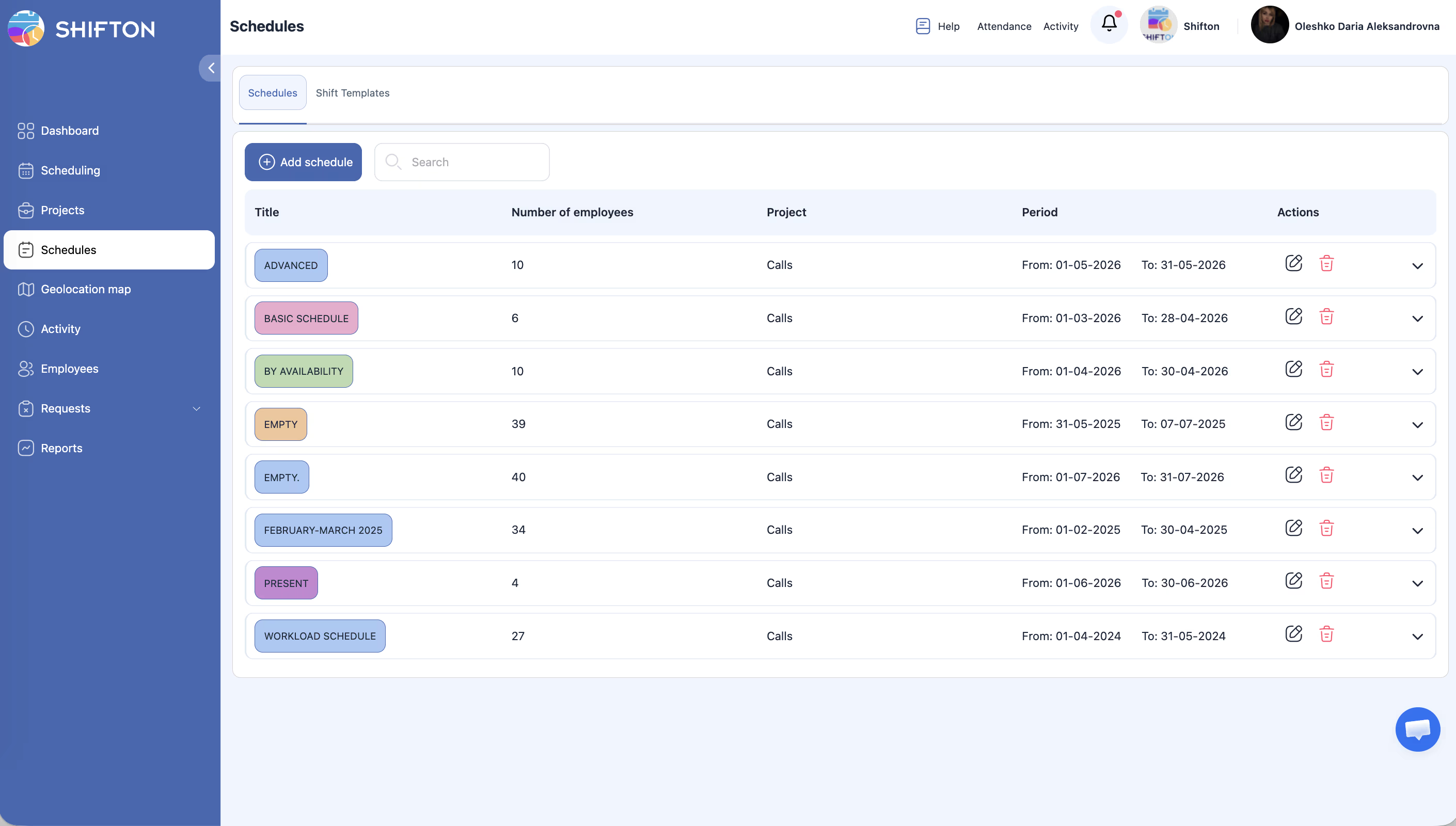
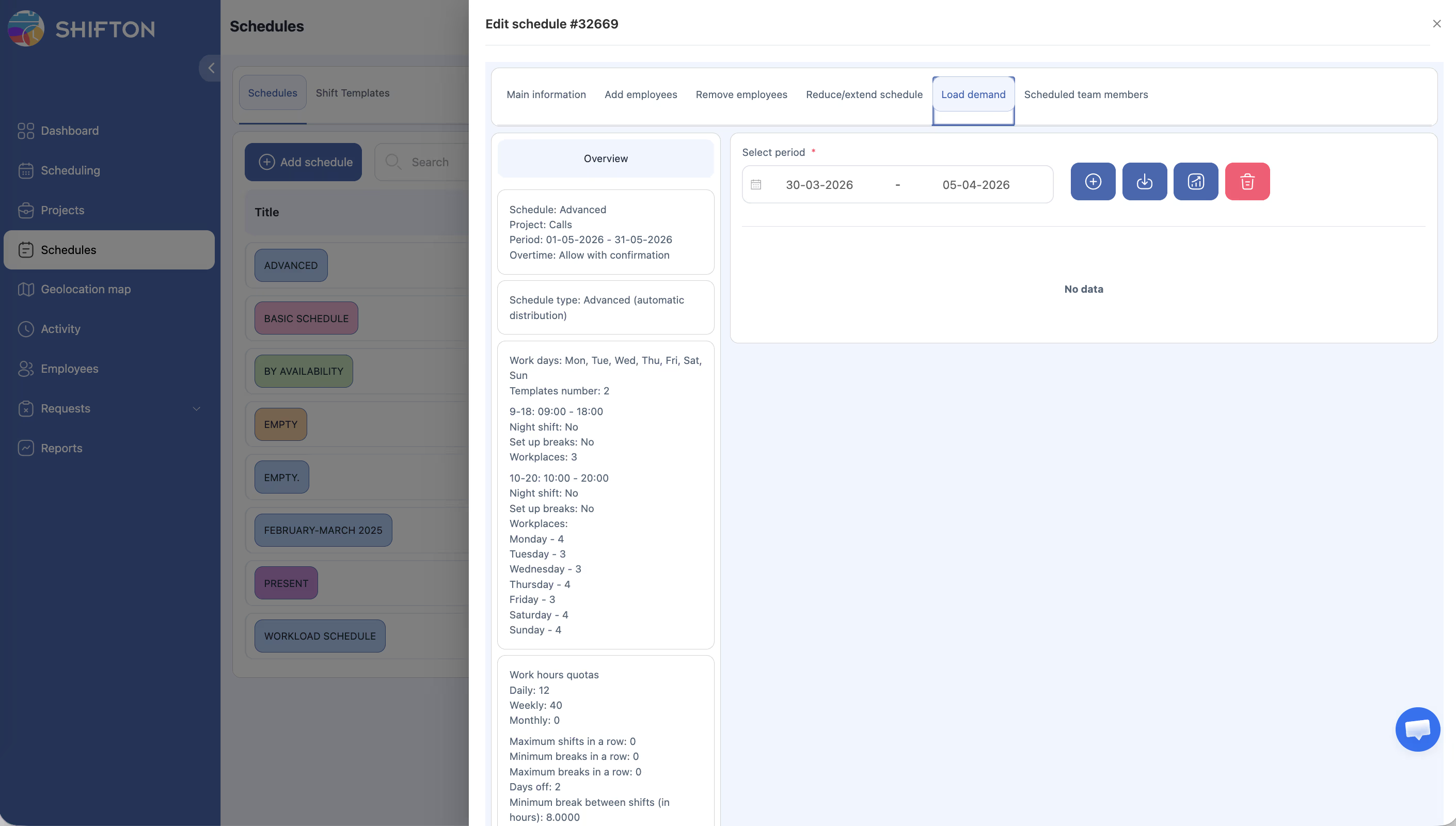
Accessing Load Demand
Option 1: During Schedule Creation (Wizard)
Option 2: From the Edit Schedule Panel
Step-by-Step: Setting Up Load Demand
Step 1 — Configure Coverage Parameters
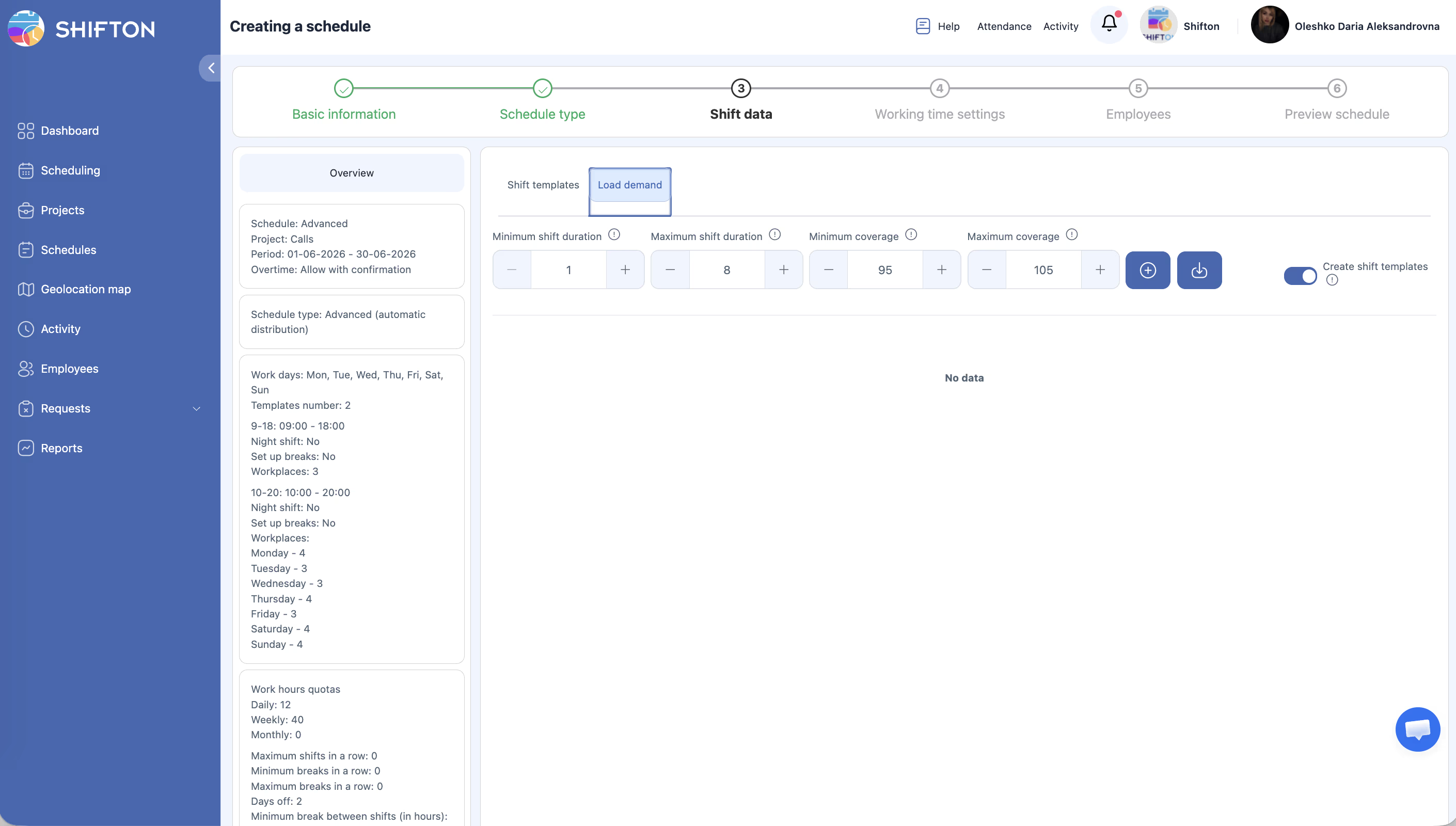
At the top of the Load demand tab, set your constraints:
| Field | Description | Example |
|---|---|---|
| Minimum shift duration | Shortest shift the system can generate | 1 hour |
| Maximum shift duration | Longest shift the system can generate | 8 hours |
| Minimum coverage | Target staffing floor — schedule won’t go below this % of demand | 95% |
| Maximum coverage | Target staffing ceiling — system avoids overstaffing beyond this % | 105% |
These values control how aggressively the scheduler fills demand gaps. A tight range (95–105%) produces precise staffing; a wider range (80–120%) gives the engine more flexibility.
Step 2 — Enter Demand Data
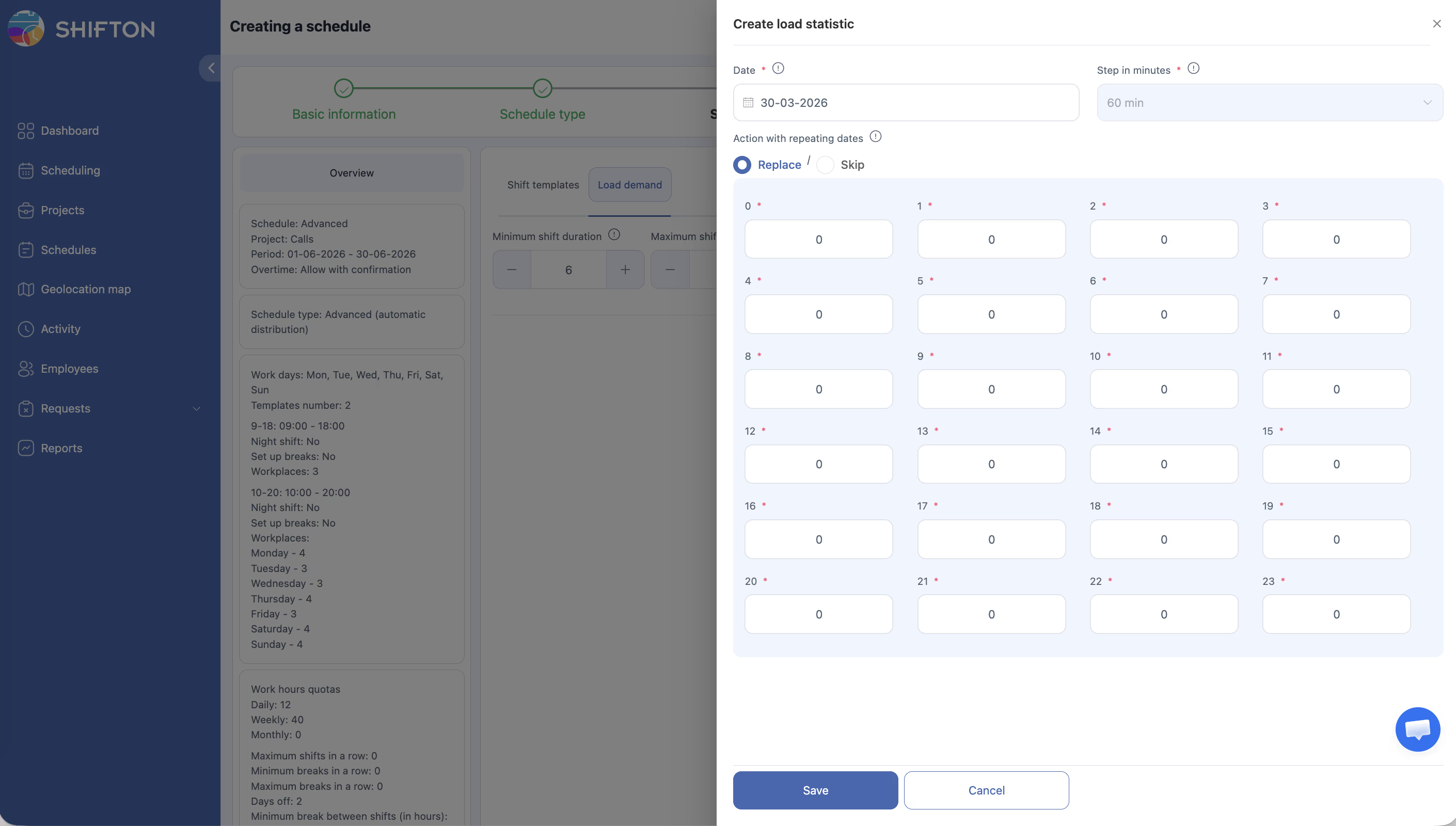
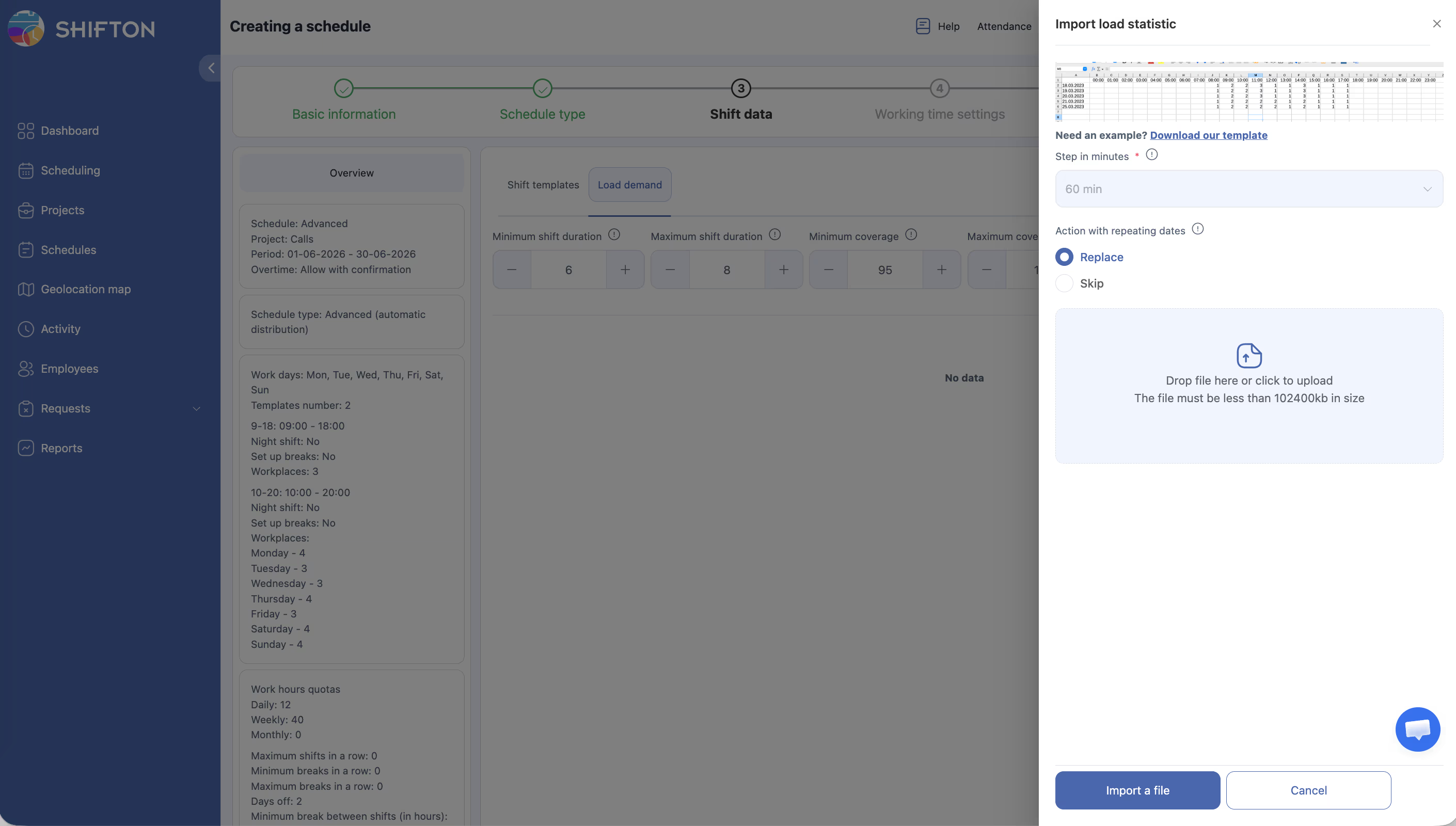
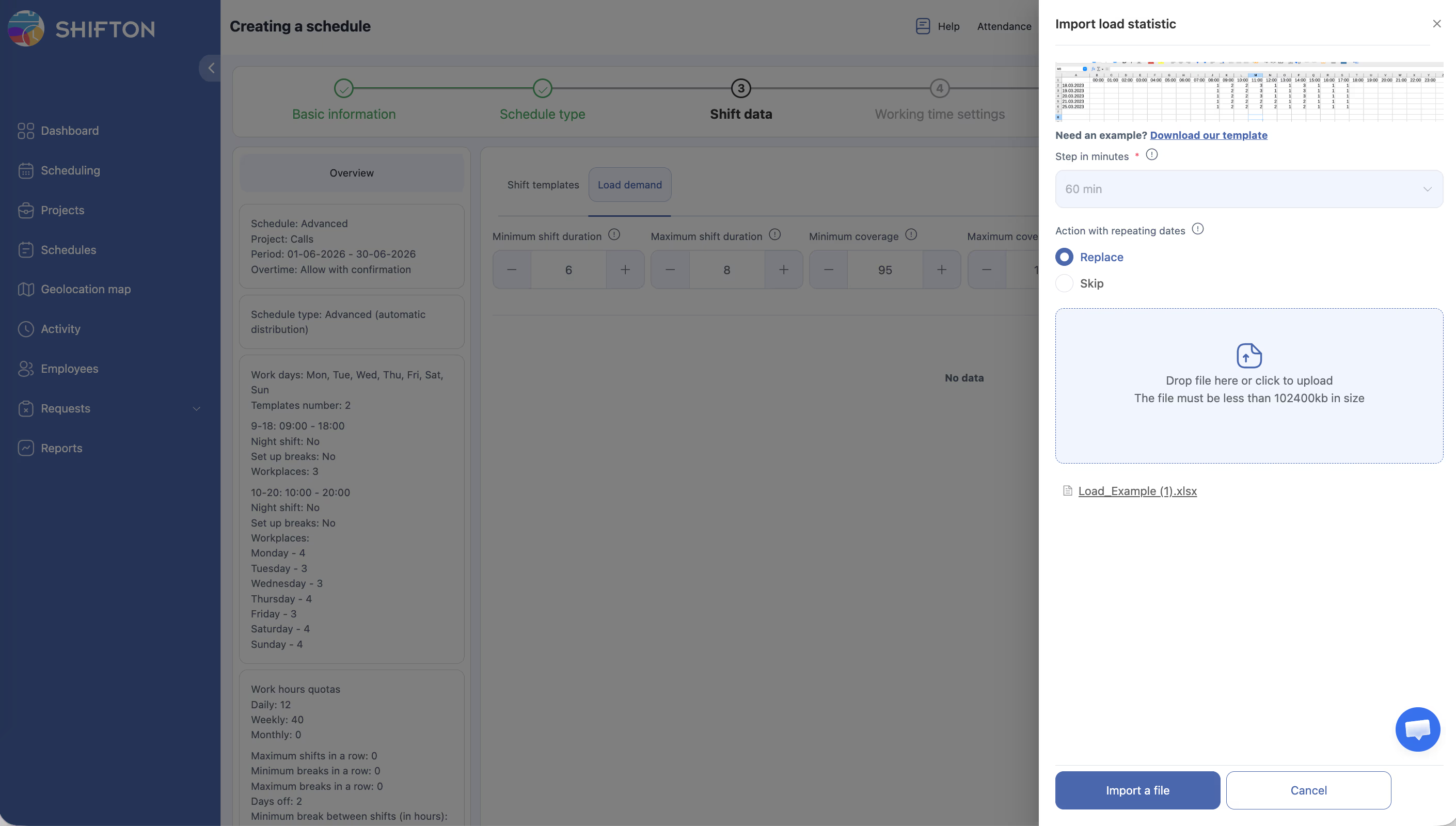
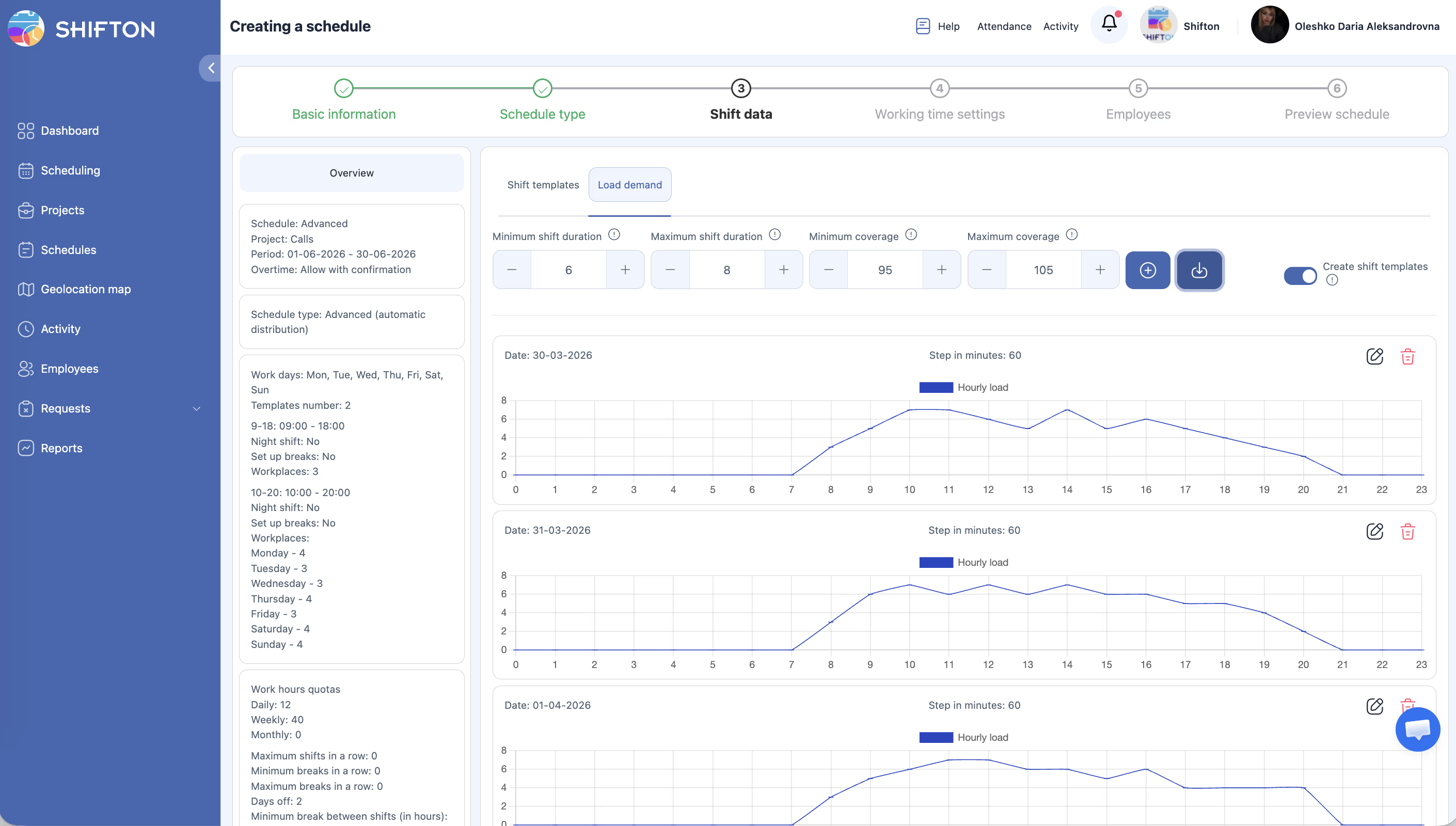
Click Upload to open the Import Load Statistic panel.
Manual Entry
| Field | Description |
|---|---|
| Step (minutes) | Time resolution — 60 means one value per hour (24 values per day) |
| Demand grid (hours 0–23) | Number of employees needed at each hour |
| Action with repeating dates | Replace — overwrite existing data for this date; Skip — keep existing data |
Fill in the demand values for the date(s) you’re planning.
Upload from CSV
Step 3 — Enable Shift Template Creation (Optional)
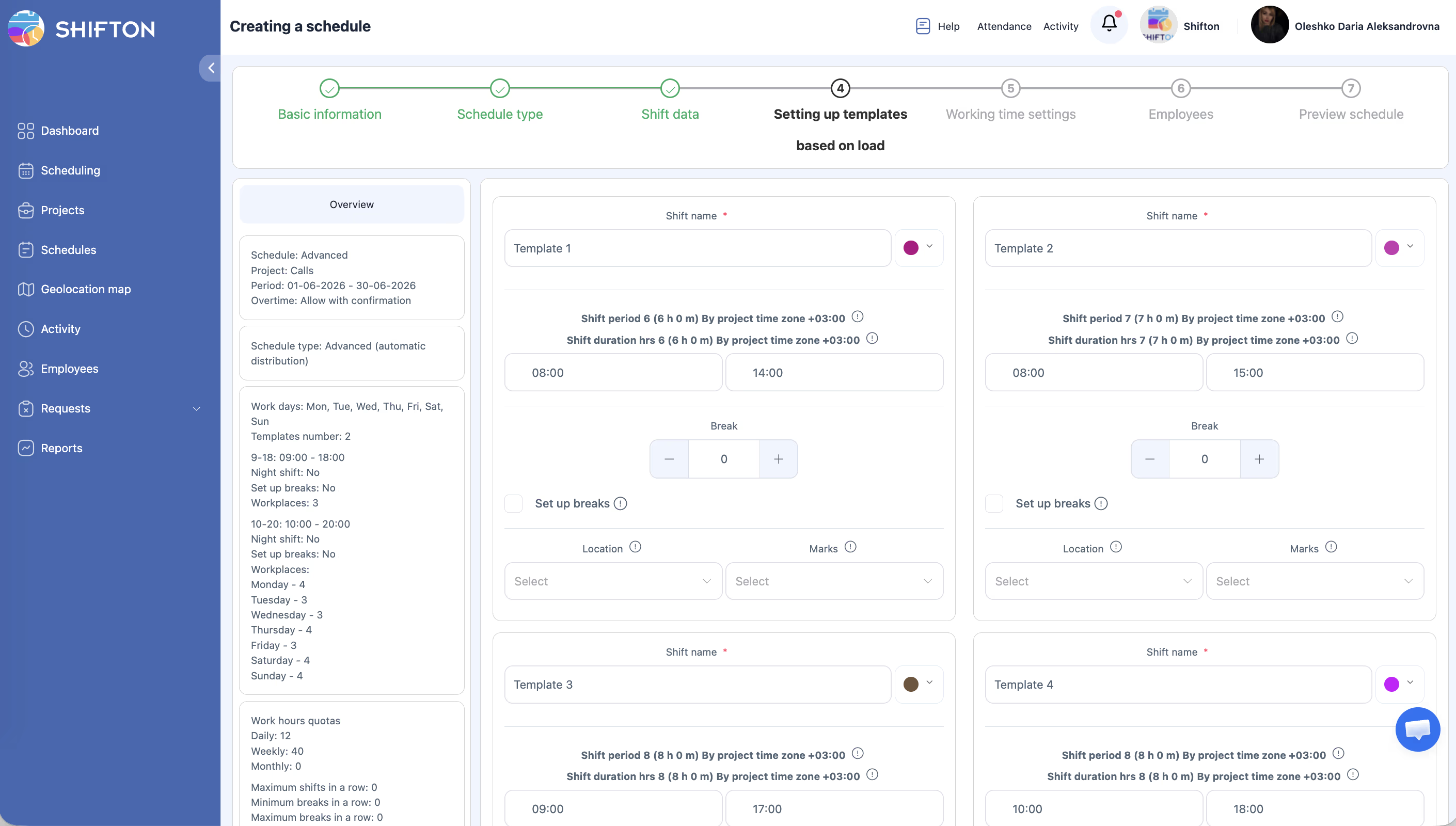
Toggle Create shift templates on if you want the system to generate reusable shift templates from the demand pattern. These templates can then be used in future schedules.
Step 4 — Continue with Schedule Generation
After setting up demand, proceed through the remaining wizard steps and generate the schedule. The engine will use your demand grid to determine how many shifts to create per hour, keeping actual coverage within your Min–Max range.
Understanding Coverage Percentages
Coverage is calculated as:
Coverage % = (Scheduled employees at hour X / Demand at hour X) × 100
Note: If demand at 14:00 is 10 employees and 9 are scheduled → coverage = 90%. If minimum coverage is 95%, this hour is flagged as understaffed.
Typical Use Cases
| Scenario | How to Use Load Demand |
|---|---|
| Retail with predictable weekly peaks | Upload a 7-day demand pattern, repeat weekly |
| Call center with hourly volume data | Export call volume per hour → convert to required headcount → upload as CSV |
| Restaurant with lunch/dinner rushes | Set high demand 12:00–14:00 and 18:00–21:00, lower for other hours |
| Healthcare with constant minimum coverage | Set flat demand (e.g., 3 nurses/hour all day), Min coverage 100% |
Access Permissions
| Role | Configure Load Demand | View Demand Data |
|---|---|---|
| Owner | Yes | Yes |
| Admin | Yes | Yes |
| Manager | Yes (assigned projects) | Yes (assigned projects) |
| Employee | No | No |
FAQ
Q: Can I use Load Demand with a Basic schedule?
A: No. Load Demand is only available for Advanced and By Availability schedule types. If you need demand-based planning, create an Advanced schedule.
Q: Do I need to fill in demand for every hour?
A: No. Leave hours at 0 if no coverage is needed. The scheduler will not generate shifts for zero-demand hours.
Q: How often should I update demand data?
A: Update whenever your staffing needs change. For seasonal businesses, upload a new demand template at the start of each season. For stable operations, a single weekly pattern may work indefinitely.
Q: What happens if I upload demand data but don’t generate a schedule?
A: The data is saved but unused until you run schedule generation. You can update demand data multiple times before generating.
Q: Can I see a visual chart of my demand data?
A: The demand grid is shown as a table in the Import panel. There is no separate chart view — review the values in the grid to verify your data before generating.
Possible Issues and Solutions
| Issue | Cause | Solution |
|---|---|---|
| Load Demand tab not visible | Forecasting module disabled, or wrong schedule type | Enable Forecasting in Modules; use Advanced or By Availability schedule |
| CSV upload fails | File doesn’t match the template format | Re-download the template from the Load demand tab and use it as the base |
| Generated schedule ignores some demand hours | Shift duration constraints too restrictive | Increase Maximum shift duration or check that Min coverage isn’t set too high |
| Coverage falls below minimum after generation | Not enough employees in the project to fill demand | Add more employees to the project, or lower the Minimum coverage threshold |
| Data from previous import was overwritten | Action was set to Replace | Use Skip for dates that should retain their existing demand values |