

View your current account balance, monitor your subscription payment status, and download invoices. This tab is your central hub for all billing and payment history.
What Is This?
The Company Balance & Invoices tab gives you a complete overview of your financial relationship with Shifton. At the top, you can see your current balance and the status of your monthly payment. Below that, the Invoices section provides a full history of all invoices with filtering and download options.
You can access this tab by navigating to Company Settings > Company Balance & Invoices.
Prerequisites
- You must have the Owner role to view balance and invoice details.
- A paid subscription plan must be active (or previously active) for invoices to appear.
Step-by-Step Instructions
Step 1: Open the Company Balance Tab
Step 2: Review Your Balance Summary
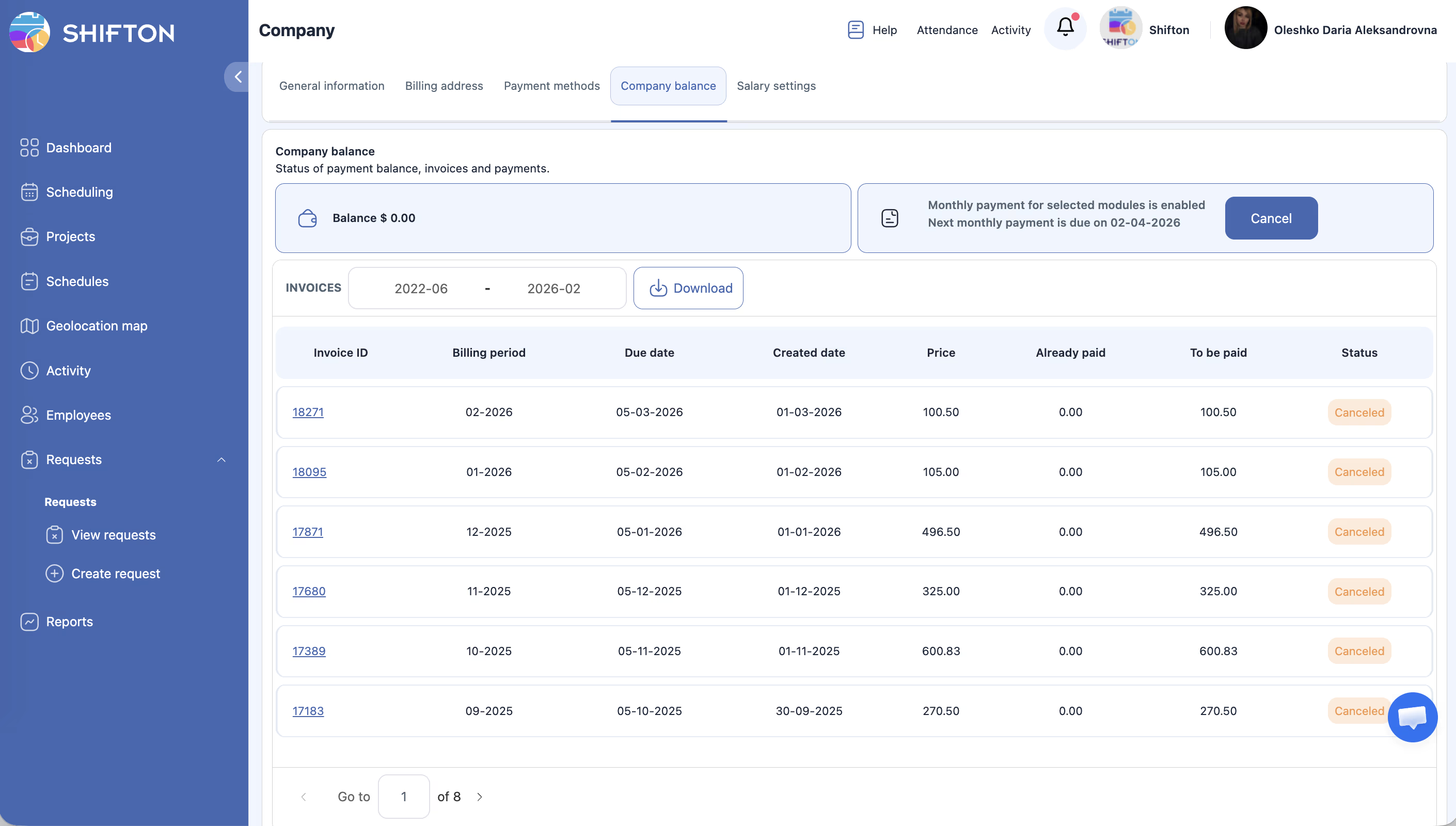
At the top of the page, you will see a summary panel with the following information.
| Field | Description | Example |
|---|---|---|
| Current Balance | The amount currently available or owed on your account. A positive balance means credit; $0.00 means no outstanding amount. | $0.00 |
| Monthly Payment Status | Indicates whether the current billing cycle has been paid, is pending, or has failed. | Paid / Pending / Failed |
| Next Payment Due Date | The date when the next automatic charge will be attempted against your payment method. | April 1, 2026 |
| Cancel Button | Cancels your current subscription plan. This does not take effect immediately; your access continues until the end of the current billing period. | — |
Step 3: Cancel Your Subscription (If Needed)
Step 4: Browse and Filter Invoices
Scroll down to the Invoices section.
Step 5: Understand the Invoice Table
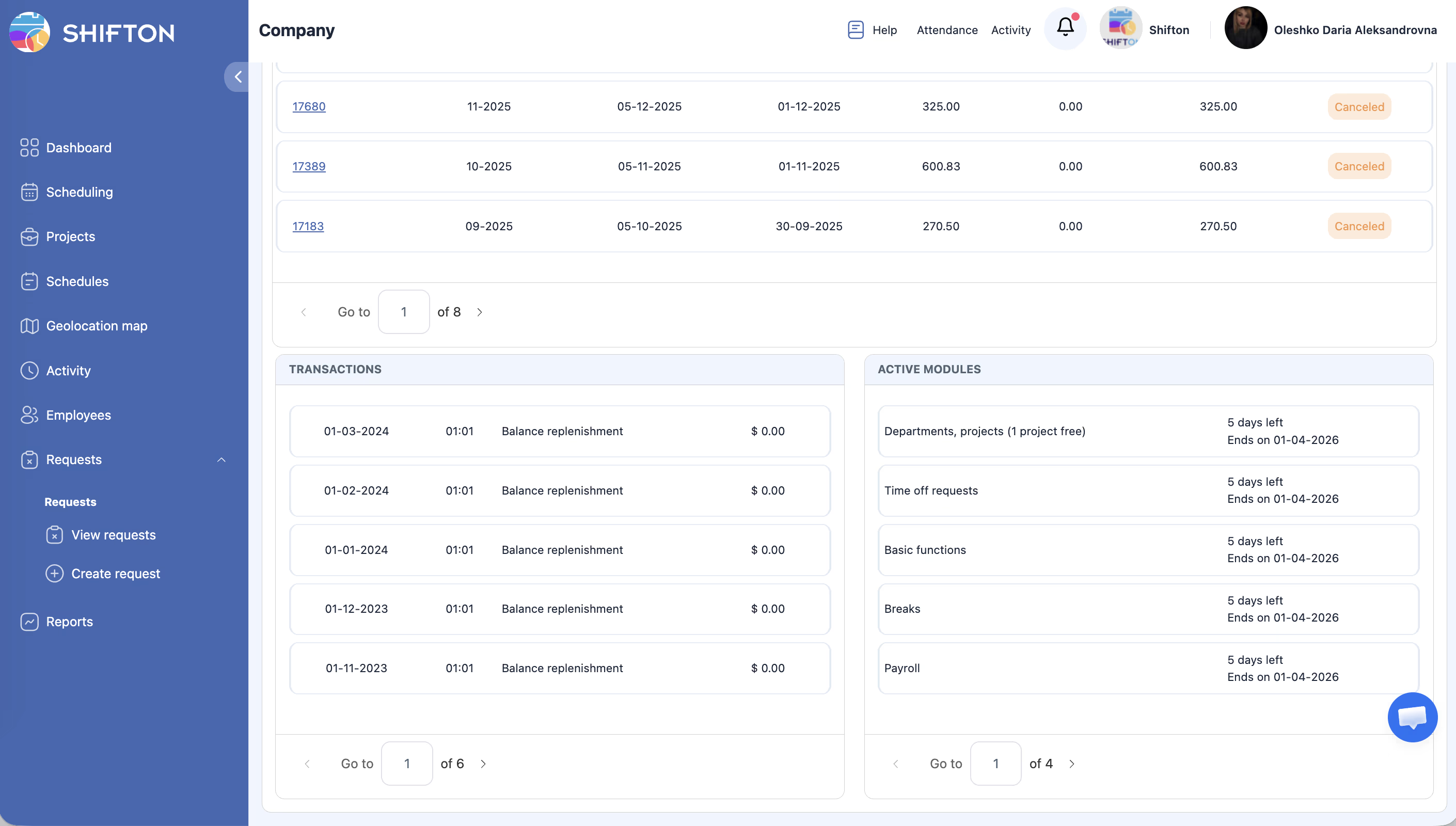
Each row in the invoice table represents a single invoice. The table below describes each column.
| Column | Description | Example |
|---|---|---|
| Invoice ID | A unique identifier for the invoice. Click the ID to open the full invoice detail view. | INV-20260301-0042 |
| Billing Period | The date range the invoice covers. | Mar 1, 2026 — Mar 31, 2026 |
| Due Date | The date by which the invoice must be paid. | Mar 1, 2026 |
| Created Date | The date when the invoice was generated. | Feb 28, 2026 |
| Price | The total amount billed for this invoice. | $49.00 |
| Already Paid | The portion of the invoice that has been paid. | $49.00 |
| To Be Paid | The remaining unpaid amount. If $0.00, the invoice is fully settled. | $0.00 |
| Status | The current state of the invoice: Paid, Pending, or Cancelled. | Paid |
Step 6: Download an Invoice
Access Permissions
| Role | View Balance | View Invoices | Download Invoices | Cancel Subscription |
|---|---|---|---|---|
| Owner | Yes | Yes | Yes | Yes |
| Administrator | No | No | No | No |
| Manager | No | No | No | No |
| Employee | No | No | No | No |
FAQ
Q1: What does a $0.00 balance mean?
A: A $0.00 balance means there is no outstanding credit or debt on your account. Your invoices are either fully paid or not yet generated for the current cycle.
Q2: I cancelled my subscription. Will I lose access immediately?
A: No. After cancellation, your account remains fully functional until the end of the current billing period. Once that period ends, your account will be downgraded to the free tier.
Q3: Can I get a refund for an already-paid invoice?
A: Refund policies depend on your subscription terms. Contact Shifton support with the Invoice ID for assistance with refund requests.
Q4: Why does my invoice show “Pending” after the due date?
A: This usually means the payment attempt failed. Check your payment method on the Payment Methods tab, update your card if needed, and contact support if the issue persists.
Q5: Can I export all invoices at once?
A: Currently, invoices are downloaded individually. Set the date range filter to find the invoices you need, then download each one. If you need bulk export, contact Shifton support for assistance.
Possible Issues and Solutions
| Issue | Cause | Solution |
|---|---|---|
| No invoices appear in the table | Your account may be on a free plan with no billing history, or the date range filter is too narrow. | Widen the date range or remove the filter entirely. If you are on a free plan, no invoices will be generated. |
| Invoice status shows “Pending” past the due date | The automatic payment failed or the payment method is invalid. | Go to Payment Methods, verify your card details, and update if necessary. Shifton will retry the charge. |
| Cannot click the Cancel button | You do not have the Owner role. | Only the account Owner can cancel the subscription. Contact your Owner. |
| Downloaded invoice has the wrong billing address | The billing address was updated after the invoice was generated. | Past invoices use the address that was active at generation time. Update your billing address for future invoices on the Billing Address tab. |
| Balance shows a negative amount | An overpayment or credit was applied to your account. | This credit will be applied to your next invoice automatically. No action is needed. |