

Configure how Shifton calculates employee pay, including the base currency, overtime rules, and night shift rate multipliers. These settings form the foundation of all payroll-related reports.
What Is This?
The Salary Settings tab lets you define the pay calculation parameters that Shifton uses when generating salary reports and cost estimates. Here you set the currency for all monetary displays, specify how overtime hours are compensated, and configure premium rates for night shifts. These settings apply company-wide and affect all employees unless overridden at the individual level.
You can access this tab by navigating to Company Settings > Salary Settings.
Prerequisites
- You must have an Owner role in Shifton.
- Your company should have at least one active employee and a schedule in place for salary calculations to produce meaningful results.
Step-by-Step Instructions
Step 1: Open the Salary Settings Tab
Step 2: Set the Base Currency
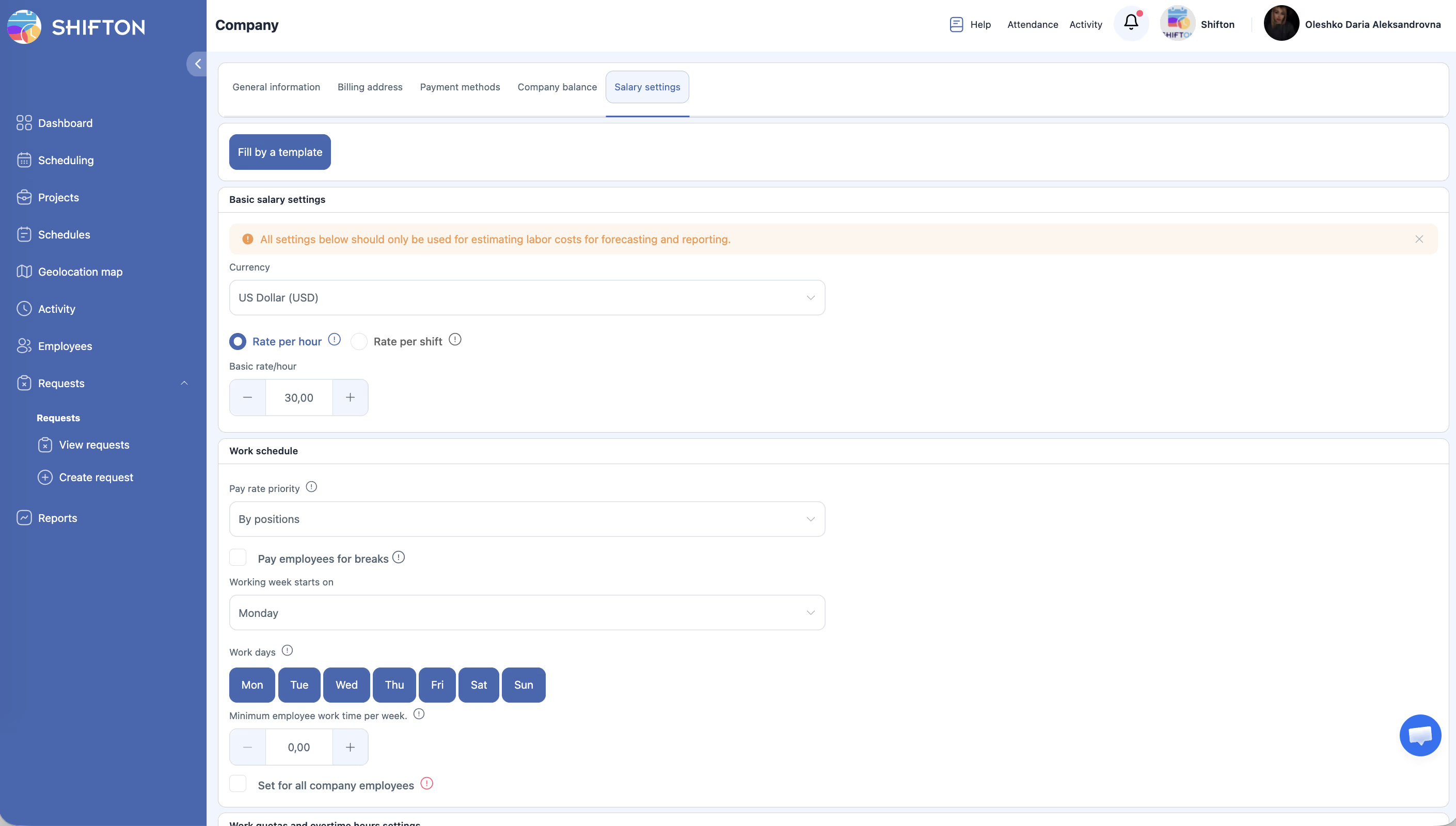
| Field | Description | Example |
|---|---|---|
| Base Currency | The currency used for all salary calculations, reports, and monetary displays across the platform. Shifton supports 154 world currencies — from Afghan Afghani to Zambian Kwacha, including USD, EUR, GBP, UAH, PLN, ILS, RUB, JPY, CHF, CAD, BRL, AUD, and many more. | US Dollar (default) |
Step 2b: Set the Rate Mode
| Field | Description |
|---|---|
| Rate mode | Rate per hour — pay for each hour actually worked. Rate per shift — fixed payment per shift regardless of duration. |
| Basic rate/hour (shift) | Company fallback rate. Applied if no more specific rate is set for the shift. |
Note: When switching rate mode, new settings apply only to shifts added after the change. Existing shifts remain unchanged.
Step 2c: Set Pay Rate Priority
Determines which rate is used for salary calculation:
| Option | Description | Example |
|---|---|---|
| By positions | Rate comes from the employee’s position | Supervisor — $60/hr, Operator — $40/hr |
| By location | Rate comes from the shift’s location | New York office — $45/hr, Miami office — $38/hr |
Step 3: Configure Overtime Rules
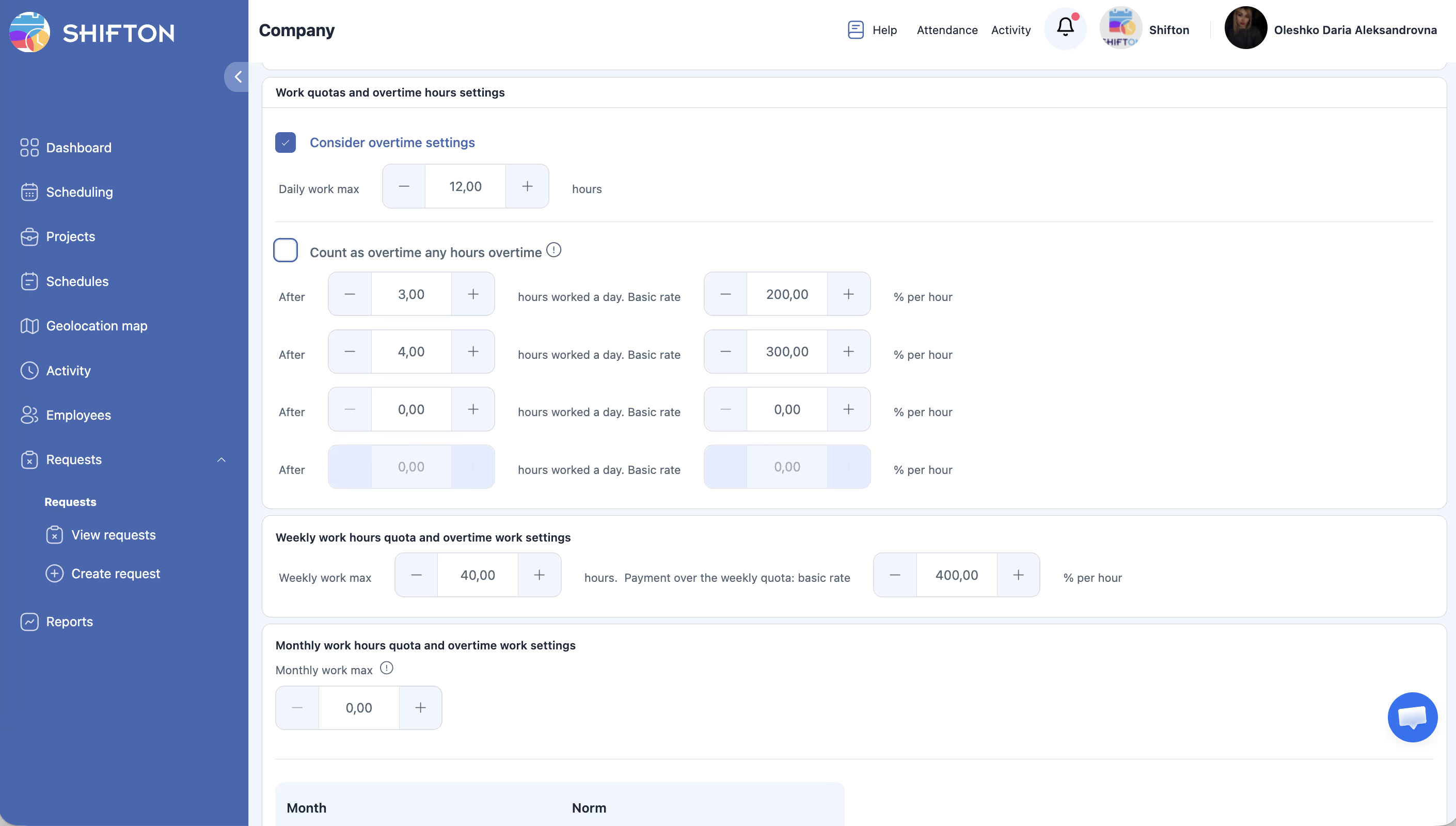
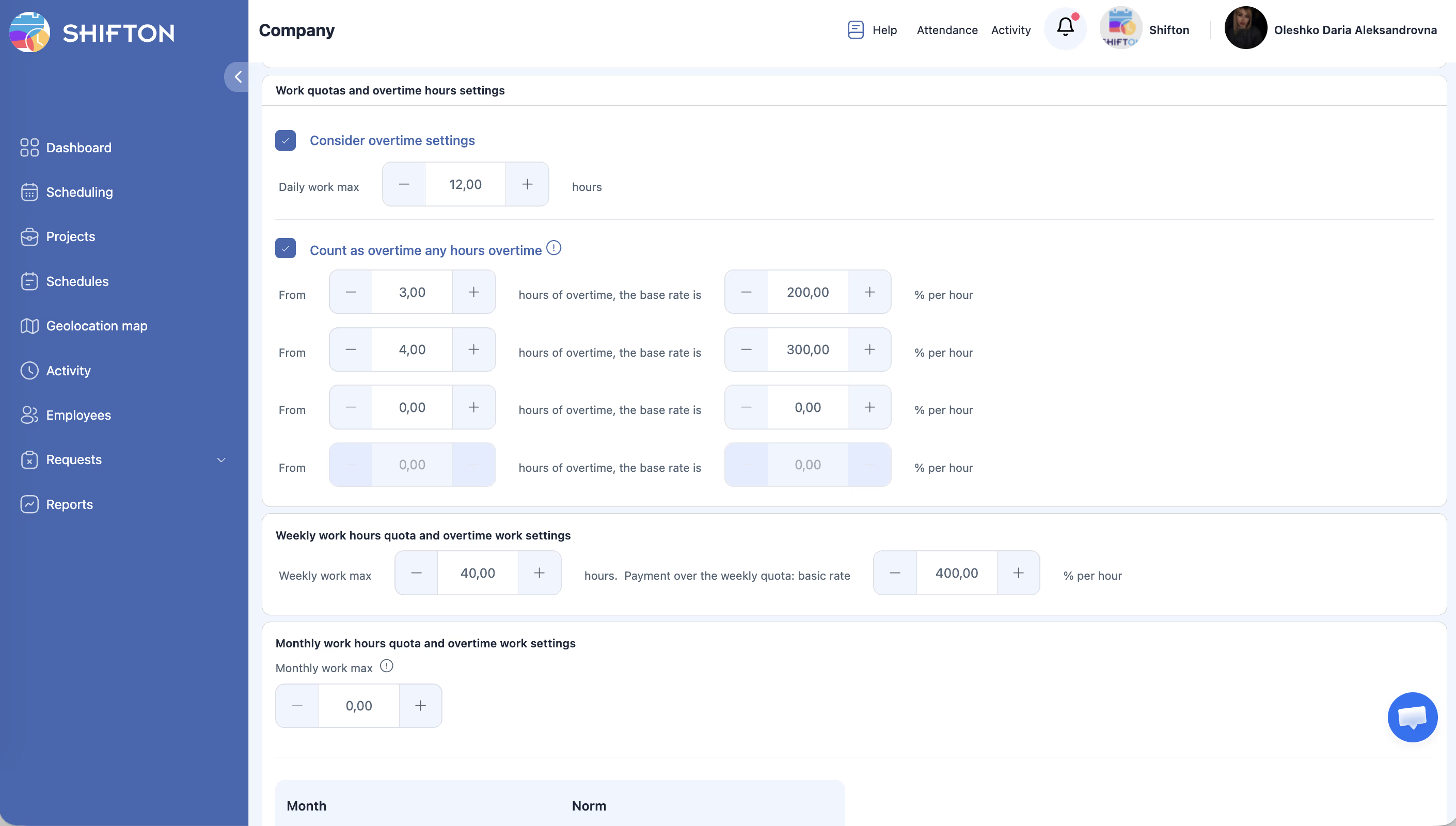
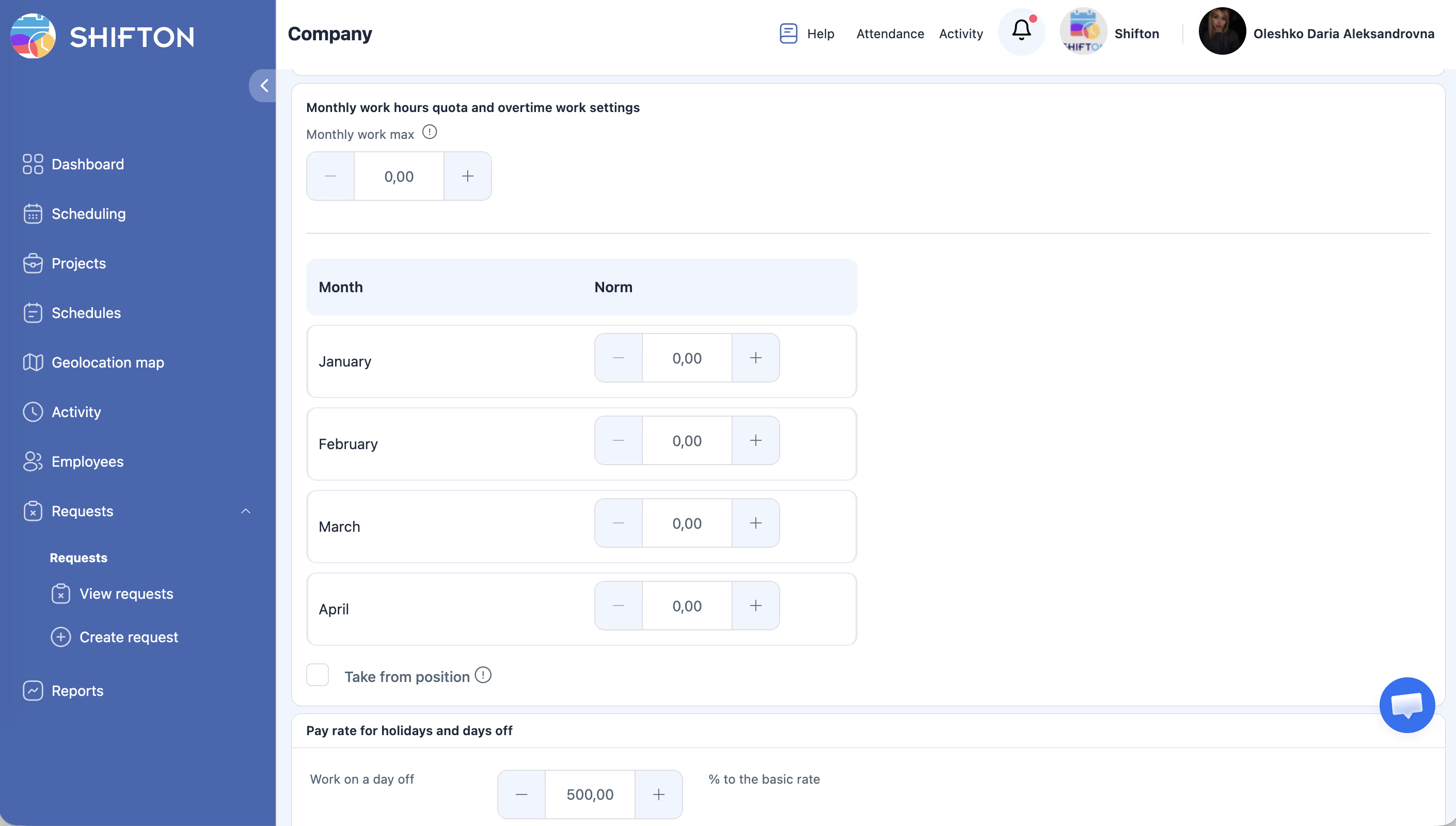
Define how hours beyond the standard workday or workweek are compensated. The table below describes the available settings.
| Field | Description | Example |
|---|---|---|
| Overtime Calculation Method | Determines whether overtime is calculated based on daily hours, weekly hours, or both. | Daily / Weekly / Daily + Weekly |
| Daily Overtime Threshold | The number of hours in a single day after which overtime begins. | 8 hours |
| Weekly Overtime Threshold | The number of hours in a single week after which overtime begins. | 40 hours |
| Overtime Rate Multiplier | The pay multiplier applied to overtime hours. A value of 1.5 means employees earn 150% of their base rate for overtime. | 1.5x (150%) |
Step 4: Configure Night Working Hours
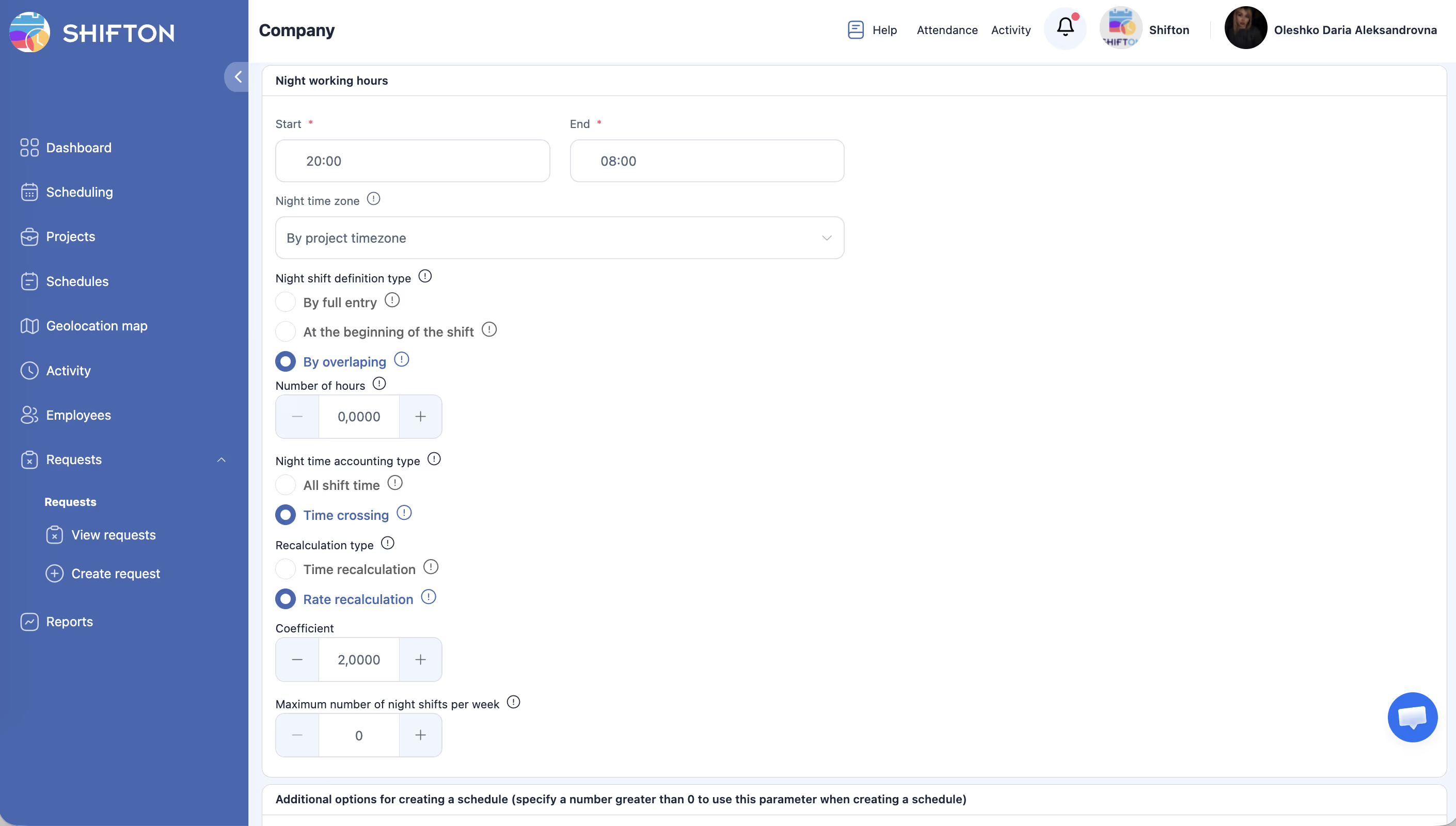
Night shift premiums compensate employees who work during late-night or early-morning hours. Set Start (default: 20:00) and End (default: 08:00), then configure detection and recalculation rules.
Night time zone: By project timezone / By user timezone.
Night shift definition type ⓘ “This option allows you to set the parameter by which the night shift will be determined.”
| Option | Tooltip (ⓘ) |
|---|---|
| By full entry | “The entire shift must be within night time.” |
| At the beginning of the shift | “The start of the shift must overlap with night time” |
| By overlapping | “The shift must overlap by the specified number of hours with night time” |
If “By overlapping” is selected, set Number of hours (default: 0).
Night time accounting type ⓘ “You can specify whether to consider the entire shift time as night time or only the part that intersects.”
| Option | Tooltip (ⓘ) |
|---|---|
| All shift time | “The entire shift time will be considered as night time.” |
| Time crossing | “Only the time of intersection with night time will be considered as night time.” |
Recalculation type ⓘ “Specifies the type of coefficient by which work with night shifts will take place.”
| Option | Tooltip (ⓘ) |
|---|---|
| Time recalculation | “The duration of the night time will be increased by the specified factor.” |
| Rate recalculation | “The rate of payment for the night time will be increased by the specified coefficient” |
Step 5: Additional Schedule Options
Used when auto-generating schedules (set > 0 to activate):
| Field | Default |
|---|---|
| Minimum break between shifts (hours) | 8.00 |
| Minimum break after night shift for women (hours) | 0.00 |
| Minimum break in a row per week (hours) | 0.00 |
Step 6: Additional Salary Settings
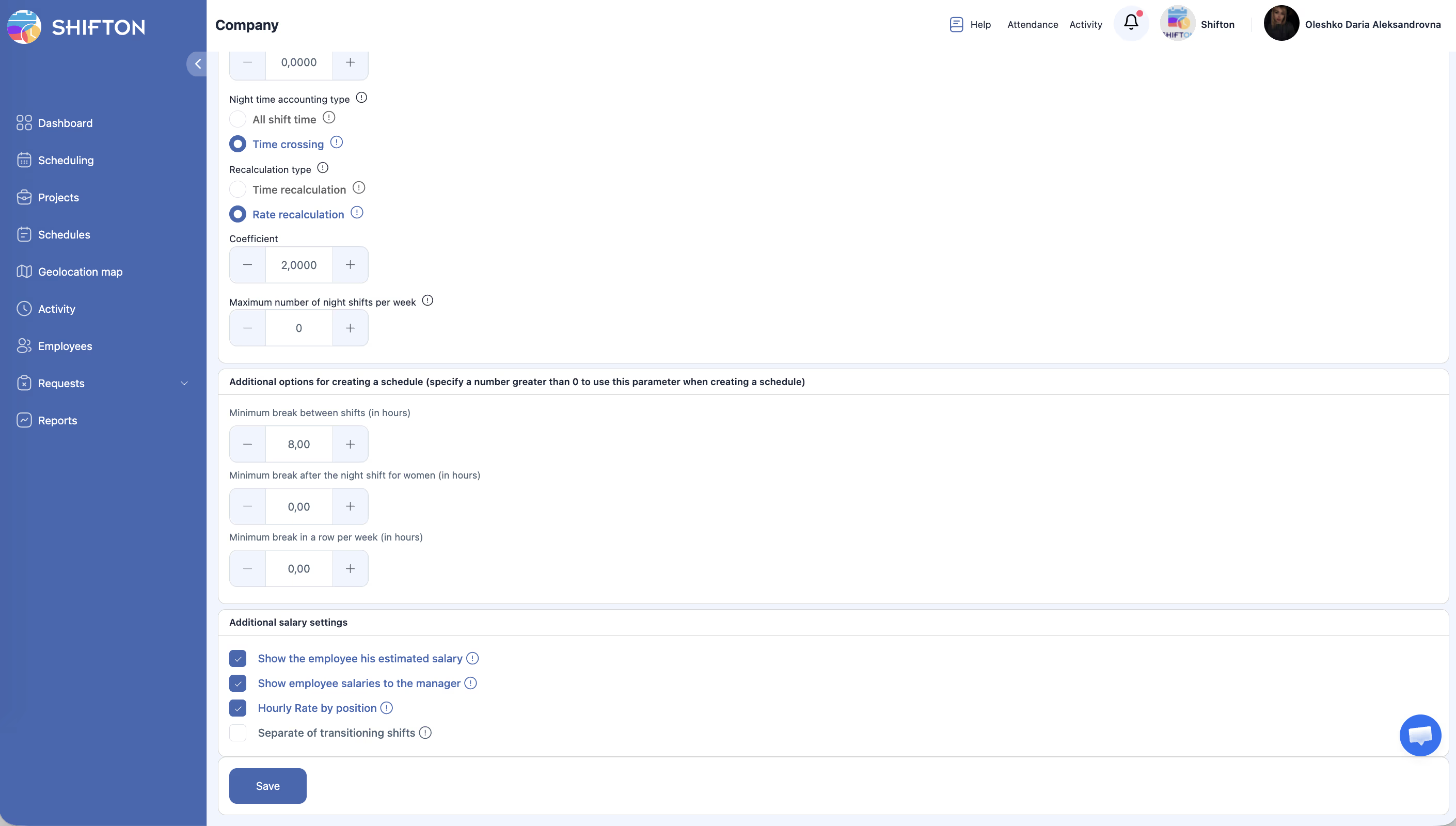
| Setting | Default |
|---|---|
| ☑ Show the employee his estimated salary | Enabled |
| ☑ Show employee salaries to the manager | Enabled |
| ☑ Hourly Rate by position | Enabled |
| ☐ Separate of transitioning shifts | Disabled |
Click Save after configuring all sections.
Access Permissions
| Role | View | Edit |
|---|---|---|
| Owner | Yes | Yes |
| Administrator | No | No |
| Manager | No | No |
| Employee | No | No |
FAQ
Q1: If I change the Base Currency, will existing salary data be converted?
A: No. Changing the Base Currency affects how values are displayed going forward. Historical salary data retains the currency it was originally recorded in. If you are switching currencies, review past reports for consistency.
Q2: Can I set different overtime rules for different departments?
A: The Salary Settings tab defines company-wide defaults. Department-level or individual overrides may be available depending on your plan. Check with Shifton support for advanced overtime configuration options.
Q3: What is the difference between the three night shift rate tiers?
A: The tiers allow you to apply progressively higher premiums depending on the circumstances. For example, Tier 1 (100%) might apply to regular weeknight shifts, Tier 2 (200%) to weekend night shifts, and Tier 3 (300%) to public holiday night shifts. You define when each tier applies based on your internal policy.
Q4: Do these settings affect actual salary calculation, or are they only for reports?
A: Shifton uses these settings to calculate estimated pay in reports and dashboards. Shifton does not process actual payroll payments. You would export the calculated data to your payroll system or accountant.
Q5: An employee’s overtime is not being calculated correctly. Where should I check first?
A: First, verify the overtime thresholds and calculation method on this tab. Then check the employee’s individual profile to see if any overrides are set. Finally, review the employee’s actual logged hours to confirm they exceed the threshold.
Q6: I changed the rate mode — will existing shifts be recalculated?
A: No. When switching rate mode, new settings apply only to shifts added after the change. Existing shifts keep their original rate. Use Bulk Shift Actions > Edit > Recalculate salary to update existing shifts.
Q7: What is the difference between “By positions” and “By location” pay rate priority?
A: If pay depends on the employee’s job role (e.g. Supervisor vs Operator) — choose “By positions”. If pay depends on where the shift takes place (e.g. New York vs Miami office) — choose “By location”.
Possible Issues and Solutions
| Issue | Cause | Solution |
|---|---|---|
| Overtime hours are not appearing in reports | The overtime threshold is set higher than the actual hours worked, or the wrong calculation method is selected. | Lower the threshold or switch between Daily and Weekly calculation methods to match your policy. |
| Night shift premium is not applied | The night shift start/end times do not overlap with the employee’s actual shift hours. | Verify that the night shift time window covers the hours your employees work. Adjust start and end times if needed. |
| Currency symbol is wrong in reports | The Base Currency was changed but the browser is showing cached data. | Refresh the browser. If the issue persists, clear the cache or try a different browser. |
| Cannot edit Salary Settings | You do not have the required permissions. | Contact your company Owner to make changes. |
| Salary report totals seem too high or too low | Multiple rate multipliers may be stacking (e.g., overtime + night shift), or a rate was entered incorrectly. | Review each multiplier value carefully. Ensure overtime and night shift rates are set to the intended percentages, not compounding unexpectedly. |