

Before you issue your first invoice, the module needs to be set up: specify what gets printed in the documents and which number the numbering starts from. You open these settings once, and they apply to all of the company’s documents.
Path: Shifton menu (the company name in the header) → Modules → Settings tab → Invoicing in the list on the left.
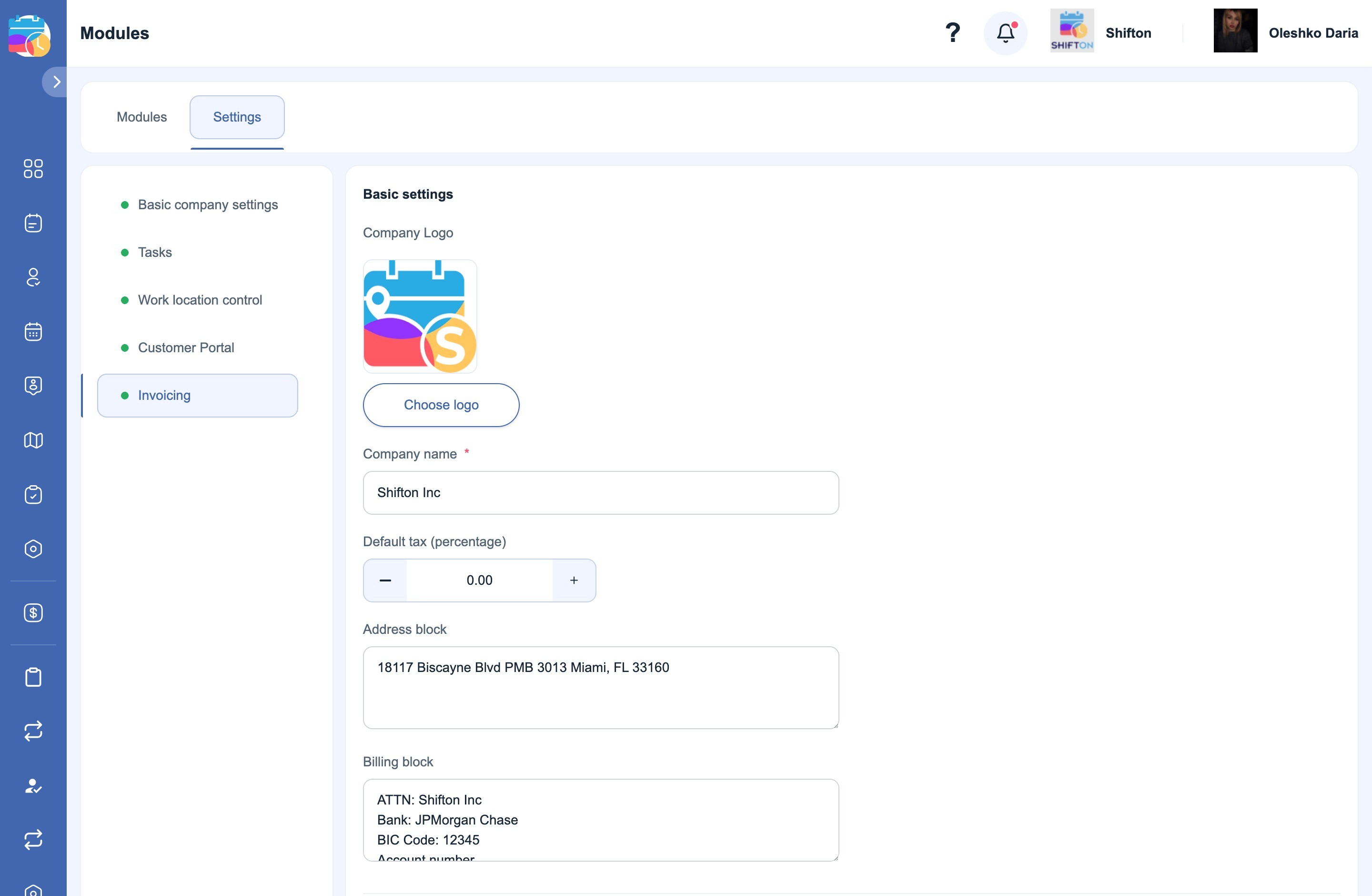
Basic settings
These fields end up in the header of every document — invoice, work order, receipt, proof of service.
| Field | What it does |
|---|---|
| Company Logo | The logo in the documents. The Choose logo button — upload or replace it |
| Company name | The name of the organisation, a required field |
| Default tax (percentage) | The default tax, filled into every new document. You can leave it at 0 and enter the tax manually in each document |
| Address block | The organisation’s address. Free text: printed in the document as is, line breaks are preserved |
| Billing block | Payment details — payee, bank, BIC, account number. Also free text across several lines |
The address and the payment details are ordinary text fields with no format validation. That is deliberate: requirements for payment details differ from country to country, and a rigid format would only get in the way.
Document counters
Each type of document has its own numbering, and it is configured separately. Two fields per type: Prefix — what goes in front of the number, and Counter — the number to continue from.
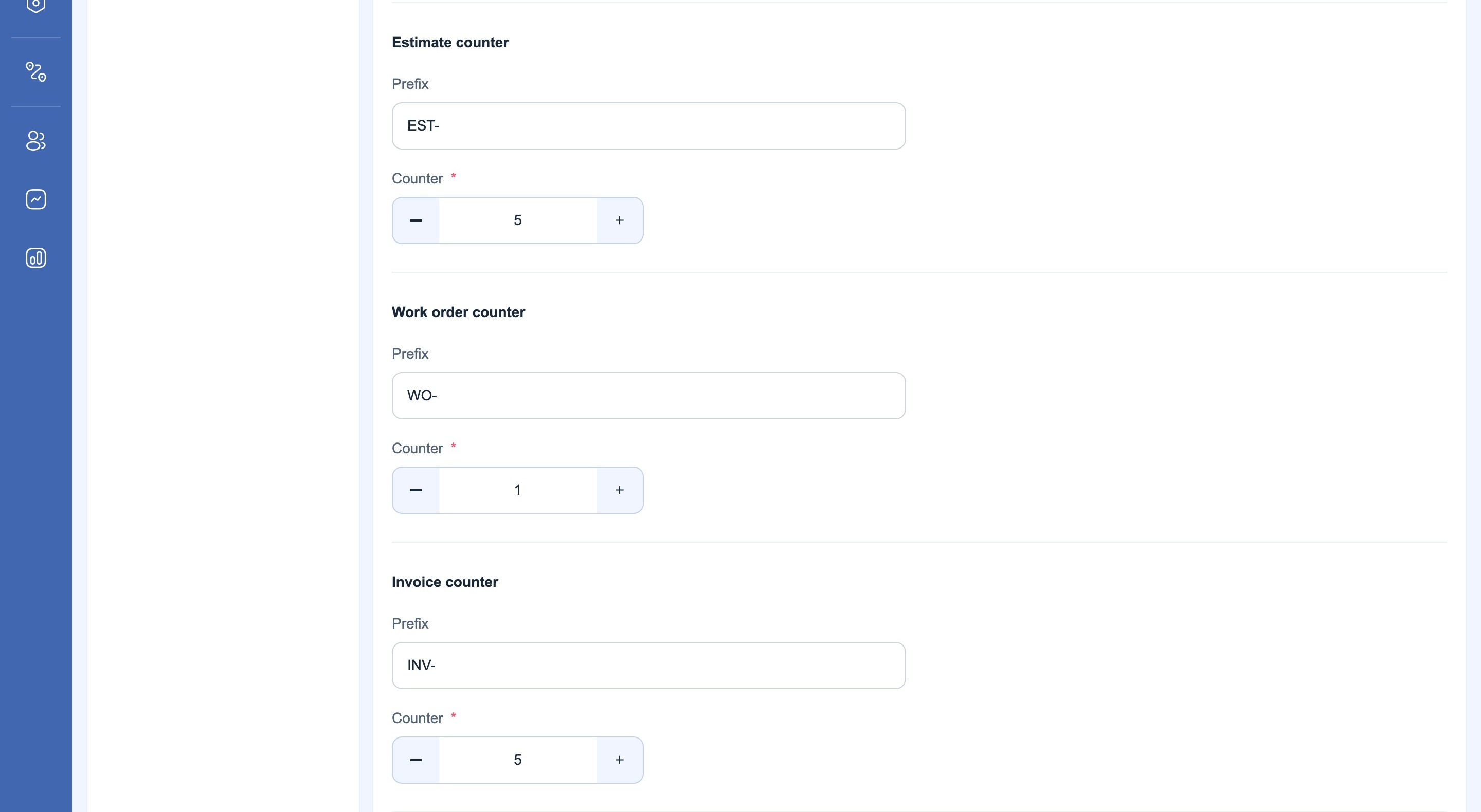
| Counter | Default prefix | Which document it is for |
|---|---|---|
| Estimate counter | EST- | Estimate |
| Work order counter | WO- | Work Order |
| Invoice counter | INV- | Invoice |
| Receipt counter | REC- | Receipt |
| Proof of service counter | POW- | Proof of Service |
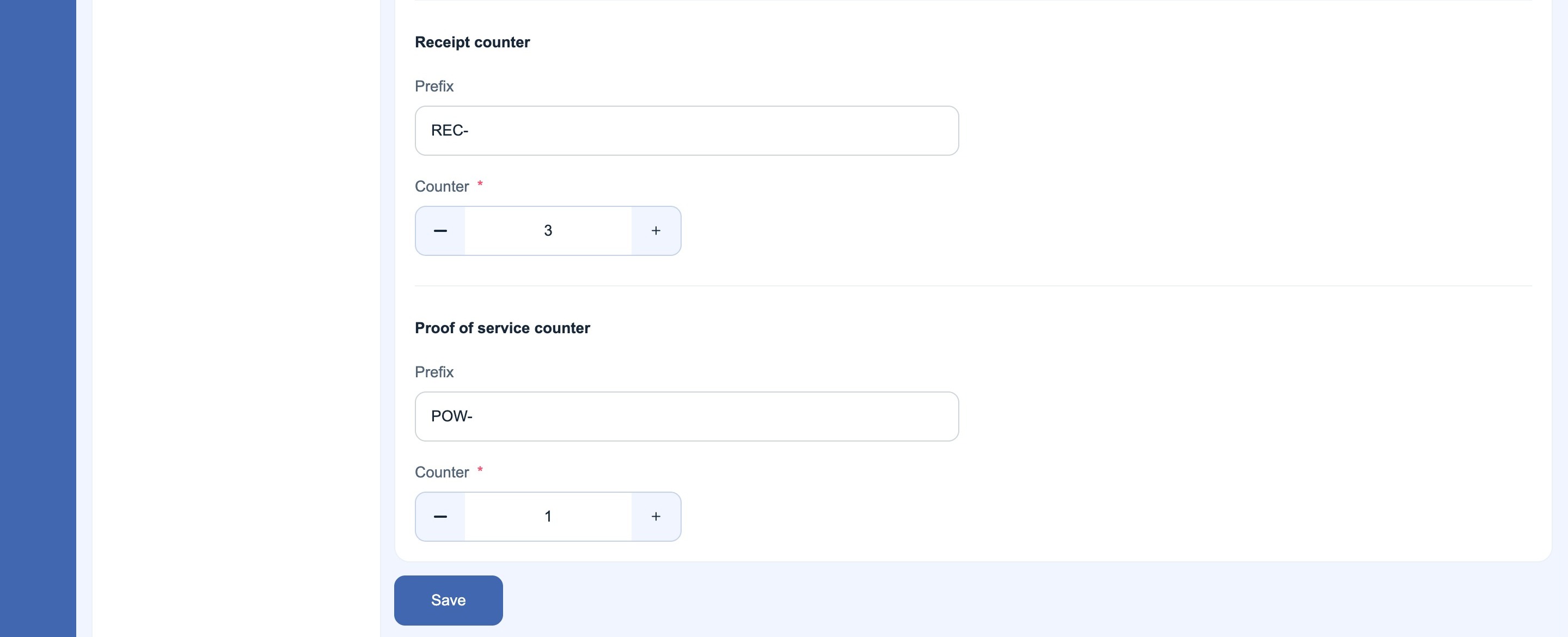
The document number is made up of the prefix and the current value of the counter: with the prefix INV- and the counter at 5, the next invoice gets the number INV-5, and the counter becomes 6.
Why change the counter. If you moved to Shifton from another system and your invoices there reached number 340, set the counter to 341 — the numbering will carry on without gaps, and your records will not contain two documents with the same number.
The prefix can be left empty — the number will then simply be a figure.
After editing any field, click Save at the bottom of the page. The settings apply to new documents; those already issued do not change.
Access Permissions
| Role | What they can do |
|---|---|
| Employee | Does not see the module settings |
| Administrator | Opens and changes the settings |
| Owner | Full access |
Possible Issues and Solutions
| Issue | Cause | Solution |
|---|---|---|
| There is no Invoicing item in the list on the left | The “Invoicing” module is not enabled | Enable it on the Modules tab and click Save |
| The Save button does nothing | A required field is empty — the company name or the counter value | Check the fields marked with an asterisk |
| There is no logo in the document | The logo has not been uploaded, or the document was created before the upload | Upload the logo and create the document again |
| Two documents with the same number | The counter was moved backwards | Set the counter higher than the largest number already issued |
| The tax was not filled into the invoice | The settings have 0 | Specify a default tax, or set it in the document itself |
| The payment details print on one line | The line breaks were lost when pasting from another application | Type the line breaks again in the Billing block field |
FAQ
Q: Do I have to set the module up before my first invoice? A: Technically no, but then the document will have neither a logo nor payment details. It is more sensible to fill the settings in once, in advance.
Q: Can I set different payment details for different clients? A: No, the payment details block is a single one per company and is printed on all documents.
Q: What happens to documents already issued if I change the logo? A: Nothing. The settings apply to new documents; the old ones stay as they were.
Q: Can the numbering start from any number? A: Yes, enter the value you need in the Counter field. The main thing is that it is higher than the numbers already issued, otherwise duplicates will appear.
Q: Is the prefix mandatory? A: No. If you leave the field empty, the number will simply be a figure.
Q: Does the default tax affect documents that have already been created? A: No, it is only filled into new ones.
Q: Where can I see which number the next document will get? A: The prefix and the current counter value are in these same settings: together they make up the next number.
Q: Why are the address and payment details plain text fields? A: Requirements for payment details differ from country to country, so no format is imposed: whatever you enter is what gets printed.
Q: Do the counters reset at the start of the year? A: No, there is no automatic reset. If you need numbering from the start of the year, set the counter to 1 manually.
Q: Who can change these settings? A: The administrator and the company owner. Employees do not see the module settings section.