

This page brings together everything the client receives from your company: both the reminders that go out at a set time and the messages that are sent automatically when a task changes status. The message texts are also defined here.
Where to find the page
In the left menu, expand the Customer Portal group and select Reminder settings. The group appears only when the module is enabled — see the article “Customer portal — overview”.
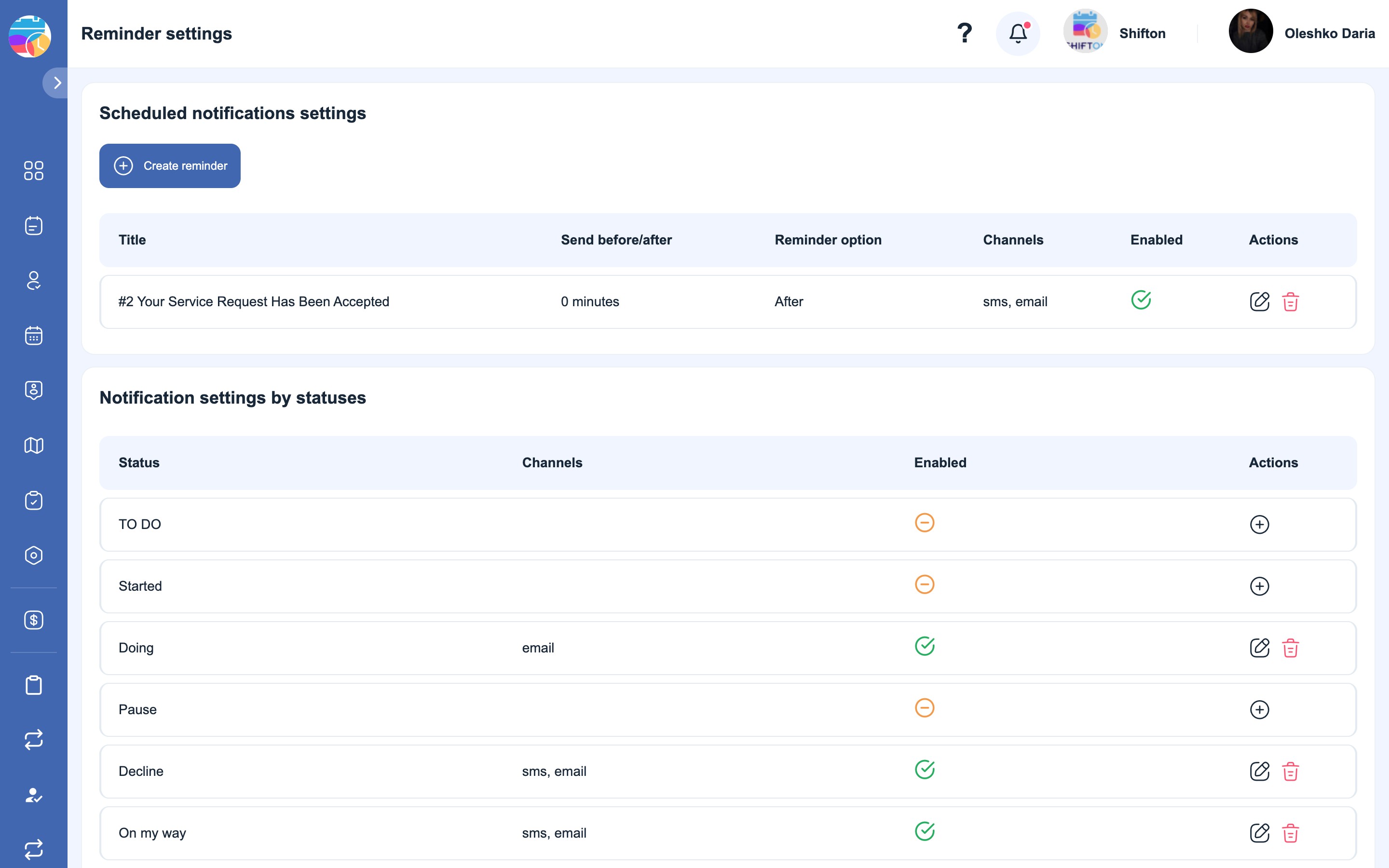
Two blocks on the page
The page is divided into two blocks, and it is worth not confusing them — they are triggered for different reasons:
| Block | When it is sent | Example |
|---|---|---|
| Scheduled notification settings | By time: N minutes to the visit or after it | “A reminder: the specialist will arrive in an hour” |
| Status notification settings | By event: the task has moved to a particular status | “The technician is on the way to you” |
One does not replace the other: a reminder will go out even if the status has not changed, and a status notification will go out even if the visit is still a day away.
Scheduled reminders
How to create one
- Click “Create reminder”.
- Title — what the reminder will be called in the list. Only you can see it.
- Reminder option — “To” (before the visit) or “After”.
- Send before/after — the interval in minutes. The value
0means “at the reference point itself”. - Channels — SMS, e-mail or both.
- The message texts: SMS Text, Subject of the email, Email text.
- Enabled — turn the reminder on.
In the list, a reminder is shown with the Title, Send before/after, Reminder option, Channels and Enabled columns and a set of actions — the pencil for editing and the bin for deleting.
Status notifications
The statuses are yours, not system ones
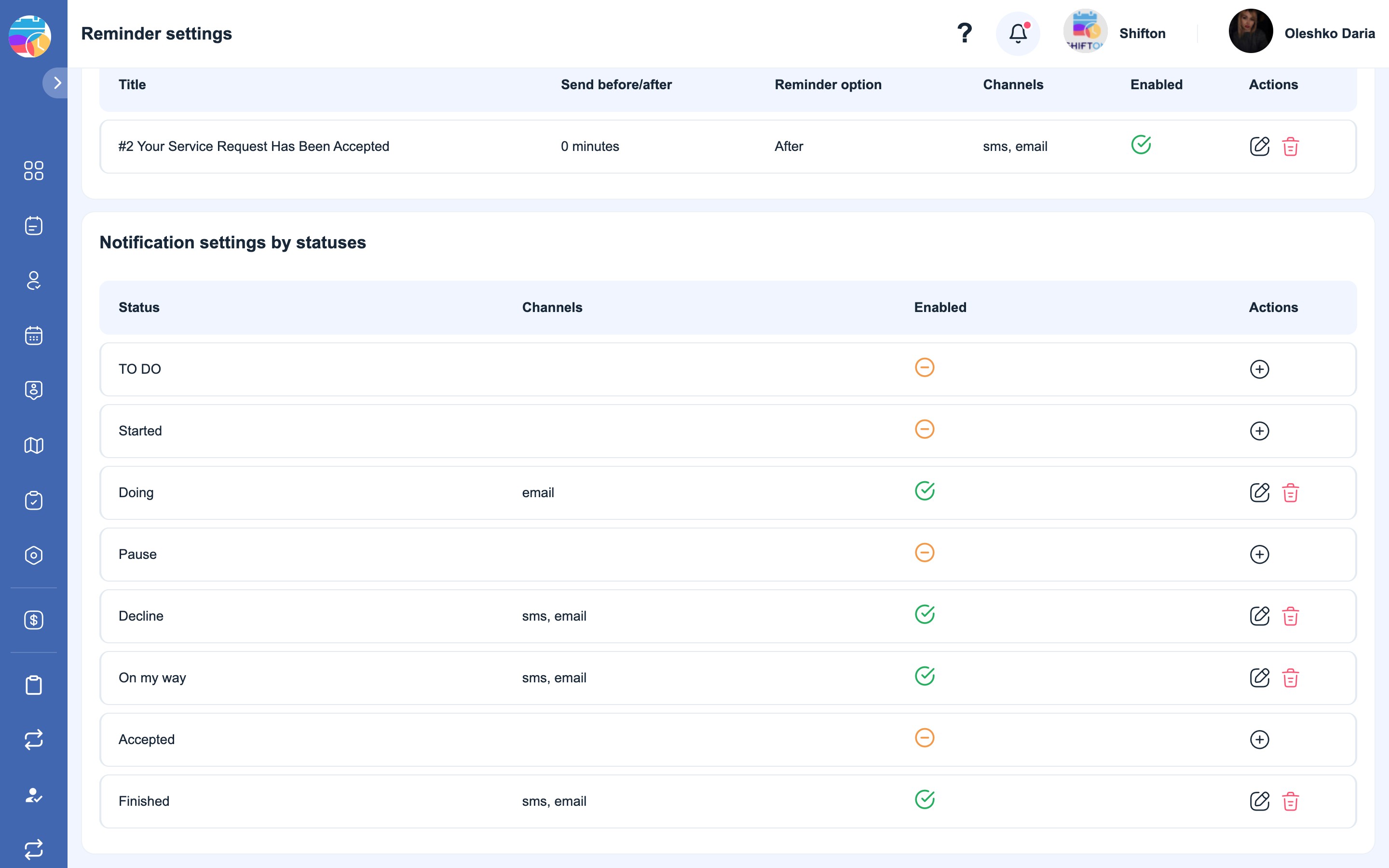
The list of statuses in this block is not a ready-made Shifton list. You create and name task statuses yourself in the Task Settings → Statuses section, and the notification table shows exactly your own set. The illustrations in this article show one company’s statuses; yours will be different.
Hence the order of work: statuses first, then the notifications for them. A new status added later will appear in the table as an empty row — with no channels — and nothing will be sent to the client for it until you define them.
How to set up a notification for a status
Click + in the status row — the “Add rule for statuses” window opens:
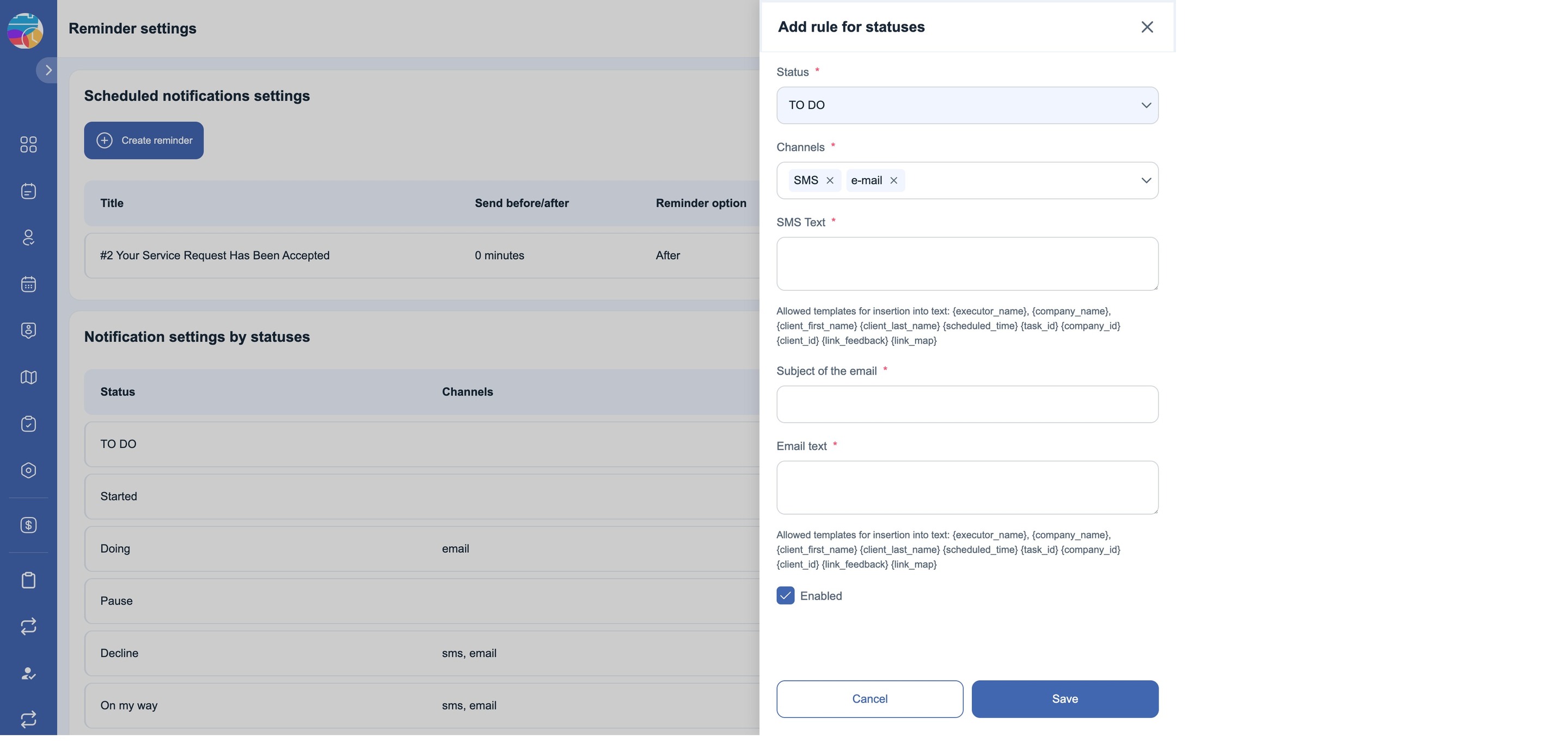
- Status — the status the rule will be triggered by.
- Channels — SMS, e-mail or both.
- SMS Text — the text of the SMS.
- Subject of the email — the subject of the email.
- Email text — the text of the email.
- Enabled — whether the rule is enabled.
Click “Save”. The selected channels will appear next to the status in the table, and the grey mark will turn green.
A status with no channels defined is marked in grey — the client receives nothing for it.
Placeholders in the message text
The texts are not static: the data of a particular task is substituted into them. Below each field there is a hint with the list of allowed placeholders:
{executor_name} — the technician’s name · {company_name} — the company name · {client_first_name} — the client’s first name · {client_last_name} — the client’s last name · {scheduled_time} — the scheduled time of the visit · {task_id} — the task number · {company_id} — the company number · {client_id} — the client number · {link_map} — the link to the tracking page · {link_feedback} — the link to the review form
The main thing about links. The links to the map and to the review form are not added automatically — they get into the message only through {link_map} and {link_feedback}. If you do not insert the placeholder, the message will go out without the link: the client will be unable either to track the technician or to leave a review, and nothing in the interface shows this — the rule will look configured.
An example of an SMS text for the “technician is on the way” status:
Hi {client_first_name}, {executor_name} from {company_name} is now on the way to you.
Scheduled: {scheduled_time}. Track location: {link_map}
And the email subject for it:
Your Specialist Is On the Way — Request #{task_id}The email reaches the client on behalf of Shifton Robot ([email protected]) with the subject you have set.
What is needed for the messages to arrive
- SMS requires a balance. Every SMS is deducted from the SMS balance — it is on the SMS Billing page. When the balance is zero, no SMS are sent. Emails are free and do not depend on the balance.
- The client must have a phone and/or an email filled in, and these fields must be linked to the channels in Modules → Settings → Customer Portal.
- The rule must be enabled — the Enabled toggle.
Possible problems and solutions
| Problem | Reason | Solution |
|---|---|---|
| The reminder is created but is not sent | The Enabled toggle is off | Turn the reminder on in the list |
| The client received nothing when the status changed | The status has no channels defined (a grey mark) | Click + in the status row and define the channels and the text |
| A new status has appeared, but there are no notifications for it | The status was added after the notifications were set up | Define a rule for it — a new status is created empty |
| The client received a message without a link | The {link_map} or {link_feedback} placeholder is not inserted into the text | Add the placeholder you need to the text of the rule |
The placeholder itself is visible in the message, for example {client_first_name} | A typo in the name — an unknown placeholder reaches the client as plain text | Copy the name from the hint below the field |
| Emails arrive, SMS do not | A zero SMS balance, or the client has no phone | Top up the balance on the SMS Billing page and check the client’s record |
FAQ
Question: How does a scheduled reminder differ from a status notification? Answer: A reminder is tied to the time of the visit — it goes out N minutes before or after it. A status notification is tied to an event — the task has moved to a status. One does not replace the other.
Question: What units is the reminder interval set in? Answer: In minutes. The value 0 means sending at the reference point itself.
Question: How many reminders can be created? Answer: There is no limit. Two or three are usually created: for example, one by email a day in advance and one by SMS 30 minutes in advance.
Question: The statuses in my table are different from the ones in the picture. Is that normal? Answer: Yes. You create the statuses yourself in Task Settings → Statuses, and the table shows exactly your own set.
Question: I have added a new status — why are there no notifications for it? Answer: A new status appears in the table as an empty row, with no channels. Open it with + and define the channels and the text.
Question: Can I send emails only and not spend SMS? Answer: Yes, leave only the e-mail channel in the rule.
Question: The client received a message, but without the link to the map. Why? Answer: There is no {link_map} placeholder in the text. The link is not added by itself — it has to be written into the text.
Question: Can I write the message text in my own language? Answer: Yes, the text is entirely yours. Bear in mind that it will go out to all clients exactly as written — it is not translated into the client’s language.
Question: What does the client see instead of a placeholder if there is no data? Answer: The placeholder is replaced with whatever is in the task. If the field is not filled in for the client, its place will be left empty — that is why it is better to check the name in the client’s record in advance.
Question: Can notifications be turned off for all statuses at once? Answer: There is no separate switch — the channels are removed for each status individually. It is quicker to turn off the whole module in Company settings → Modules.
Question: Who can change these settings? Answer: The company owner and administrator.
Question: Are notifications sent both to the client and to the employee? Answer: No. The settings on this page concern the client only. Notifications to employees are configured separately — in the employee profile and in the settings of the Tasks module.