

Customer Portal is the module that keeps your client informed about the visit without a single call from the dispatcher. The client receives a notification about the upcoming job and a link that shows them on a map where the technician is now and when they will arrive, they can write in the chat and leave a review after the job.
The client does not need a Shifton account for this — everything opens from a link in an SMS or an email.
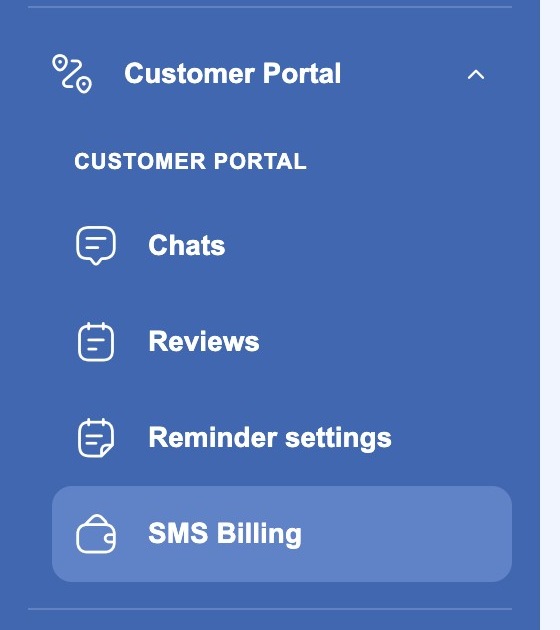
Important: the Customer portal is a paid module. Enable it in the Company settings → Modules section. Once it is enabled, an expandable Customer Portal group with four pages appears in the left menu.
What the client gets
- Notifications about the visit. The client finds out that the request has been accepted, that the technician has set off, that the job is completed. Which events exactly to report and through which channel — SMS, email or both — you decide yourself.
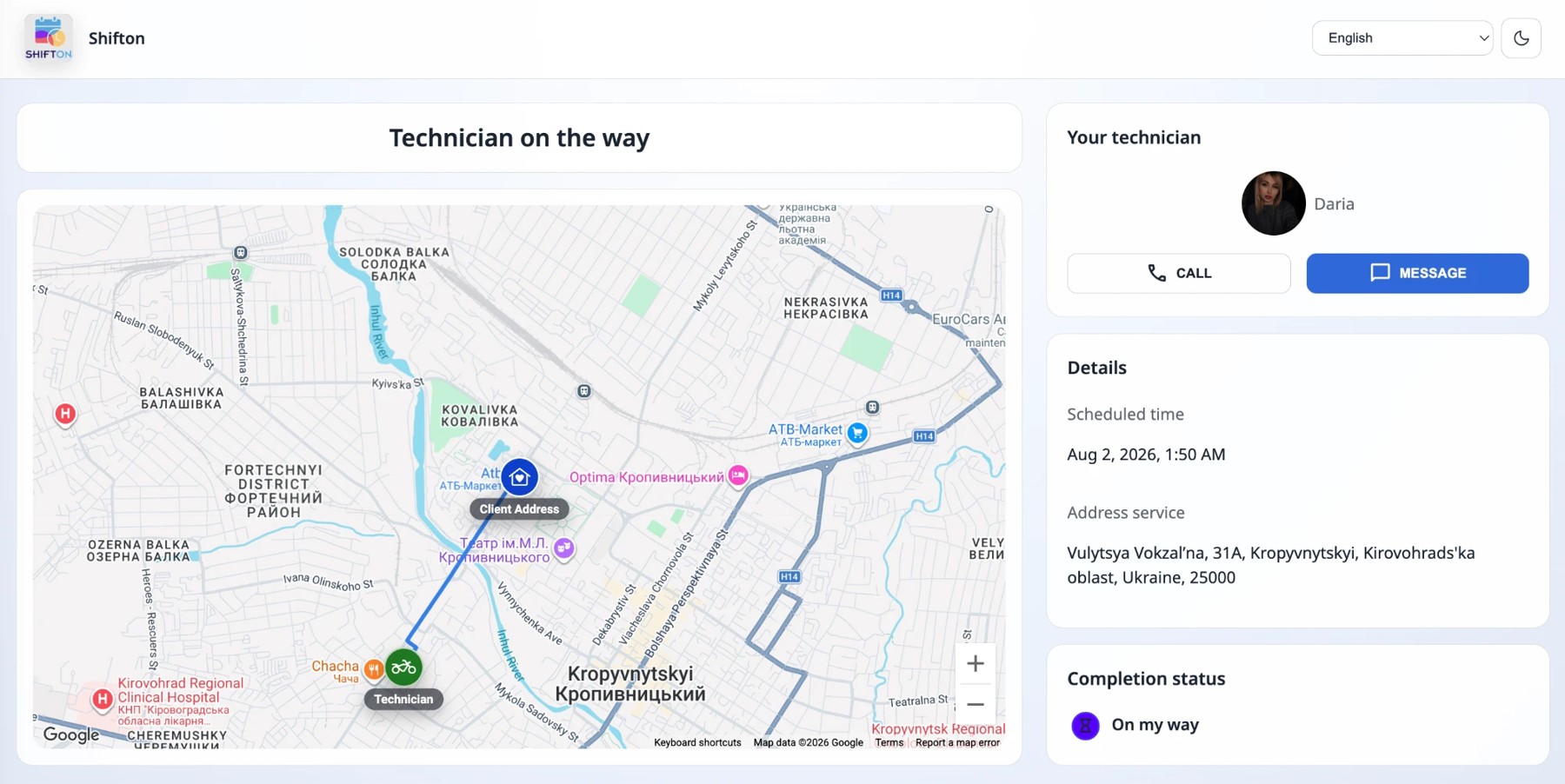
- The tracking page. The link leads to a separate address — my.shifton.com, not to the app. On the page there is a map with two points — the client’s address and the technician — and a route built between them, the estimated travel time, and next to it the technician’s card with a photo and a name and two buttons — “Call” and “Message”. Below there are the scheduled time of the visit, the service address and the completion status.
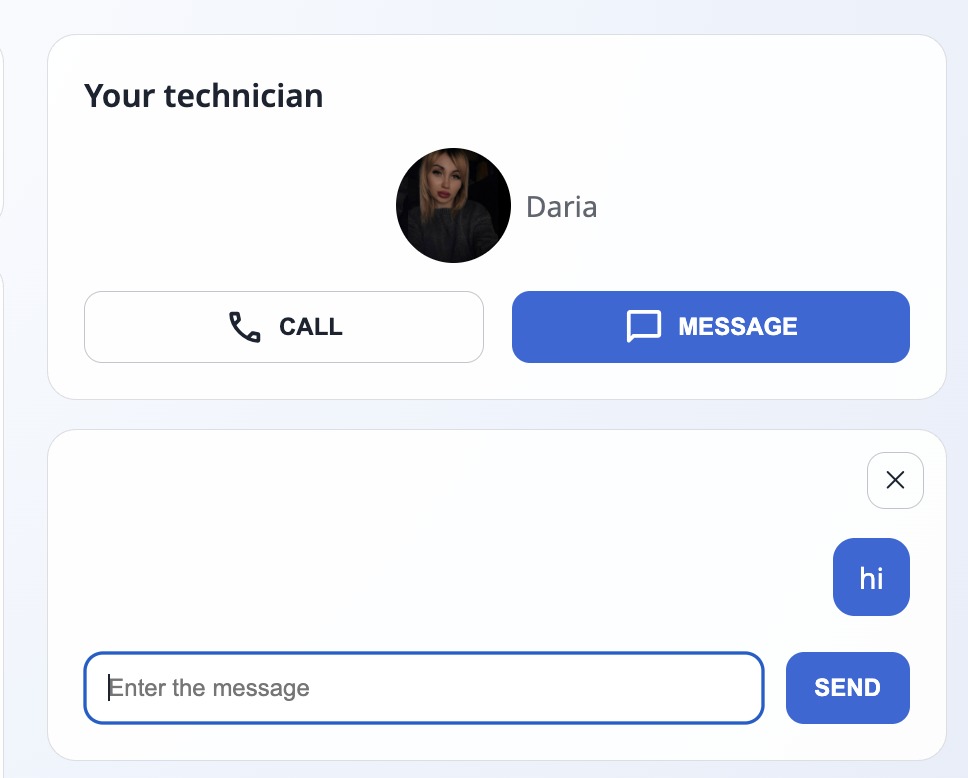
- The chat about the task. The “Message” button opens the conversation right on the same page: an input field and a “Send” button. Your team replies on the Chats page in the app. The conversation is tied to the task, so anyone who works with that task can see it. Once the task is completed, the chat is closed and goes to the archive.
- A review after the job. The service quality rating form opens from its own link: the technician’s photo and name, a five-star rating, an optional comment and an attached file. The client clicks “Send”, and the review goes to the Reviews page. A review is left once — after it is submitted, the link becomes inactive.
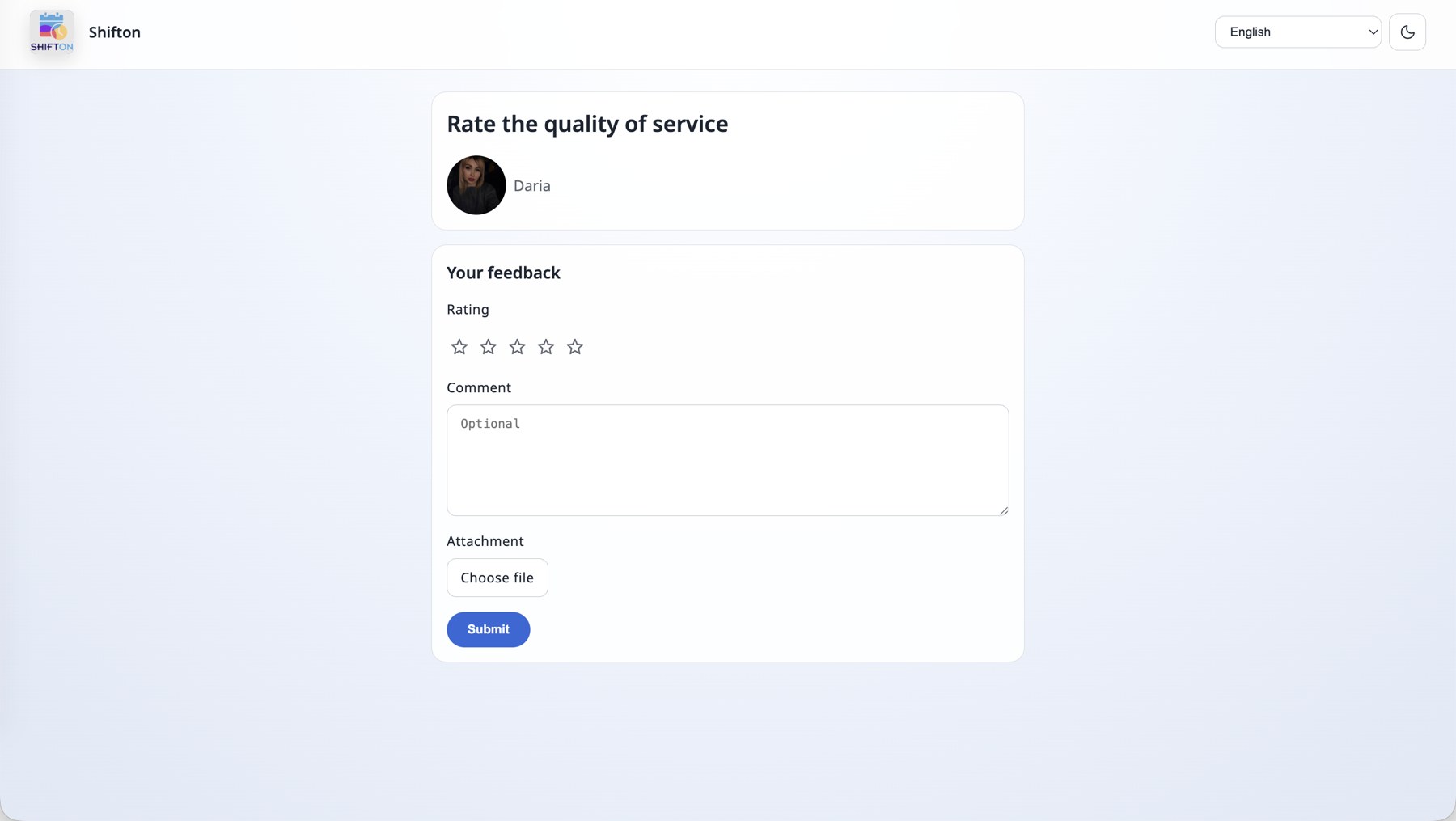
The review link works only after the task is completed. While the task is not in a final status, it opens the “The link is no longer valid” page.
The page in the client’s language. In the top right corner of the client pages there is a language selector — all 41 Shifton languages are available — and a dark theme switch. All the labels are translated, so a client from any country sees the page in their own language. In the illustrations below the page is open in English.
The technician’s phone number can also be kept hidden: the module settings have number substitution, and the client does not call the employee’s personal number.
How long the links live
Both links are single-use in their own way, and this is worth knowing in advance:
- The tracking link works while the task is in progress. As soon as you move the task to a final status, tracking closes — the client will see “The link is no longer valid”.
- The review link, on the contrary, only starts working after the task is completed. And it works until the first review: once the client has submitted a rating, the link becomes inactive, a second review cannot be left.
- The Chat lives together with the task: while the task is in progress, the client and your team exchange messages, and after the move to a final status the conversation is closed and goes to the archive — it stays available for you to read on the Archive tab of the Chats page.
It is easier to remember it like this: the job is under way — the map and the chat are open; the job is finished — only the review is open, and it is open once.
How to set it all up: five steps
1. Enable the module
Company settings → Modules → tick Customer Portal → Save. For more details, see the article “Modules and module settings”.
2. Link the client fields to the communication channels
Modules → Settings → Customer Portal. This is where you specify which fields of the client record the first name, the last name, the phone number and the email are taken from — the SMS will go to that phone number and the email to that address. This is also where you choose how to show the technician’s name to the client and where phone substitution is turned on.
3. Set up the notifications for the task statuses
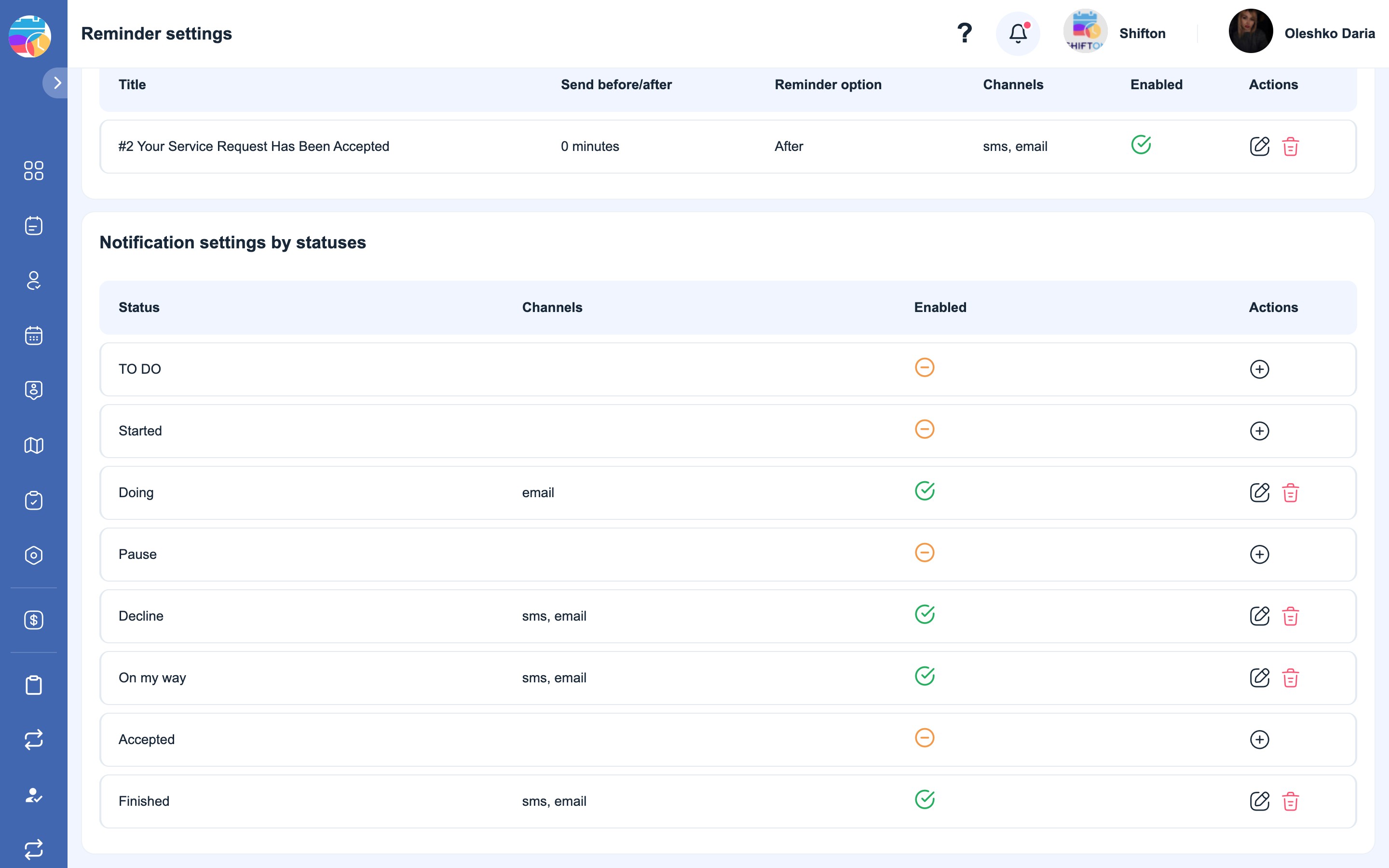
The Reminder settings page (“Reminder settings”), the Status notification settings block. This is the main table of the module: it lists the task statuses of your company, and next to each of them you turn on the channels the client will receive a message through when the task moves to that status.
Every company has its own statuses. This is not a ready-made system list: you create and name the statuses yourself in the Task Settings → Statuses section, and the notification table simply shows what you have set up. That is why your table will contain your own names, not the ones in the illustration below (there the statuses “TO DO”, “Started”, “Doing”, “Pause”, “Decline”, “On my way”, “Accepted”, “Finished” are used as an example).
Hence the order of work: statuses first, then the notifications. If you add a new status after setting up the notifications, it will appear in the table as a separate row with no channels — and nothing will be sent to the client for it until you turn them on.
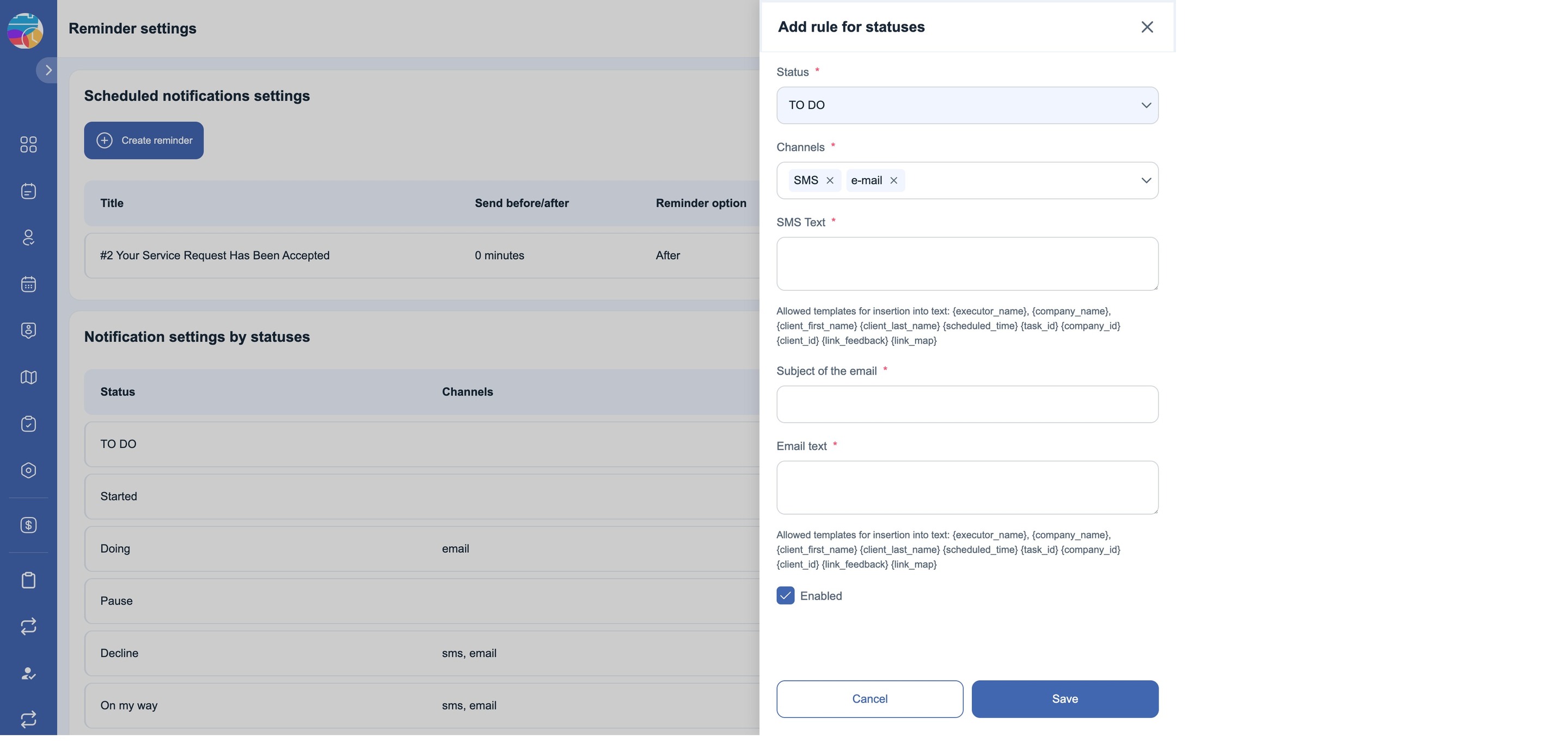
Statuses without channels are marked in grey — nothing is sent to the client for them. To turn a status on, click + in its row — the “Add rule for statuses” window opens, where the whole message is defined:
- Status — the status the rule will be triggered by (for example, On my way).
- Channels — the channels: SMS, E-mail or both.
- SMS Text — the text of the SMS.
- Subject of the email — the subject of the email.
- Email text — the text of the email.
- Enabled — whether the rule is on.
Placeholders in the text of the message
The texts are not static: the data of the task is inserted into them. The available placeholders are:
{executor_name} · {company_name} · {client_first_name} · {client_last_name} · {scheduled_time} · {task_id} · {company_id} · {client_id} · {link_feedback} · {link_map}
The most important thing: links get into the message only through the placeholders. {link_map} is the link to the tracking page with the map, {link_feedback} is the link to the review form. If you do not insert them into the text, the message will go out without a link, and the client will be able neither to track the technician nor to leave a review.
An example of an SMS text for the On my way status:
Hi {client_first_name}, {executor_name} from {company_name} is now on the way to you.
Scheduled: {scheduled_time}. Track location: {link_map}
And the subject of the email can look like this: Your Specialist Is On the Way — Request #{task_id}.
4. Add reminders by time
In the same place, the Scheduled notification settings block — the Create reminder button. Unlike the status notifications, a reminder is tied not to an event but to time: how many minutes to the visit or after it the message is sent. A reminder has a title, an interval (Send before/after), the “to/after” choice (Reminder option), the channels and an on/off switch.
For example, a “30 minutes before the visit” reminder by SMS — the client will have time to get ready, and you will reduce the number of failed visits.
5. Top up the SMS balance
SMS use up the balance, and with a zero balance the messages simply will not go out. The balance, the spending and the automatic top-up are on the SMS Billing page. Email is sent free of charge, so you can also start with the email channel alone.
The pages of the module
| Page | What it is for | More details |
|---|---|---|
| Chats (“Chats”) | Read the messages of the clients about their tasks and reply to them. The Archive tab keeps the closed conversations | Chats |
| Reviews (“Reviews”) | See the ratings and the comments of the clients, with filters by employee and by client | Reviews |
| Reminder settings (“Reminder settings”) | The status notifications and the reminders by time | Reminder settings |
| SMS Billing (“SMS Billing”) | The SMS balance, the spending by country and type, the top-up and the automatic top-up | SMS Billing |
What is needed for the notifications to arrive
| # | Condition | Where to check |
|---|---|---|
| 1 | The Customer Portal module is enabled | Company settings → Modules |
| 2 | The company works in Tasks (Field Service) mode | the company menu → change of the work mode |
| 3 | The client has a phone number and/or an email filled in | the client record in the Clients section |
| 4 | The client fields are linked to the channels | Modules → Settings → Customer Portal |
| 5 | The channels are turned on for the statuses you need | Reminder settings → Notification settings by statuses |
| 6 | There is money on the SMS balance (for SMS) | SMS Billing |
Possible problems and solutions
| Problem | Cause | Solution |
|---|---|---|
| There is no Customer Portal group in the menu | The module is disabled or the company is not in Tasks mode | Enable the module in Company settings → Modules; switch to Tasks (Field Service) mode |
| The group is there, but the items are not visible | The group is collapsed | Click the Customer Portal name — the list will expand |
| The client received neither an SMS nor an email | Not a single channel is turned on for this status | Reminder settings → Notification settings by statuses → turn on the channel for the status you need |
| Emails arrive, SMS do not | A zero SMS balance or an incorrect number | Top up the balance on SMS Billing; check the phone number in the client record |
| The notifications go to the wrong phone number | The client field is linked incorrectly | Modules → Settings → Customer Portal → Mapping: customer’s phone number |
| The tracking link is empty | The technician has not set off yet or has geolocation turned off | Check the status of the task and the geolocation permissions in the employee’s mobile app |
| The client opened the link and sees “The link is no longer valid” | The task is already completed — tracking for it has ended | This is normal: the map link lives while the task is in progress |
| The client wants to reopen the review form | The review has already been submitted, the link has become inactive | A second review cannot be left — take the addition through the chat about the task |
FAQ
Question: Does the client need a Shifton account? Answer: No. Everything opens from a link in an SMS or an email — neither registration nor a password is required.
Question: What exactly triggers a notification to the client? Answer: Two different mechanisms. The first one is a change of the task status: it is set up in Reminder settings → Notification settings by statuses. The second one is a reminder by time: it is created with the Create reminder button and is triggered N minutes before or after the visit.
Question: How is a reminder different from a status notification? Answer: A status notification is tied to an event — the task has moved to a status, the client has received a message. A reminder is tied to the time of the visit and goes out regardless of whether the status has changed or not.
Question: Can I manage without SMS? Answer: Yes. Leave only the email channel turned on — it does not use up the SMS balance.
Question: Does the client see the employee’s personal phone number? Answer: Not necessarily. The module settings have number substitution — then the client’s call does not go to the technician’s personal number.
Question: How does the client see the technician’s name? Answer: The way it is set in the module settings — for example, the first name only, without the last name.
Question: Who in the company sees the chat with the client? Answer: The conversation is tied to the task, so anyone who has access to that task can see it. All the chats are collected on the Chats page.
Question: Where does the conversation go after the task is closed? Answer: To the archive — the Archive tab on the Chats page.
Question: Do I have to ask every client for a review? Answer: No, a review is a separate message, and you decide yourself whether to send it or not.
Question: Why is a status in the table marked in grey? Answer: It means that not a single channel is turned on for it and nothing is sent to the client for that status. Click + in the status row to turn a channel on.
Question: How many reminders can be created? Answer: There is no limit — you can set up several: for example, one by email a day before the visit and one by SMS 30 minutes before.
Question: In which language do the notifications arrive? Answer: The text of the messages is set in the settings, so it will be exactly as you wrote it.
Question: Is the module paid? Answer: Yes. On top of that, the SMS balance is used up separately for every SMS sent; emails are free.
Question: The client received the message, but without the link to the map. Why? Answer: The {link_map} placeholder was not inserted into the text of the rule. The link is not added automatically — it has to be written in the text of the SMS or the email.
Question: How does the client get into the chat? Answer: From the tracking page — there is a MESSAGE button there. There is no need to send a separate link to the chat.
Question: Can the client call the technician from the tracking page? Answer: Yes, with the CALL button. If number substitution is turned on in the module settings, the call will not go to the employee’s personal phone number.
Question: Can the client attach a photo to a review? Answer: Yes, the review form has an attachment field — the client selects a file and sends it together with the rating and the comment.
Question: In which language does the client see the tracking page? Answer: The page has a language switch, the client can choose a convenient one themselves. The dark theme is switched there as well.
Question: Can I write my own text for the message? Answer: Not only can you — you have to. The text of the SMS, the subject and the text of the email are set in the rule for each status separately, with placeholders such as {client_first_name} or {scheduled_time}.
Question: At what address does the page open for the client? Answer: At a separate one — my.shifton.com, not in the app. The client does not get into the interface of the company and does not see anything in it.
Question: How long does the tracking link live? Answer: While the task is in progress. As soon as the task is moved to a final status, tracking closes: the link shows “The link is no longer valid”.
Question: When does the review link start working? Answer: After the task is completed. Before that it also opens “The link is no longer valid”.
Question: Does the client see the number of the task? Answer: Yes, if you inserted {task_id} into the text of the message — for example, in the subject of the email “Your Specialist Is On the Way — Request #401428”.
Question: Who is the email to the client from? Answer: From Shifton Robot ([email protected]) with the subject you set in the rule.
Question: My table has statuses different from the ones in the picture. Is this normal? Answer: Yes. You create the task statuses yourself in Task Settings → Statuses, and the notification table shows exactly your own set. The names in the illustrations are one company’s example.
Question: I have added a new status — why are there no notifications for it? Answer: A new status appears in the table as an empty row, with no channels. Open it through + and set the channels and the text of the message.
Question: Can a notification be set up for any status of my own? Answer: Yes, for any of the statuses of your company — there are no limits on the name or the number.
Question: How long does the tracking link live? Answer: While the task is in progress. As soon as the task is moved to a final status, tracking closes.
Question: How many times can a client leave a review? Answer: Once. After it is submitted, the link becomes inactive, and the form cannot be opened again.
Question: Can I exchange messages with the client after the task is completed? Answer: No. With a final status the chat is closed and goes to the archive. The conversation can be read on the Archive tab of the Chats page.