

Shifton Field Service lets you enable and disable individual modules depending on the needs of your company. Most modules work independently of each other, but the Tasks module is mandatory — it cannot be disabled, because all the other modules are built on it.
Tasks module
The Tasks module opens access to the main capabilities of the system, including:
- Tasks and task settings — task types: single, group, recurring
- Custom task fields
- Checklists
- Clients
- Skills
- Service areas
- Map
- Marks
- Statuses
- Employees
- Reports
- Attaching files to tasks
- To Do (to-do list)
Work location control
The Work location control module lets you:
- see employees on the map in real time
- track routes and movements
- view the last known location
- get access to historical movement data for any day
Inventory
The Inventory module lets you:
- manage tools and equipment
- set up warehouses
- track stock movements
- view the stock assigned to each employee
Enabling and disabling modules
To manage the modules:
- Click the company name at the top of the page.
- Open the Modules section.
On this page you will see:
- the enabled modules
- the module descriptions
- the module prices
Enable module
- Tick the checkbox next to the module.
- Click Save.
Disable module
- Untick the module or
- click the red cross next to it.
- Click Save.
Module settings
In the Settings section you can configure the behaviour of the module.
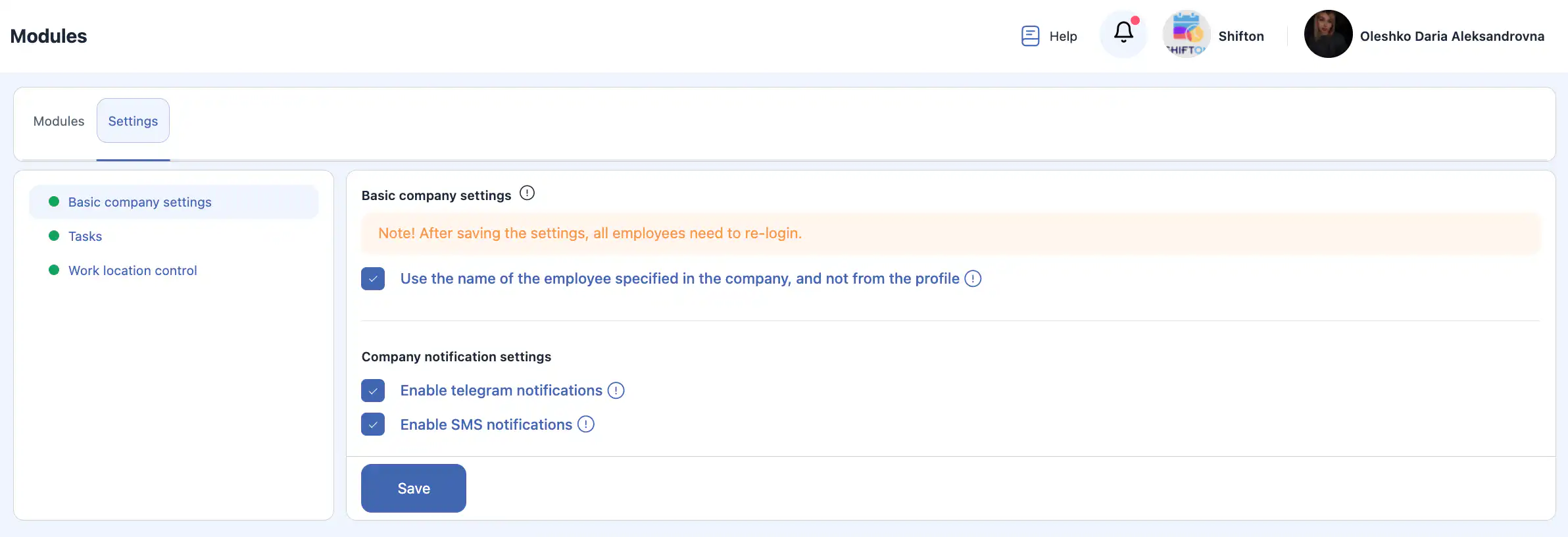
Basic settings
- Use the employee name from the company By default the name from the profile is shown. Turn this option on to show the name entered when the employee was added.
Company notification settings
- Allow Telegram notifications When it is on, employees can receive notifications in Telegram in line with the settings of their profile.
- Allow SMS notifications When it is on, employees can receive SMS notifications in line with the settings of their profile.
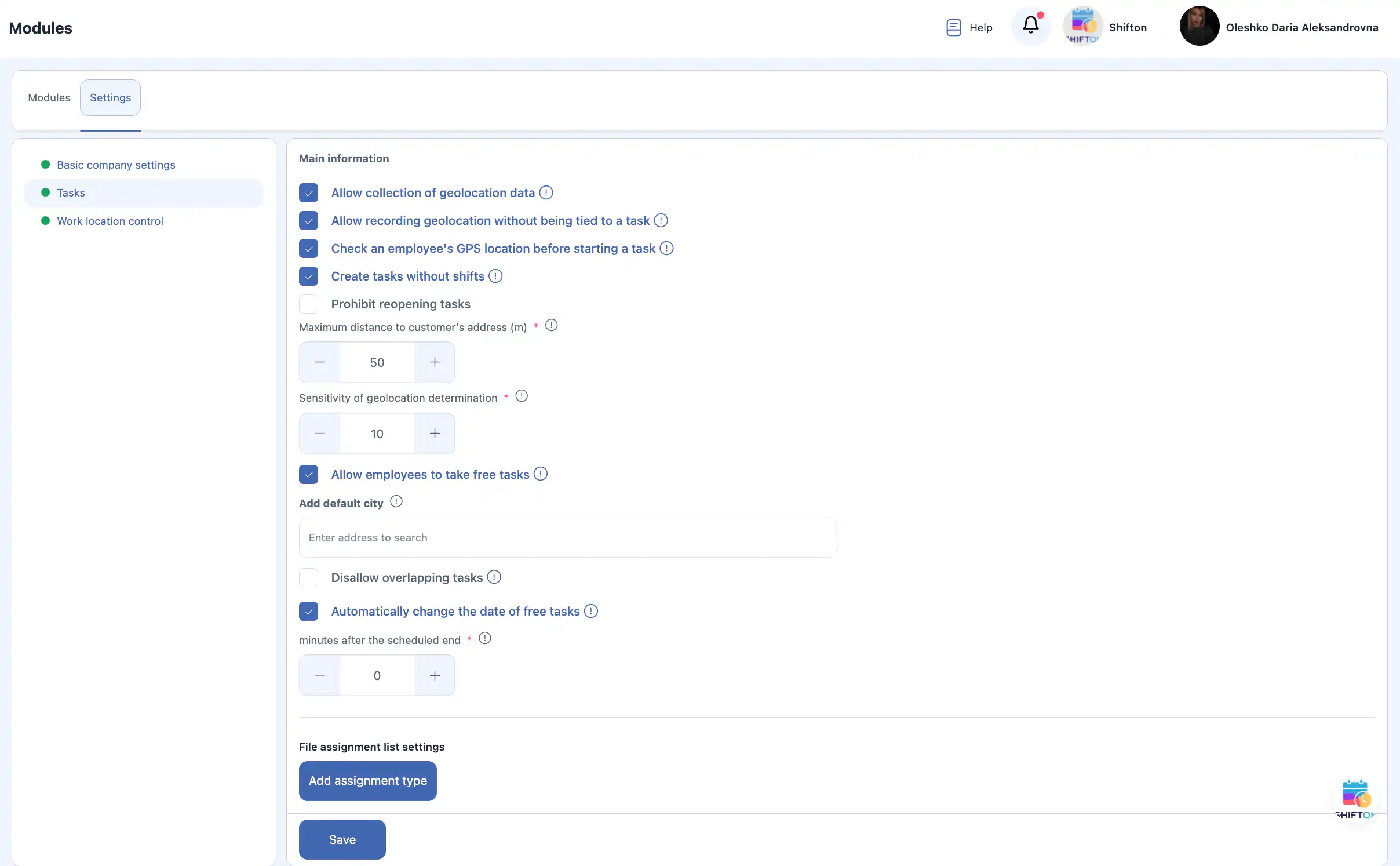
Tasks module settings
- Allow geolocation data collection Tracks the employee’s location when the mobile app is used.
- Allow geolocation tracking without a link to a task Employees can allow location tracking without being assigned to a task.
- Check geolocation before starting a task An employee can start a task only while being within the specified distance from the client’s address.
- Creating tasks without shifts Allows tasks to be created without shifts (convenient for office employees).
- Prohibit reopening tasks Tasks cannot be changed once they have reached a final status.
- Maximum distance to customer’s address (m) Sets the permitted distance for starting a task.
- Geolocation sensitivity Sets the minimum distance between the recorded points:
- 50–100 m — the same place
- 200–1000 m — travelling by vehicle
- Allow employees to take free tasks Employees can take unassigned tasks themselves.
- Default city Filled in automatically when a new client is created.
- Task overlap prevention Prevents tasks that overlap in time from being assigned to the same employee.
- Automatic date change for a free task Unassigned tasks are moved to the next day after the scheduled completion time.
- File assignment list settings Lets you add file assignment types.
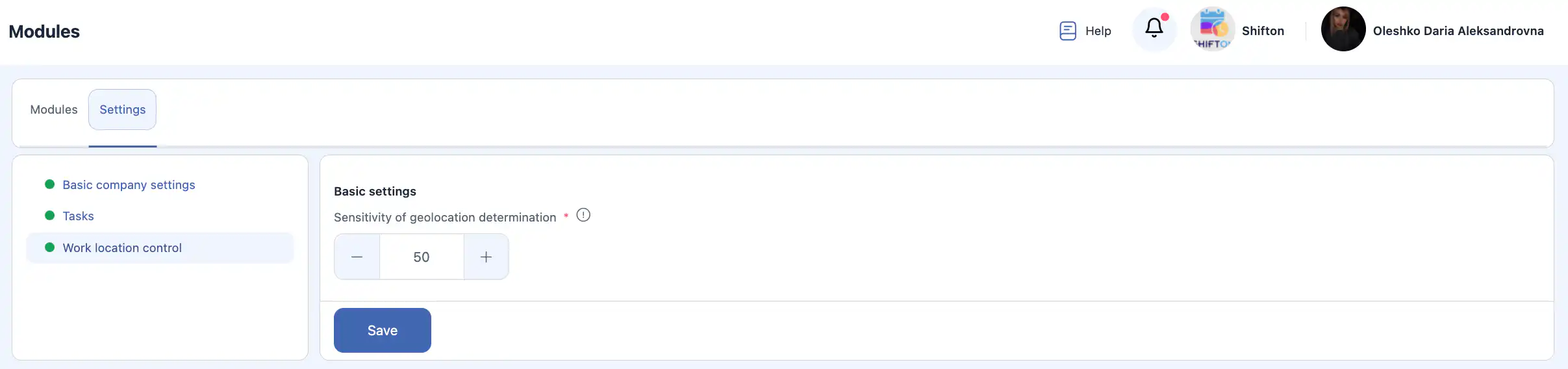
Work location control settings
- Geolocation sensitivity Sets the distance required to record a new movement point.
Important: after changing any settings, click Save to apply the changes.

Customer Portal settings
Here you set which client data is inserted into the messages and how the performer’s name is shown.
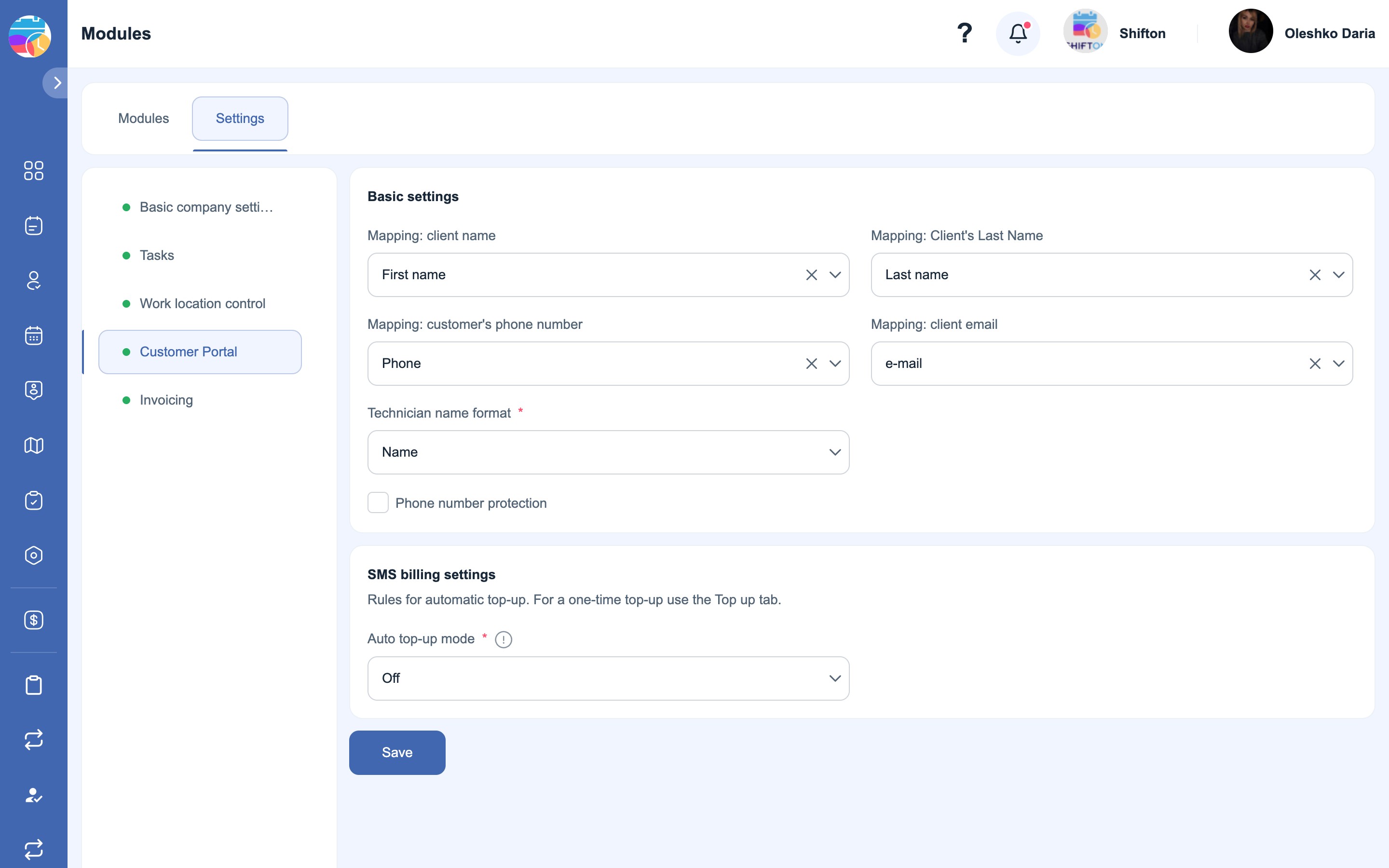
- Mapping: client name The client field the first name is taken from (First name by default).
- Mapping: Client’s Last Name The field the client’s last name is taken from (Last name by default).
- Mapping: customer’s phone number The field with the client’s phone number — SMS are sent to it (Phone by default).
- Mapping: client email The field with the client’s email address — emails are sent to it (e-mail by default).
- Technician name format How the performer’s name is shown to the client (for example, the first name only).
- Phone number protection Hides the employee’s real phone number from the client.
SMS billing settings
The rules for topping up the SMS balance automatically. For a one-off top-up, use the Top up tab in the SMS billing section.
- Auto top-up mode The automatic top-up mode. The Off value means automatic top-up is disabled.
After making the changes, click “Save”.
“Invoicing” settings
Here you configure the appearance of the documents and the numbering of each document type.
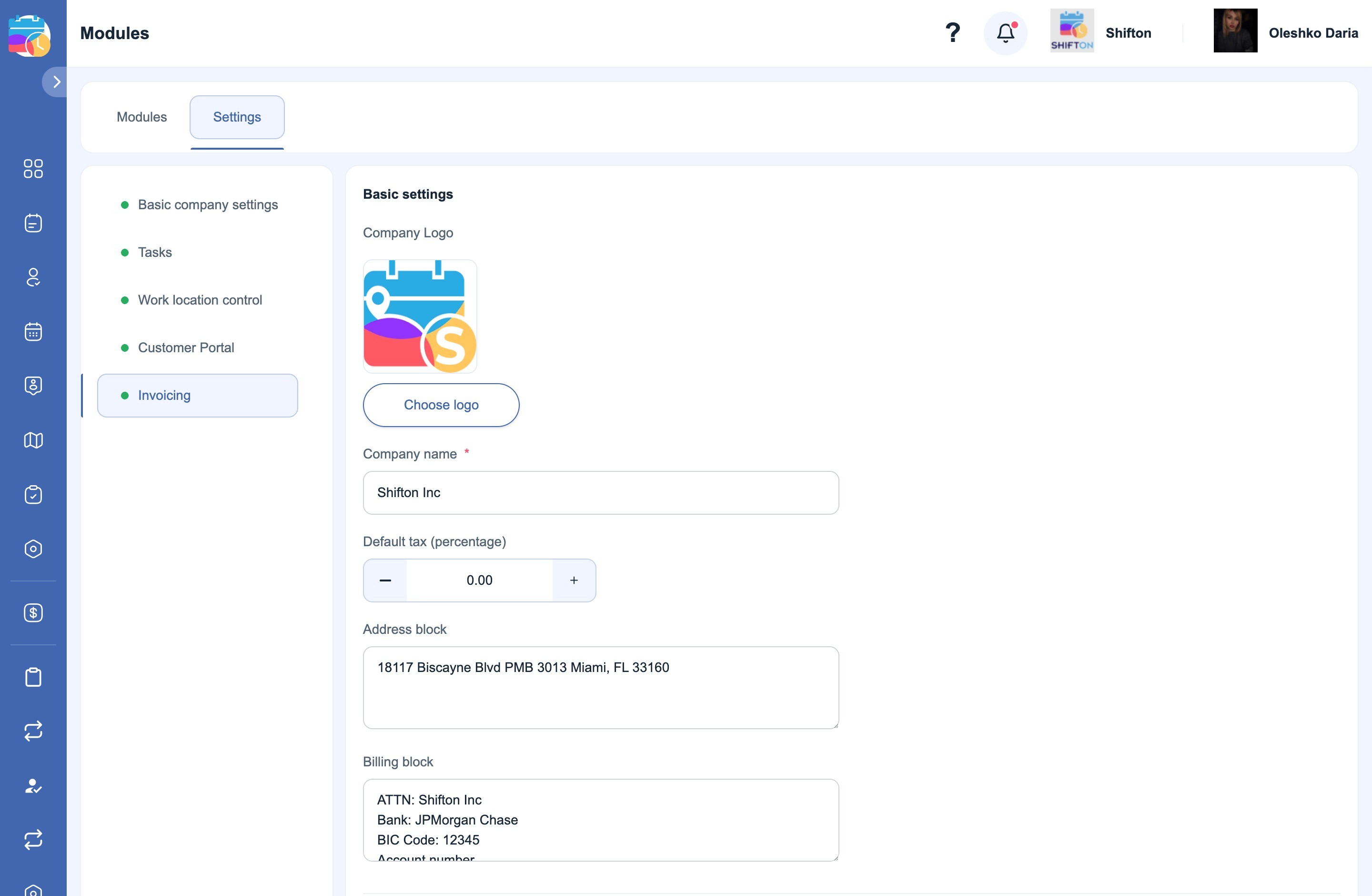
- Company Logo The logo printed in the header of the documents. It is pulled in automatically from the company settings (Company settings → General info). If a different logo is needed for the documents, replace it here with the “Choose logo” button.
- Company name The company name in the documents (a mandatory field).
- Default tax (percentage) The default tax as a percentage — it is inserted into new documents.
- Address block The company address in the header of the document.
- Billing block The bank details for payment (recipient, bank, BIC, account number and so on).
Important: the logo, name, address and billing details from these settings go into the documents you create for your clients — they are not connected to the invoices Shifton issues to your company.
Document counters
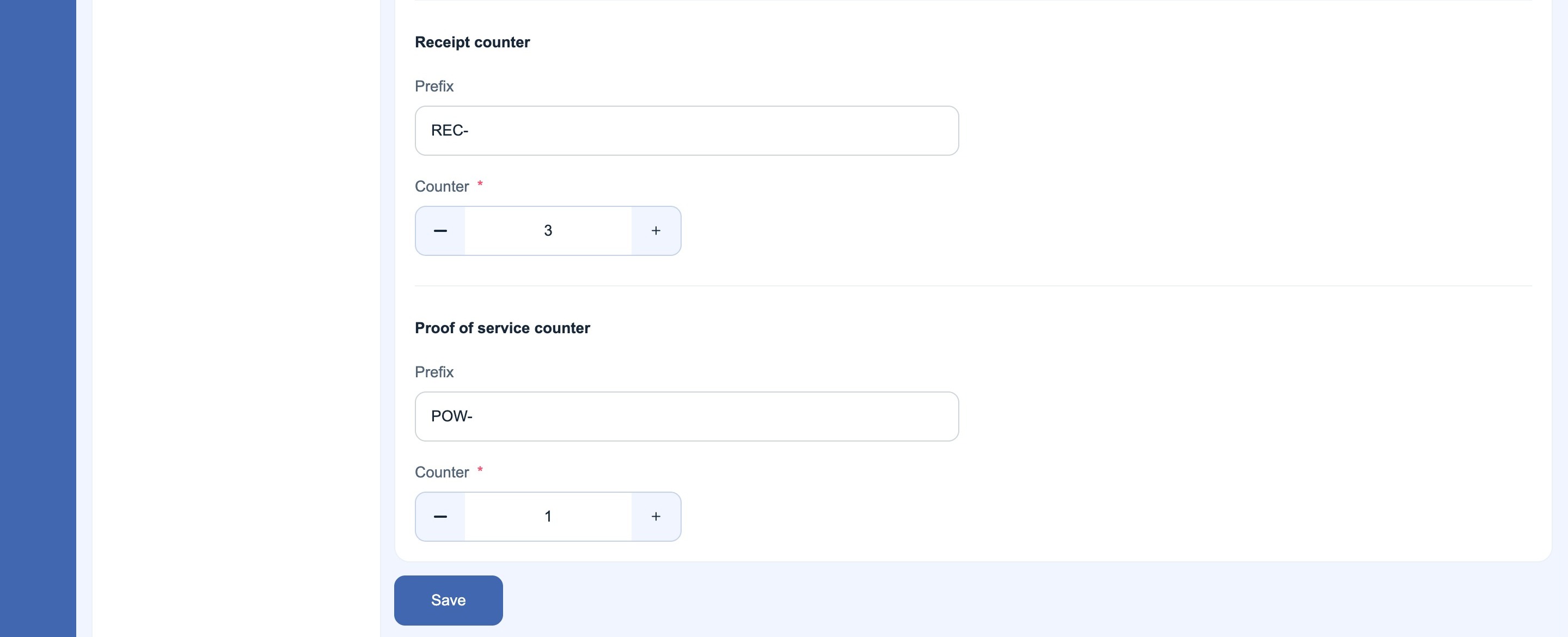
A prefix and a current number are set for each document type. The next document created will get the number “prefix + counter” (for example, EST-6).
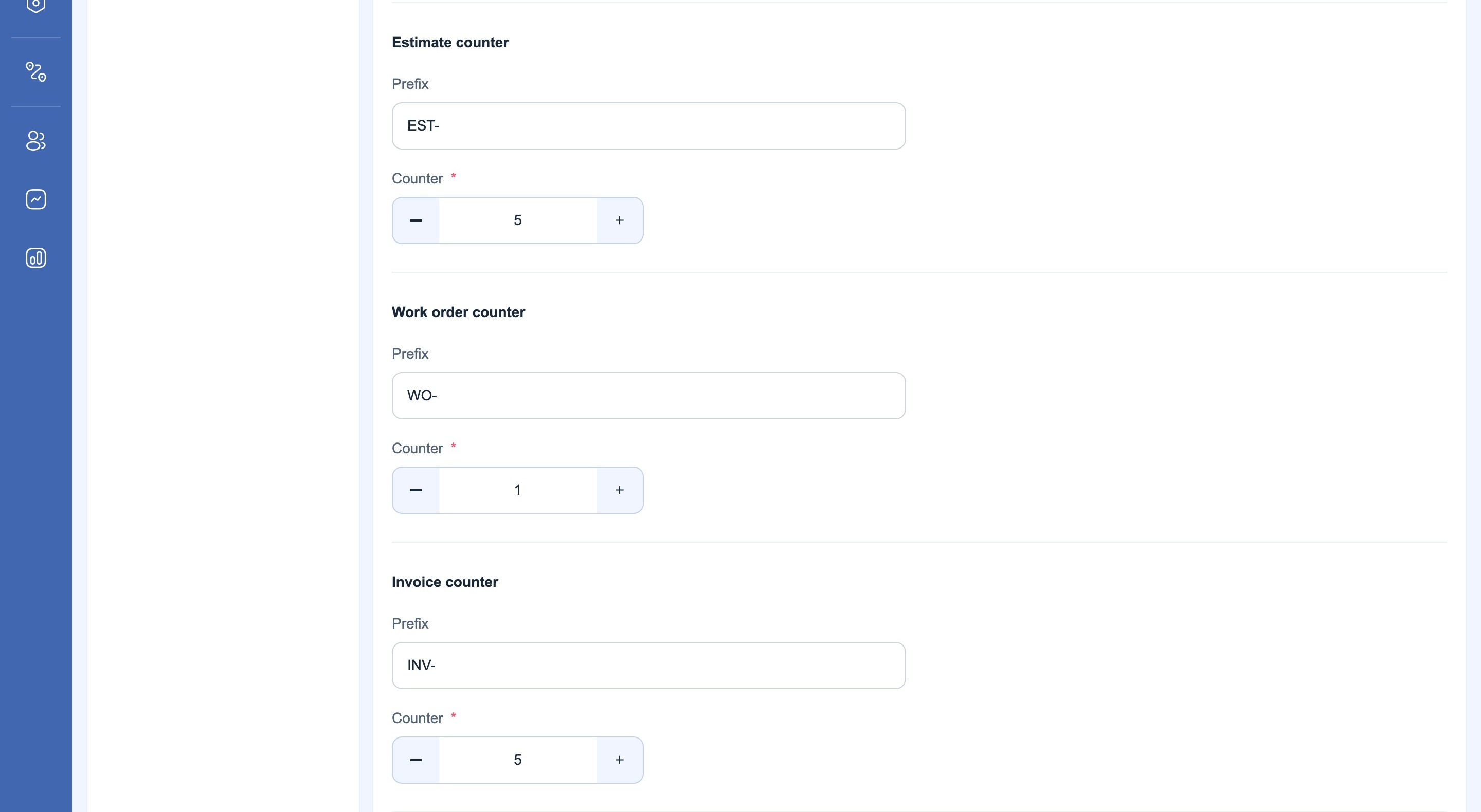
- Estimate counter Estimate — prefix (for example, EST-) and counter.
- Work order counter Work order — prefix (for example, WO-) and counter.
- Invoice counter Invoice — prefix (for example, INV-) and counter.
- Receipt counter Receipt — prefix (for example, REC-) and counter.
- Proof of service counter Proof of service — prefix (for example, POW-) and counter.
After making the changes, click “Save”.
FAQ
Question: Can I enable only one module and not use the rest? Answer: Yes. Most modules work independently, so you can enable only the ones your company really needs. The only exception is the Tasks module, which is mandatory.
Question: Why is the Tasks module mandatory? Answer: Tasks are the foundation of the system. The other modules (inventory, location control, reports) are built around the completion of tasks and cannot work correctly without it.
Question: Will employees see the disabled modules? Answer: No. Disabled modules are completely hidden from employees and are not shown in their interface.
Question: Do module changes affect the existing data? Answer: No. Disabling a module does not delete the data. If you enable it again later, all the previously created data will still be available.
Question: Is geolocation tracking mandatory for employees? Answer: No. Geolocation tracking depends on the module settings and the employees’ permissions. It can be disabled completely or restricted.
Question: Does the system track the location outside working hours? Answer: No. Location data is collected only in line with the active permissions.
Question: What happens if an employee denies access to the location on their phone? Answer: The system will not be able to track their location, and some restrictions related to tasks may not work correctly.
Question: Can tasks be created without assigning an employee? Answer: Yes. Such tasks are called free tasks and, if this option is on, they can be taken by employees later.
Question: What happens if two tasks overlap in time? Answer: If task overlap prevention is on, the system will block the assignment of overlapping tasks to the same employee.
Question: Can tasks be edited after they are completed? Answer: It depends on the settings. If reopening tasks is disabled, completed tasks cannot be changed.
Question: Are notifications sent automatically once they are enabled? Answer: Notifications are sent only if they are enabled both at the company level and in the employee’s profile.
Question: Can Telegram notifications be used without SMS? Answer: Yes. Each notification channel can be enabled and disabled independently.
Question: Can the module settings be changed later? Answer: Yes. All the module settings can be updated at any moment.
Question: Why were my settings not applied? Answer: Most likely the Save button was not clicked. The changes are applied only after saving.
Question: Do the module settings take effect immediately? Answer: Yes. Once saved, the settings take effect immediately.
Question: Can I test a module before using it fully? Answer: Yes. You can enable a module, check how it works and disable it if necessary without losing any data.