

The Company settings section lets you manage general information about the company, billing data, payment methods, invoices, transactions and active modules.
To open the company settings page, click your company name at the top of the screen and select “Company settings”.
General info
In this section you can fill in the main details of your company:
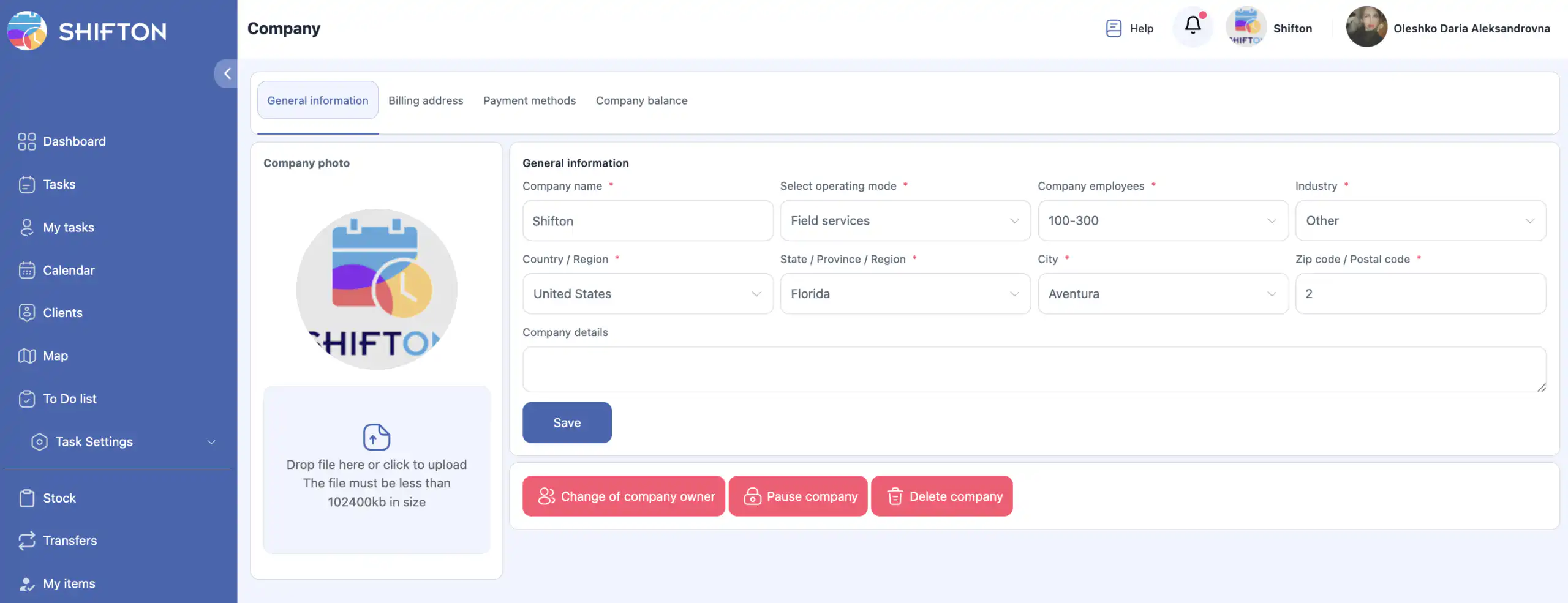
- company name;
- work mode (office mode or Field Service — field tasks);
- number of employees;
- country / region;
- state / province / region;
- city;
- additional information about the company.
You can also upload a company logo. The logo uploaded here is pulled in automatically to the settings of the Invoicing (financial documents) module and is printed on the documents you create for your clients (invoices, estimates and so on), and it is also used in the task PDF report from the “Tasks” section (for details, see the article “Reports”).
If a different logo is needed for the documents, you can replace it in Modules → Settings → Invoicing → Company logo.
Important: the logo has nothing to do with the invoices Shifton issues to your company for the use of the modules (those are in the “Invoices” section below) — it is used only in the documents your company creates for its clients.
After making the changes, click “Save”.
Company actions
Change of company owner
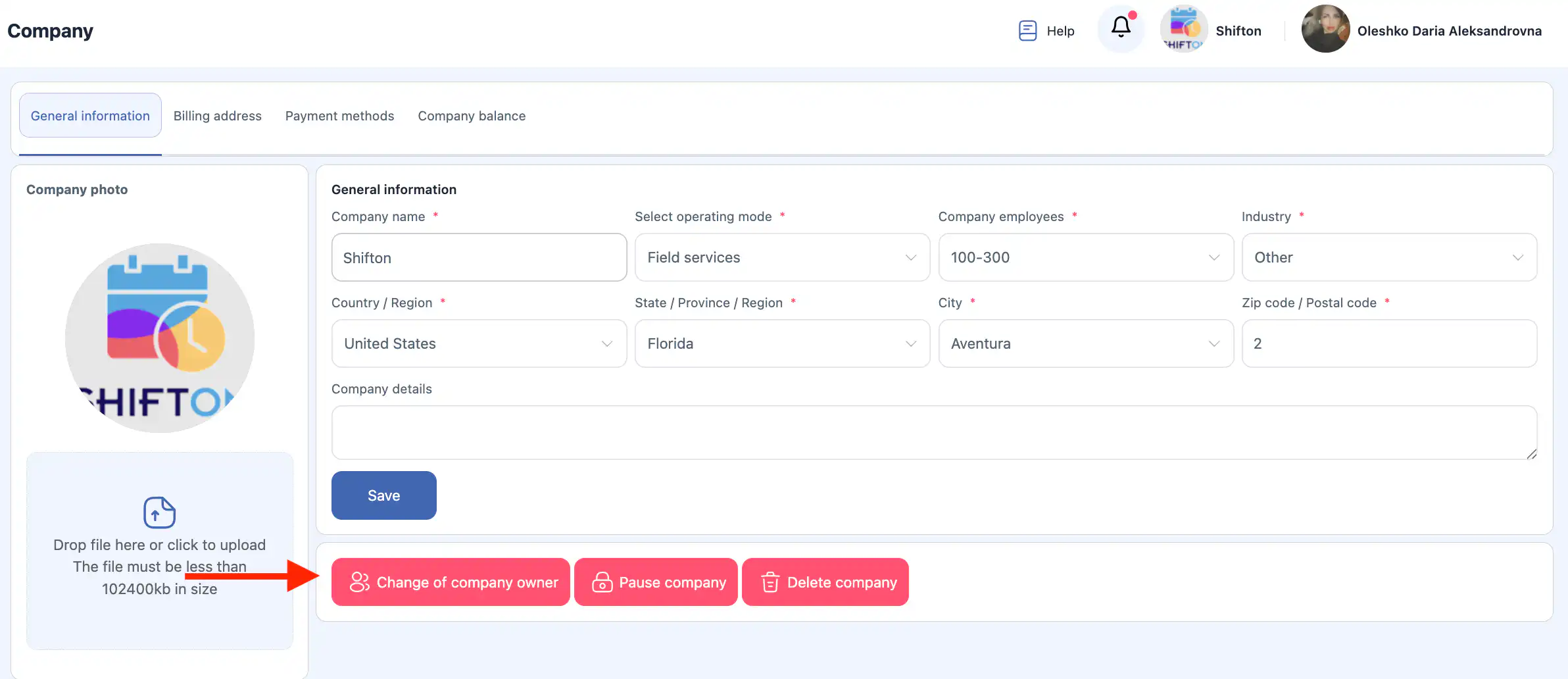
You can transfer the ownership to another user. After the transfer, your access level automatically changes from Owner to Employee.
- Click “Change owner”.
- In the side panel, select the employee who will become the new owner.
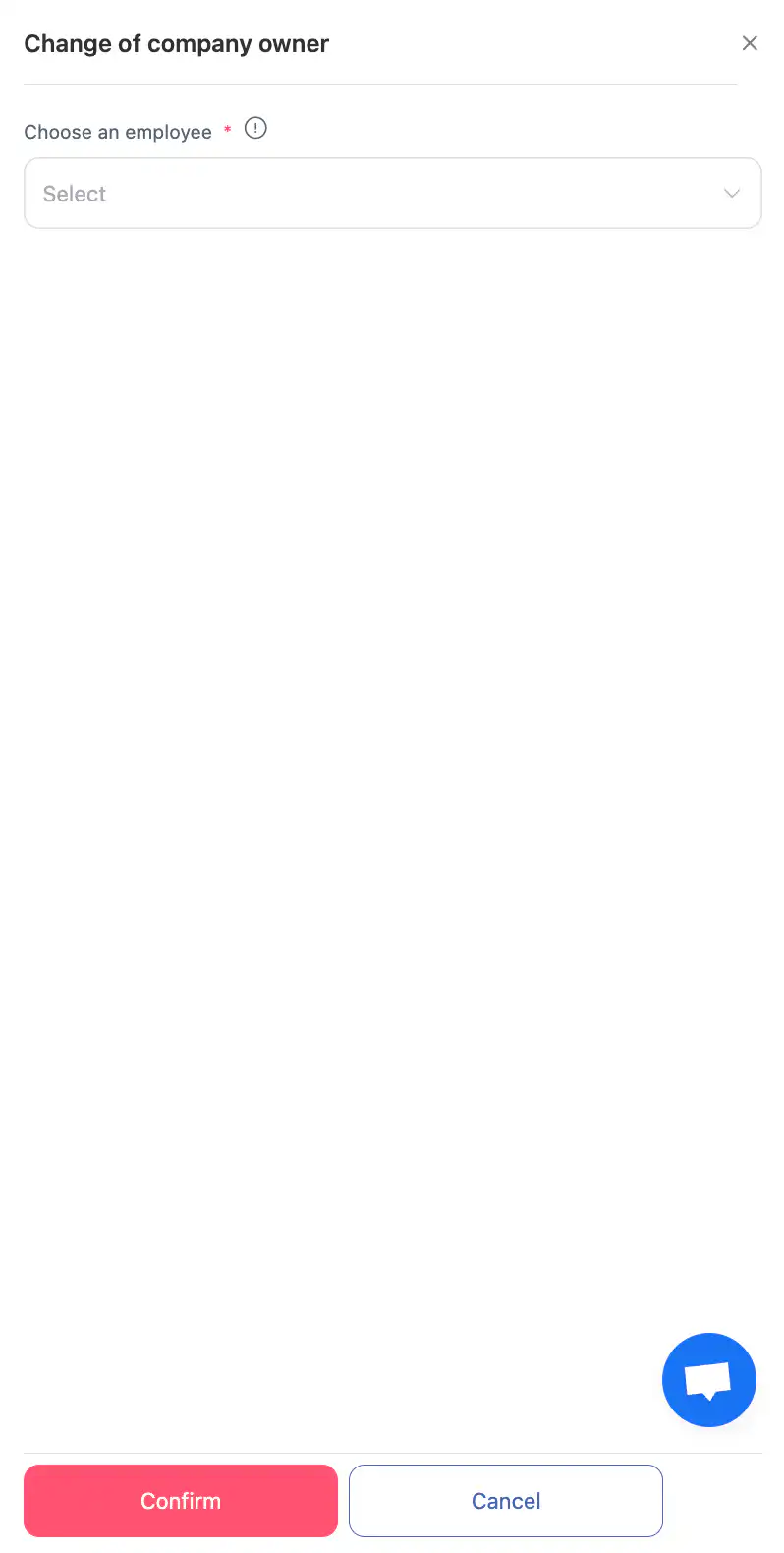
- Confirm the action by clicking “Confirm”.
- To cancel, click “Cancel”.
> This action is irreversible. Only the new owner will be able to return the ownership to you.
Suspend company
Suspending the company temporarily stops its work.
After the suspension:
- all payment methods will be unlinked;
- all modules will be disabled;
- billing for a new period will be suspended;
- the action can be undone at any moment.
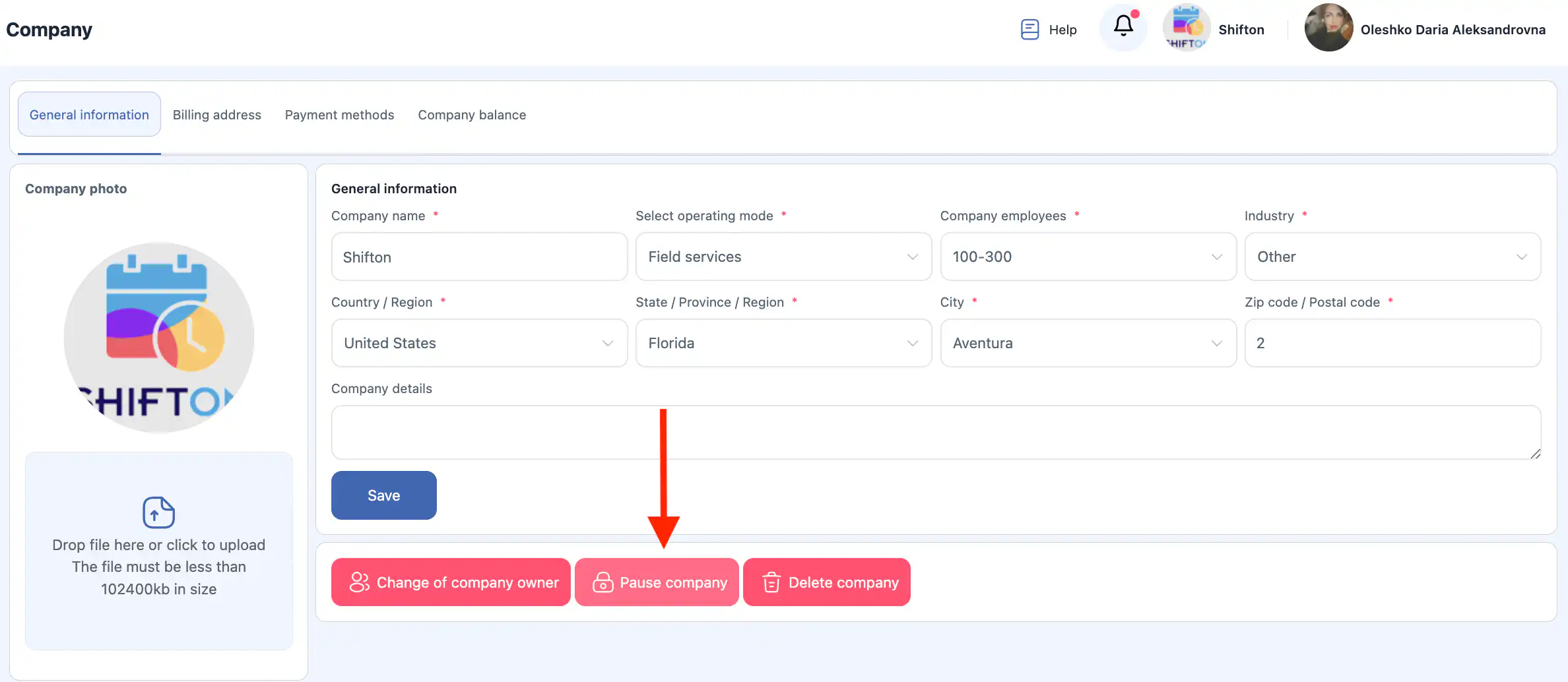
To suspend the company:
- Click “Suspend company”.
- In the side panel you must enter the confirmation text in English — enter it exactly as it is shown on the screen (you can copy it and paste it into the field). Without this text the confirmation button stays inactive.
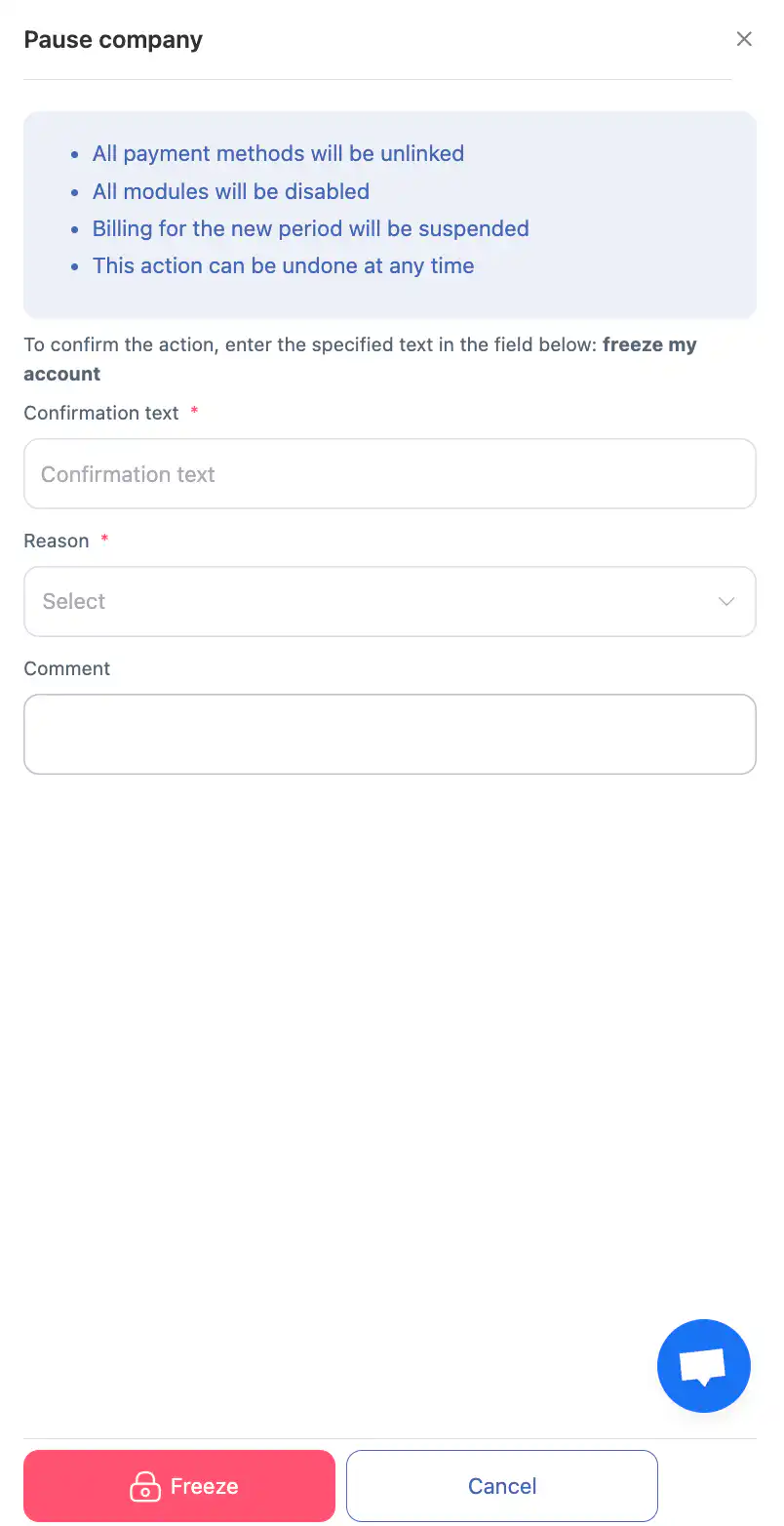
- Select the reason for the suspension.
- Add a comment (optional).
- Confirm the action by clicking “Confirm”.
- To cancel, click “Cancel”.
Delete company
A company can be deleted only if it has no unpaid invoices. If there is an outstanding debt, deletion becomes possible only after it has been paid off.
When a company is deleted:
- the company account will be deleted (immediately, if there is no debt for a future period; otherwise the deletion will be postponed until the invoice is issued and paid);
- all payment methods will be unlinked;
- billing will be suspended if there is no debt for a new period;
- this action cannot be undone.
To delete the company:
- Click “Delete company”.
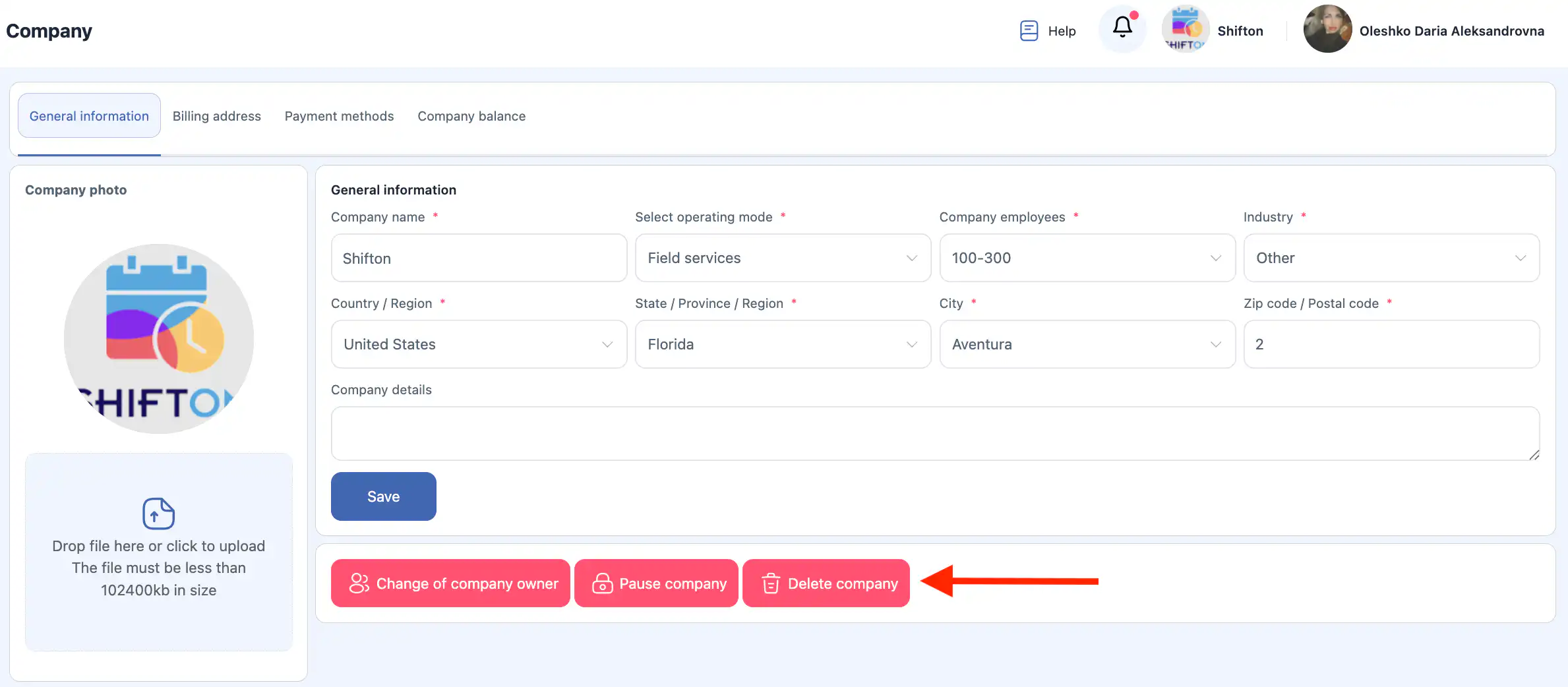
- In the side panel you must enter the confirmation text in English — enter it exactly as it is shown on the screen (you can copy it and paste it into the field). Without this text the confirmation button stays inactive.
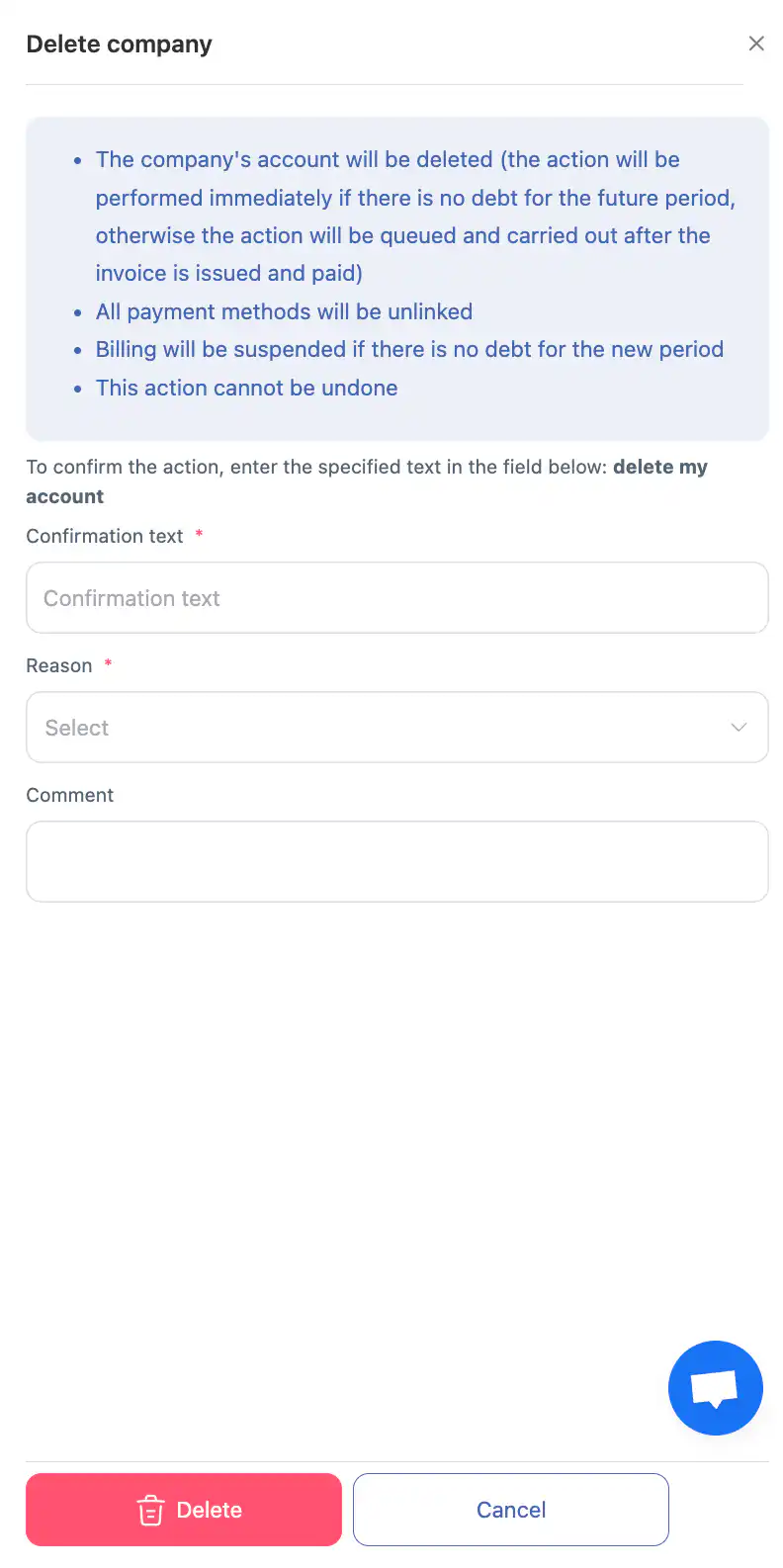
- Select the reason.
- Add a comment (optional).
- Confirm the action by clicking “Confirm”.
- To cancel, click “Cancel”.
Billing address
This section stores the information that is used for issuing invoices.
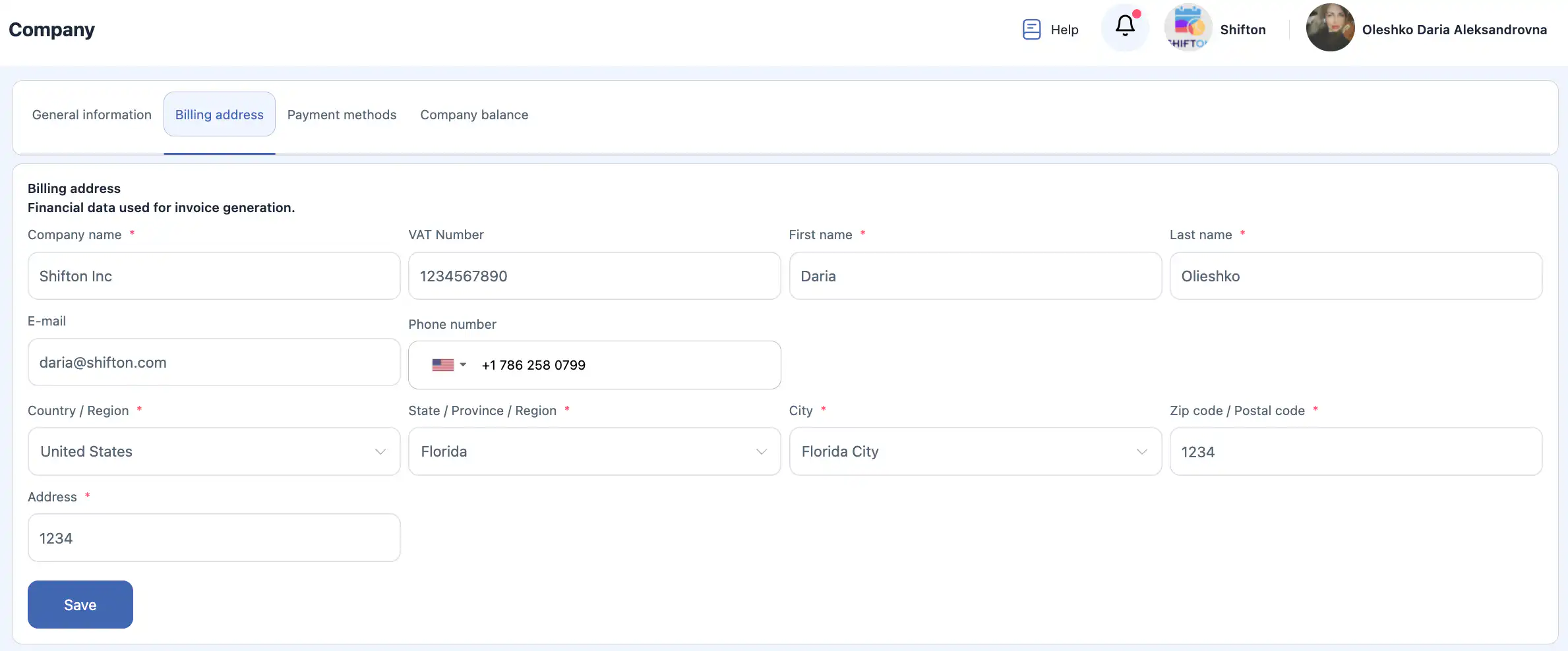
Important: the changes do not apply to invoices that have already been issued. Update the billing details before the invoice is created if you want them to appear in it.
You can fill in the following fields:
- Company name *
- VAT number
- First name *
- Last name *
- Phone number
- Country / Region *
- State / Province / Region *
- City *
- Zip code *
- Address *
Once the information is filled in, click “Save”.
Payment methods
In this section you can add, edit or delete a payment card.
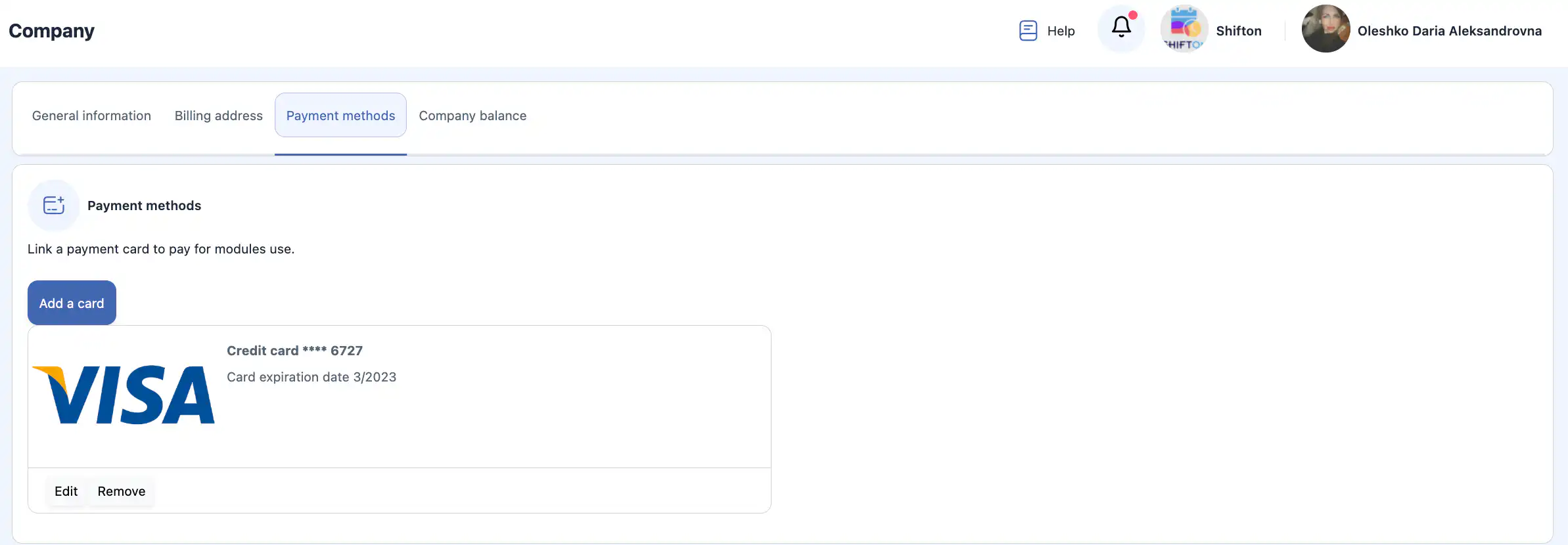
Add a card
- Click “Add a card”.
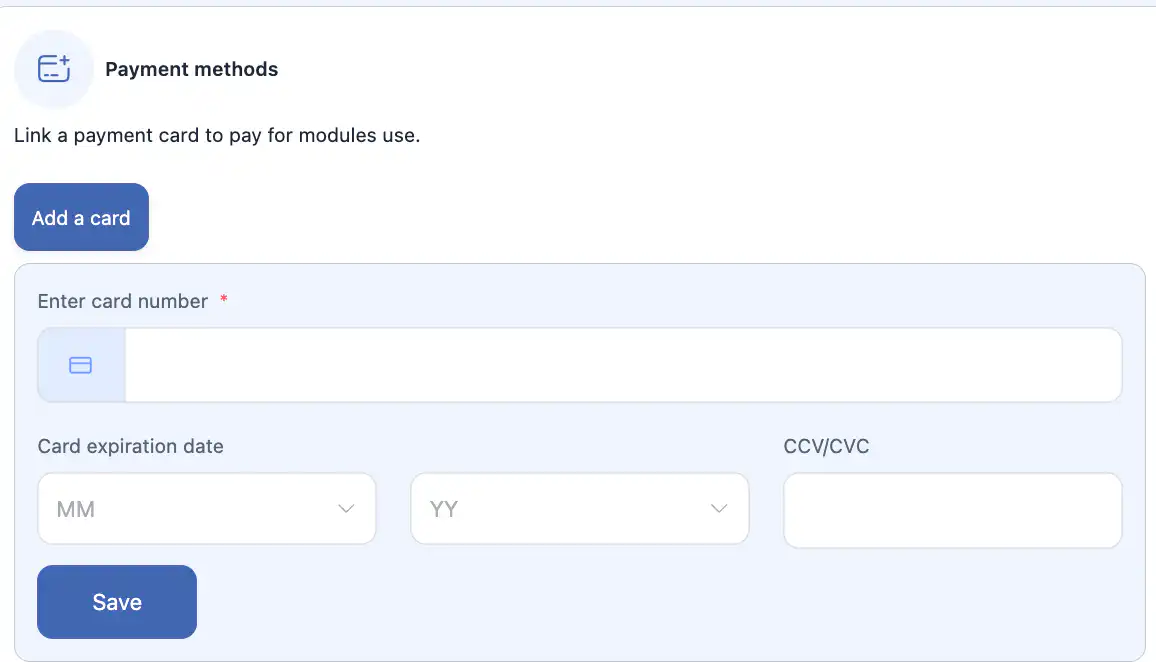
- Enter the card details.
- Click “Save”.
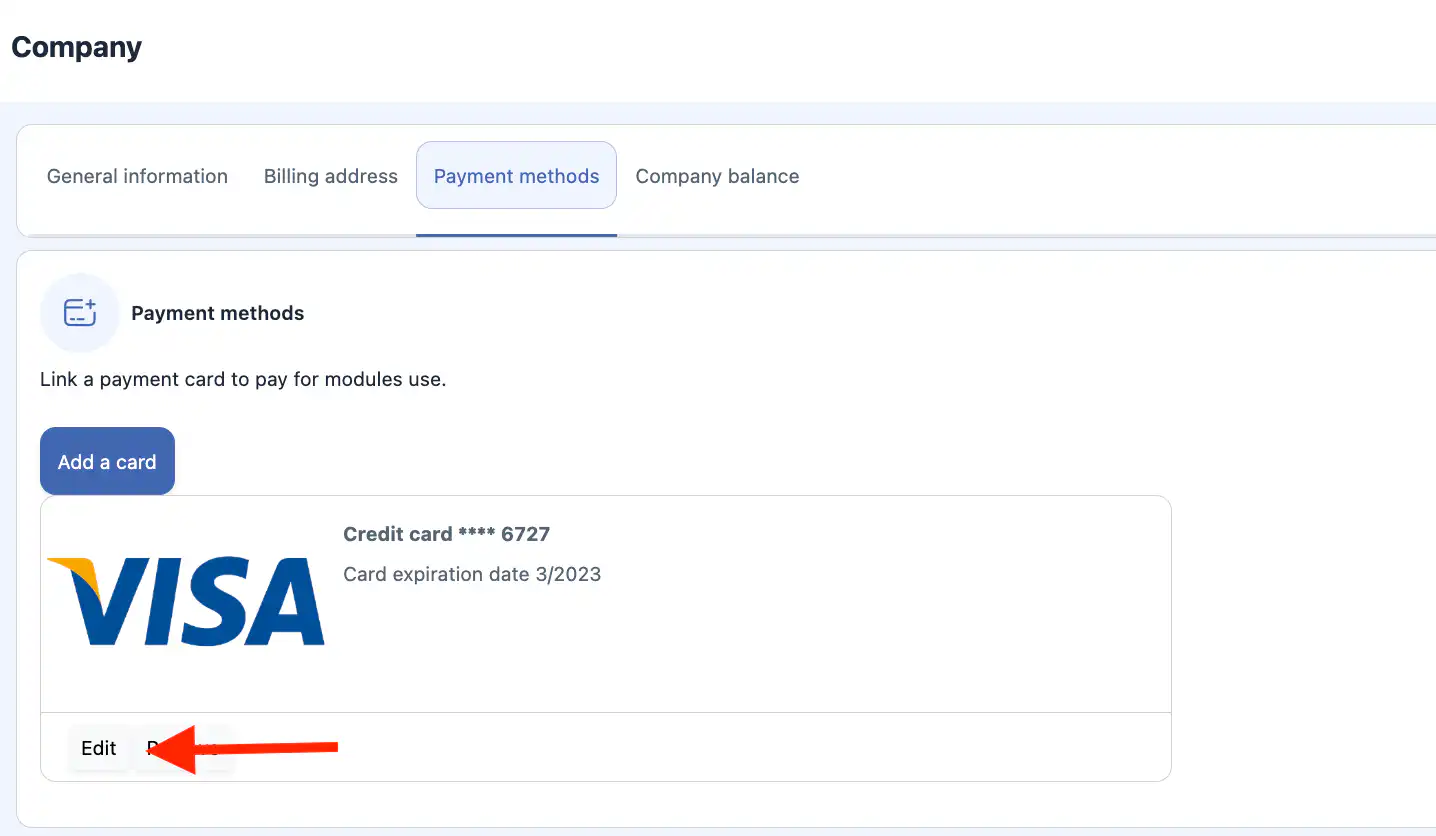
Edit a card
- Click “Edit” next to the card.
- Update the expiry month and year.
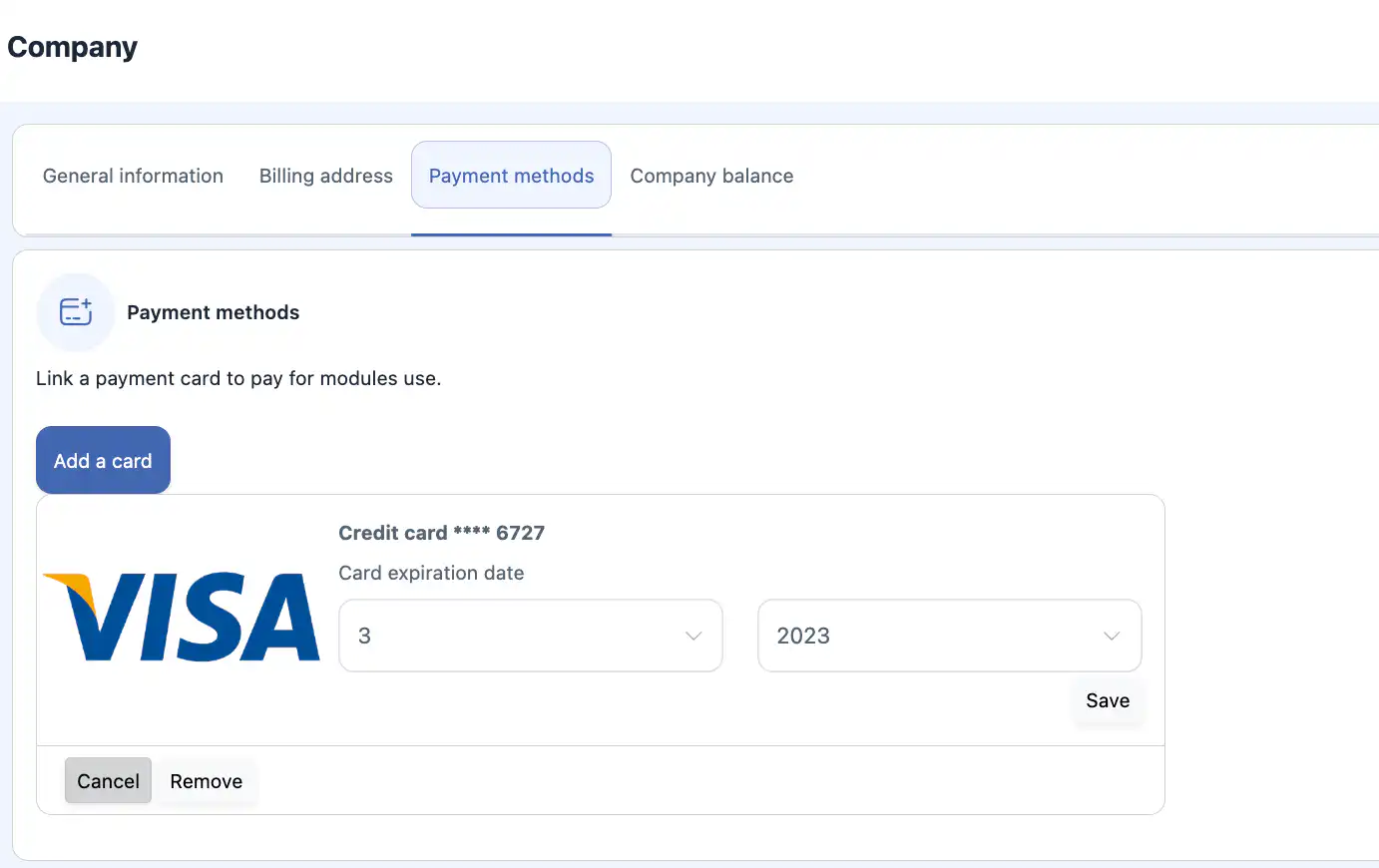
- Click “Save” or “Cancel”.
You can also delete the card by clicking “Delete”.
> To invite employees to the company you need a valid card and an active monthly subscription.
Company balance
Here you can view the current balance and activate the monthly subscription.
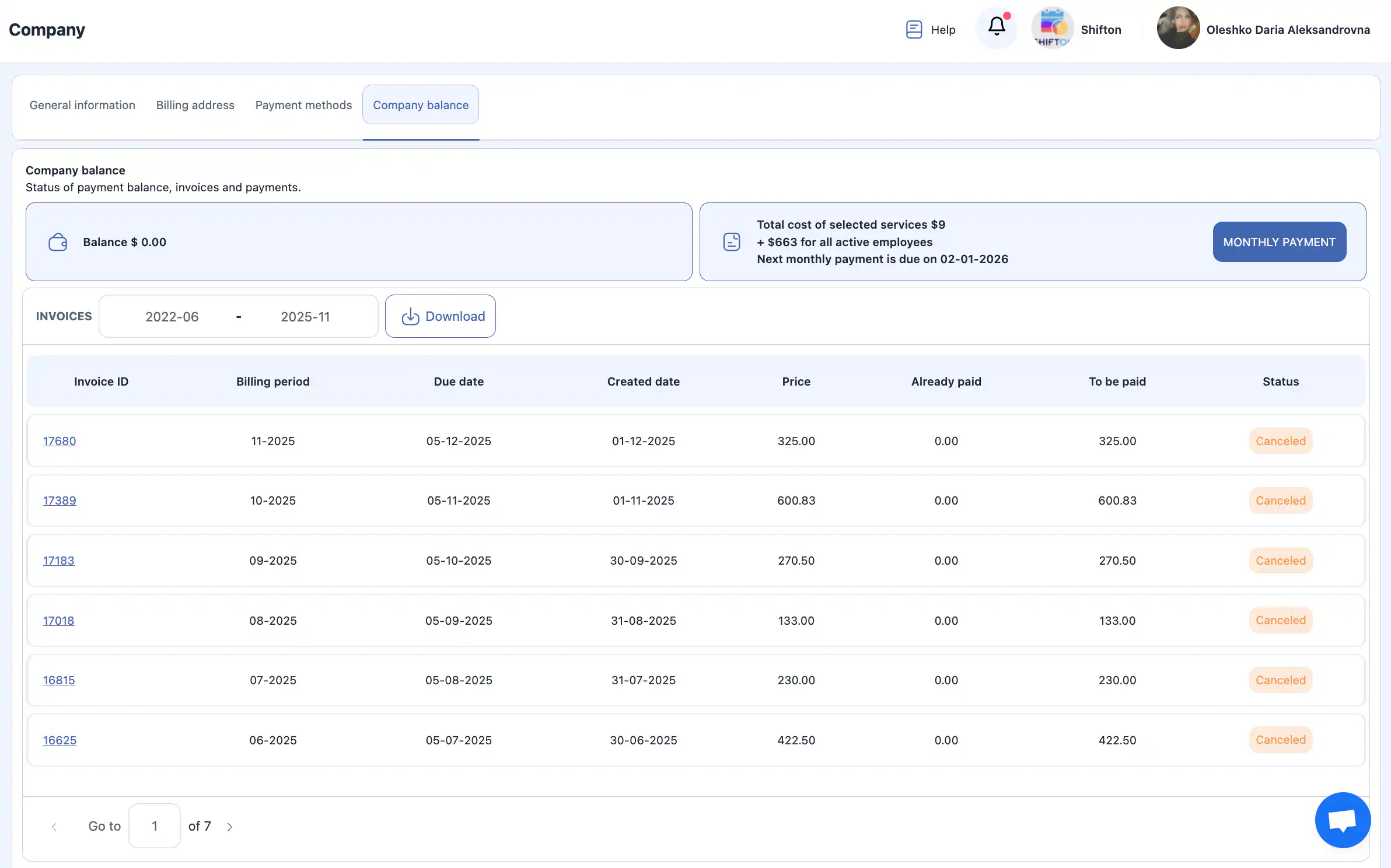
To take out a subscription:
- Click “Monthly payment”.
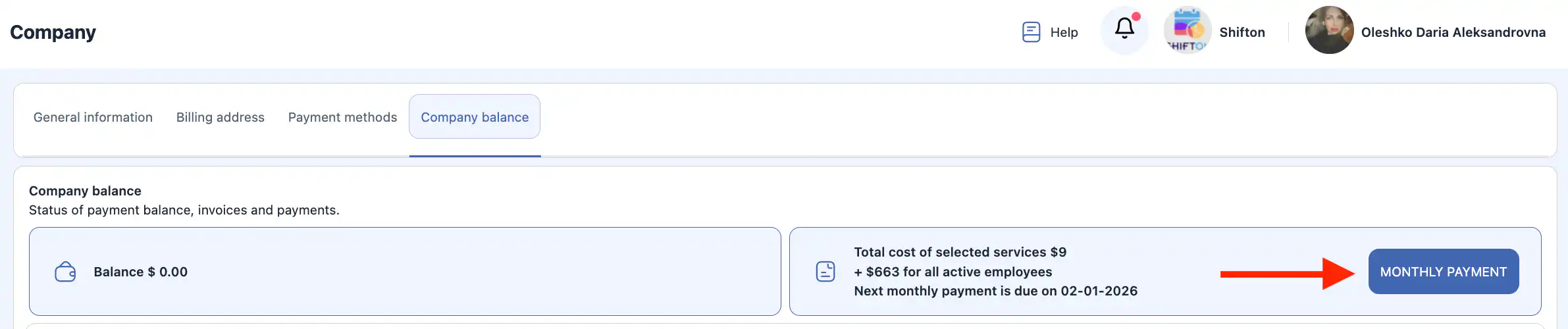
- Select an existing card or add a new one.



- Click “Save”.
Invoices
This section contains all the invoices issued to your company.
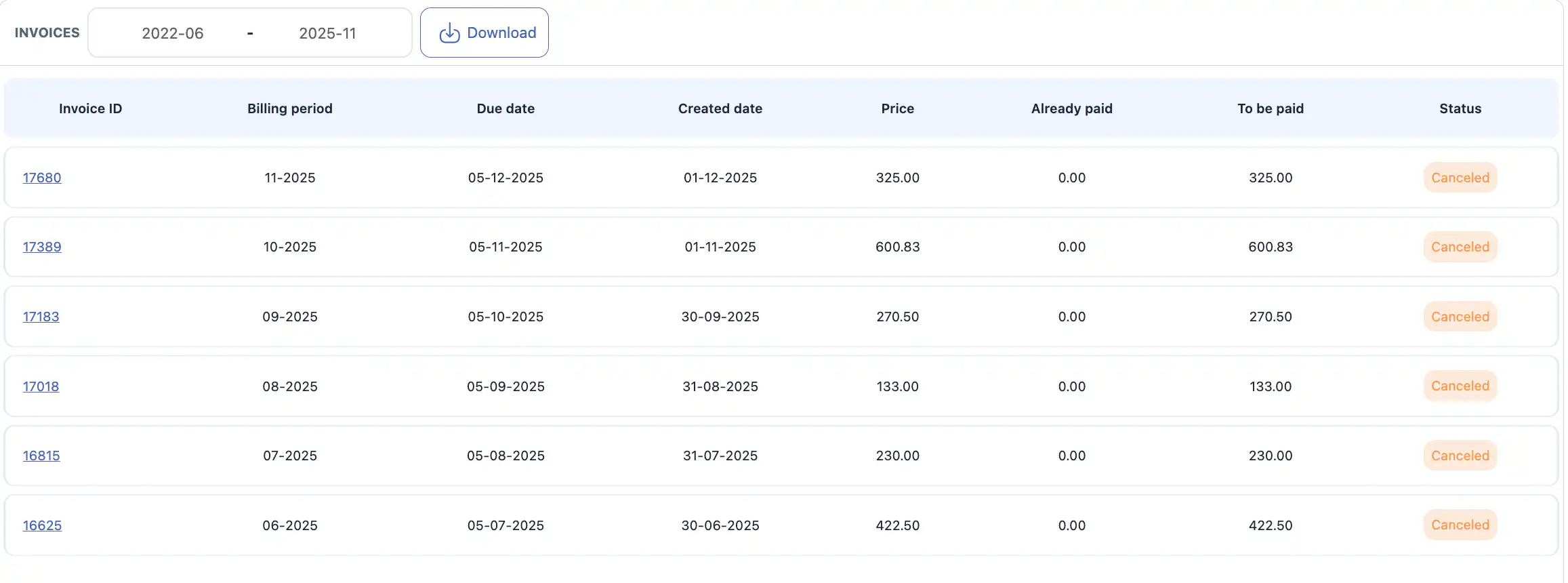
You can:
- download an Excel file with the payment amounts for different periods;
- view the details of every invoice.
The table includes:
- Invoice ID
- Billing period
- Due date
- Creation date
- Price
- Already paid
- To pay
- Status
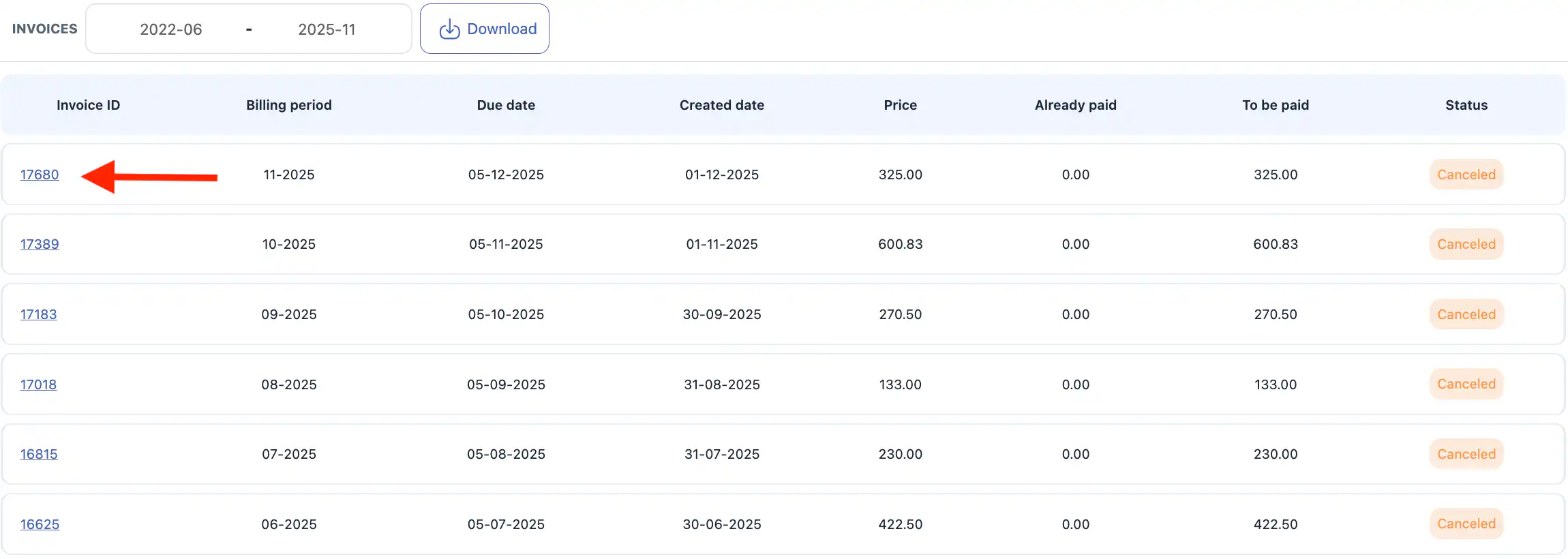
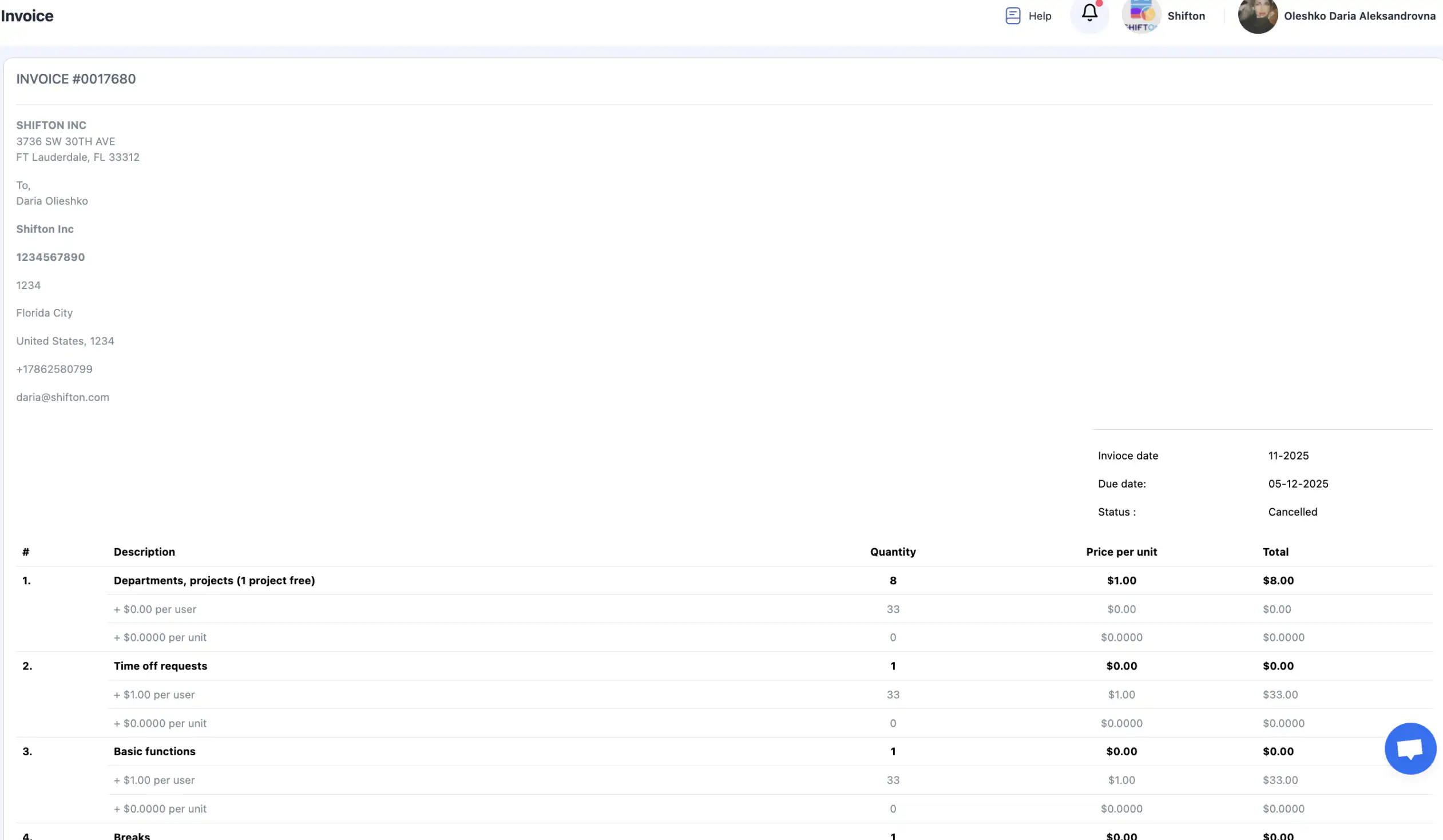
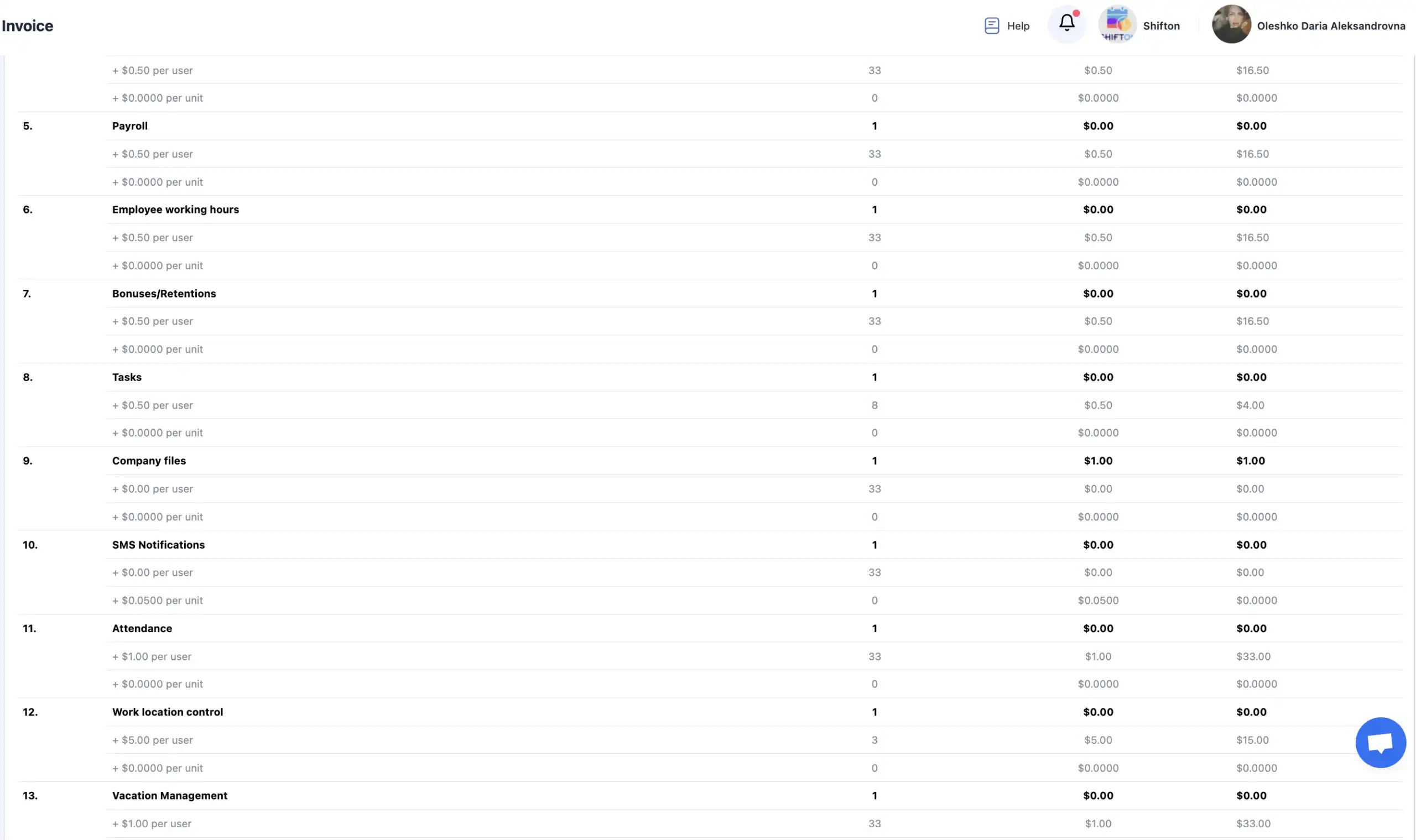
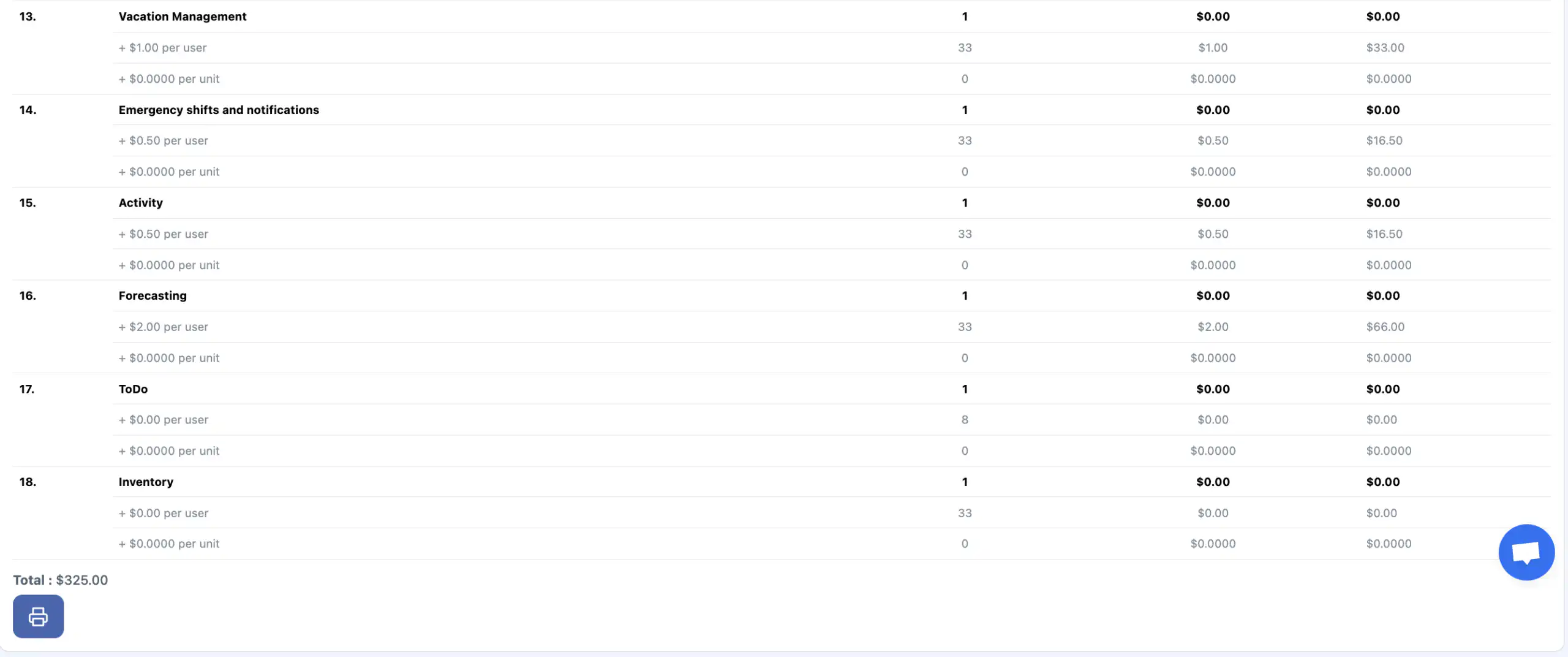
Clicking the Invoice ID opens the full details of the invoice, including the module charges generated from the information in your billing address.
Transactions
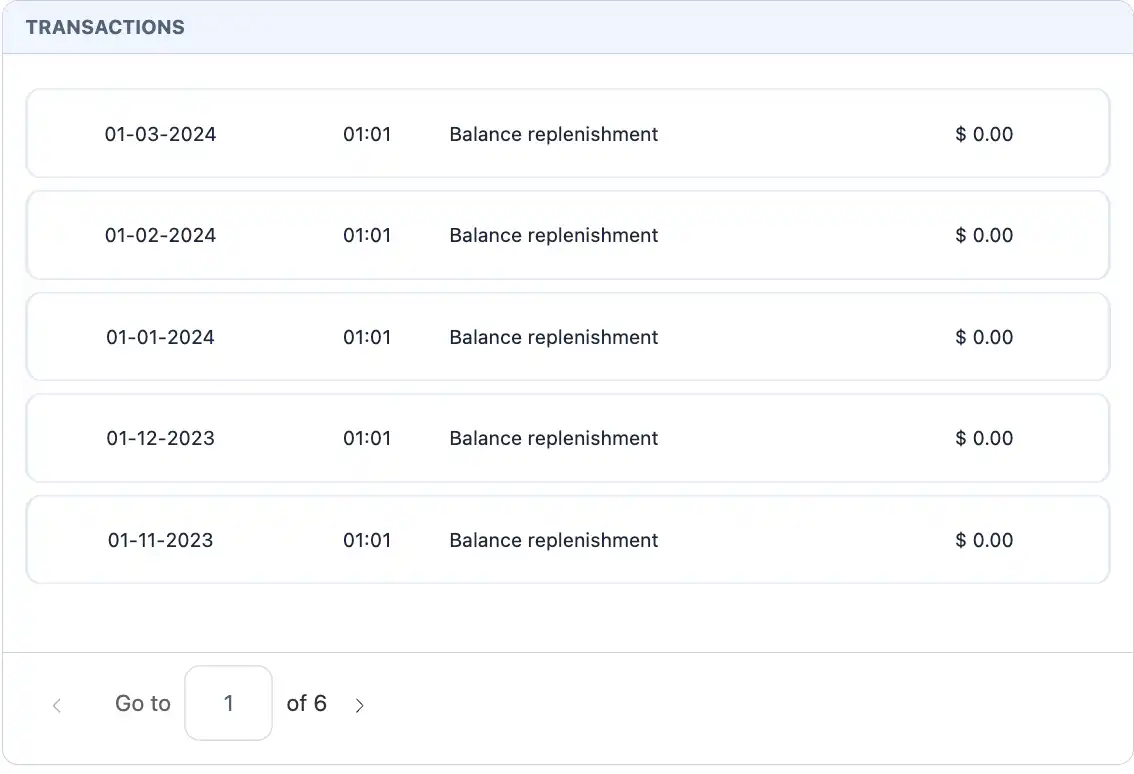
This section contains all the transactions that have affected the company balance.
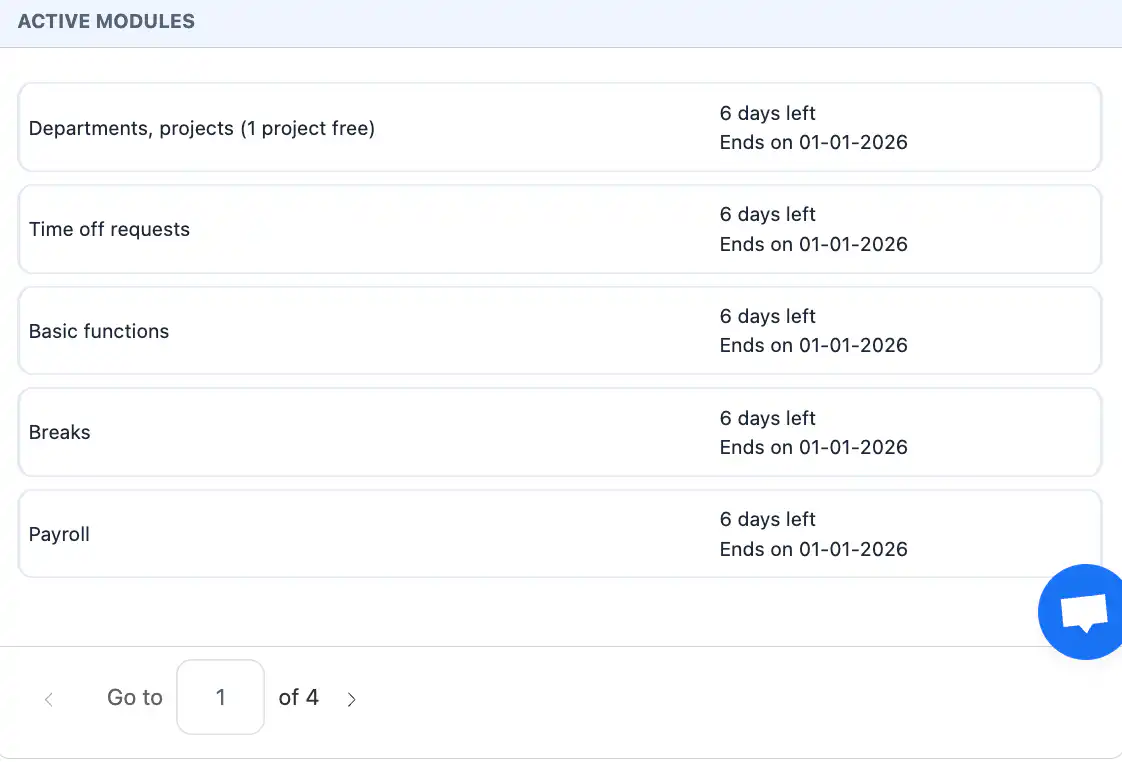
Active modules
Here you can see all the active modules and their expiry dates.
FAQ
Question: Where do I open the Company settings in Shifton? Answer: Click your company name at the top of the screen, then select “Company settings”. The page with the general configuration of the company opens.
Question: What information can be edited in the company settings? Answer: You can update the general company details: company name, work mode, number of employees, country/region, state/province, city and additional information. The company logo can be uploaded here as well.
Question: Why upload a company logo? Answer: The logo is pulled in automatically to the settings of the Invoicing module and is printed on the documents you create for your clients (invoices, estimates), as well as in the task PDF report from the “Tasks” section. If necessary, it can be replaced for the documents in Modules → Settings → Invoicing. The logo has no effect on the invoices Shifton issues to your company.
Question: How do I save the changes after editing the company information? Answer: After making changes in the company fields, click “Save”. Without saving, the changes will not be applied.
Question: How do I transfer the ownership of the company to another user? Answer: In the “Company actions” section click “Change owner”, select the employee who will become the new owner and confirm the action. After the transfer, your access changes from Owner to Employee.
Question: Can the transfer of company ownership be undone? Answer: No — the transfer of ownership is irreversible. Only the new owner can return the ownership to you.
Question: What does the “Suspend company” feature do? Answer: Suspending the company temporarily stops its work:
- all payment methods are unlinked;
- all modules are disabled;
- billing for a new period is suspended. This action can be undone at any moment.
Question: How do I suspend the company? Answer: Click “Suspend company”, enter the required confirmation text and select the reason for the suspension.
Question: Can a company be deleted? Answer: Yes — but only if there are no unpaid invoices. If there is an outstanding debt, deletion becomes available only after it has been paid off.
Question: What happens when a company is deleted? Answer: When a company is deleted:
- the company account is deleted (immediately, if there is no debt for a future period, or after it has been paid off);
- all payment methods are unlinked;
- billing is suspended for the next period. This action cannot be undone.
Question: Can a company be deleted if it has modules enabled? Answer: Yes — but the company will only be deleted after all unpaid invoices have been paid. Modules do not block the deletion as long as the payment conditions are met.
Question: What is the “Work mode” in the company settings? Answer: The work mode shows which mode your company works in — office or field (Field Service). The available modules and the structure of the workflows depend on it.