

A client can ask a question about their visit without calling the office, and your team can answer in one place. The whole conversation is tied to the task, so any employee working on that task can see it, and it does not get lost in personal phones.
The page opens from the left menu: Customer Portal → Chats.
How a client gets into the chat
There is no separate link to the chat. The client opens the conversation with the “Message” button on the visit tracking page — the very page your notification link leads to.
This has an important consequence: without the tracking link the chat is not available. The link gets into the message only through the {link_map} placeholder — if you do not insert it into the text of the rule, the client will have nowhere to write. How to set this up is described in the article “Reminder settings”.
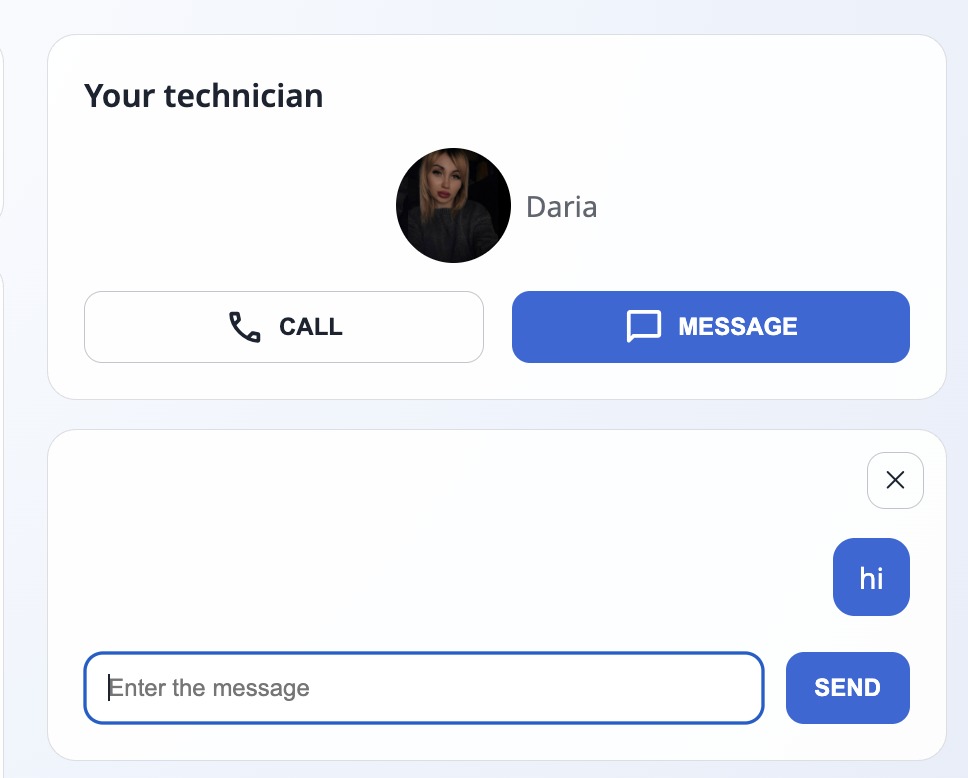
The client needs neither registration nor a password — they write straight from the page. Next to the chat there is a “Call” button, so the client can choose: write or call.
The chat list
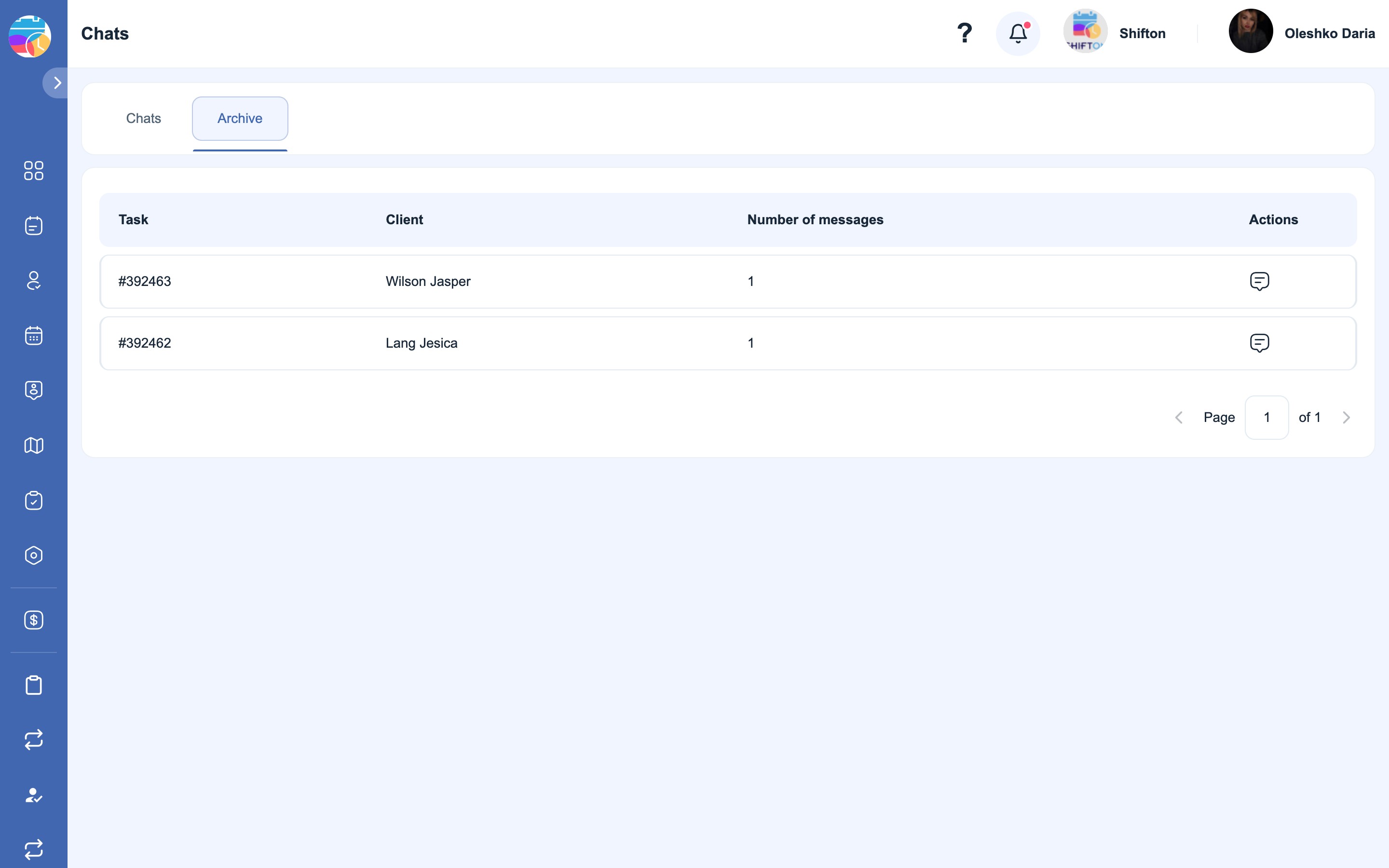
There are two tabs on the page:
| Tab | What it shows |
|---|---|
| Chats | Active conversations — for tasks that are still in progress |
| Archive | Conversations for completed tasks |
Both tabs show the same table:
| Column | What it shows |
|---|---|
| Task | The number of the task the conversation is tied to |
| Client | Who is writing |
| Number of messages | How many messages there are in the conversation |
| Actions | The button that opens the chat |
How to read and reply
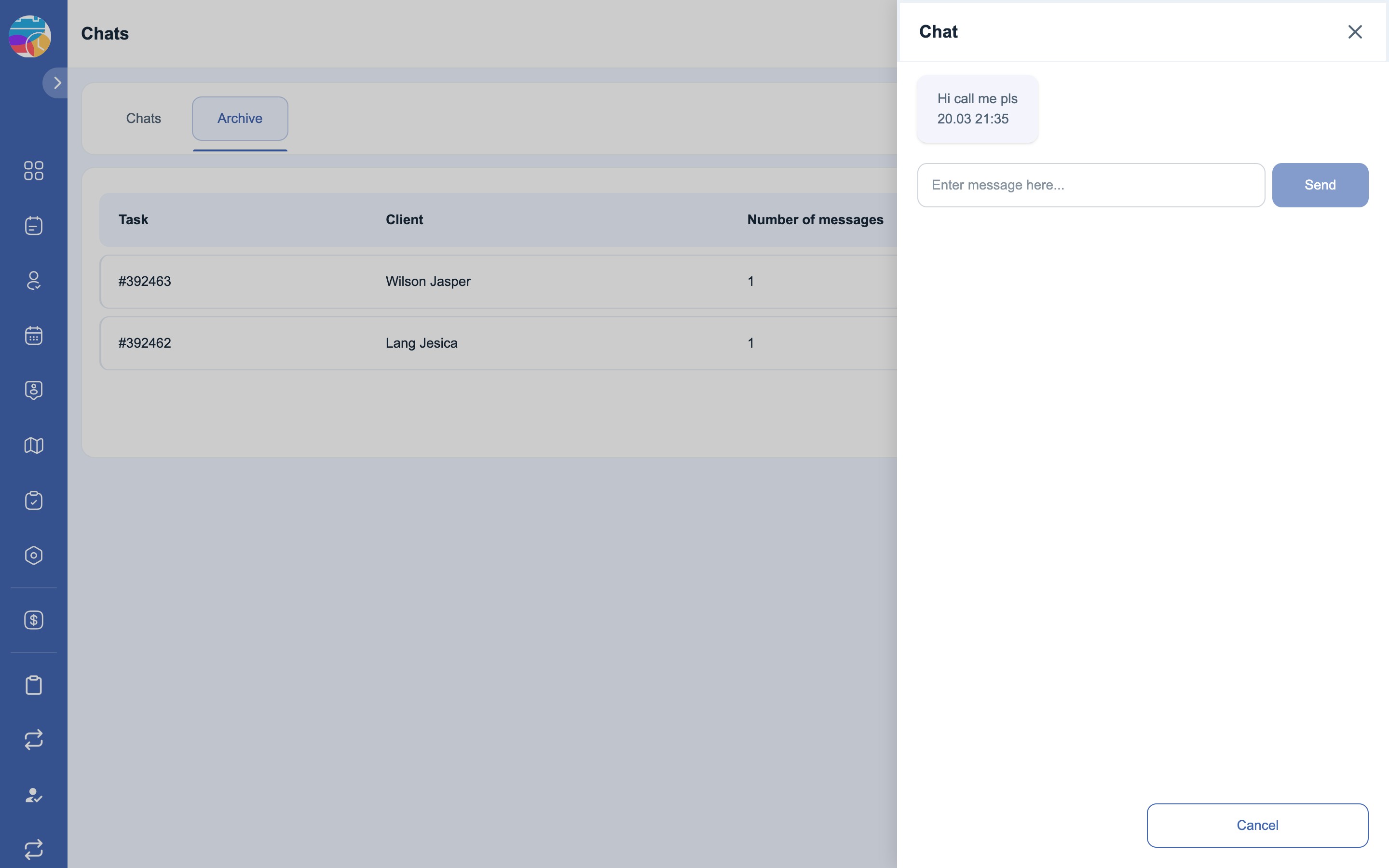
- Click the button in the Actions column of the row you need — the conversation opens in a side panel.
- The panel shows the whole message history with the date and time.
- Type your reply in the “Enter message here…” field and click “Send”.
- “Cancel” or the cross closes the panel.
Archive: you can read, but you cannot reply
A chat lives together with its task. While the task is in progress, the client and your team exchange messages. As soon as the task is moved to a final status, the chat closes: the client can no longer write, and the conversation moves to the Archive tab.
An archived conversation can be opened and read in full — the history is kept. But the send button in an archived chat is inactive: it is no longer possible to reply on a closed task.
This leads to a practical rule: settle all questions about a task before moving it to a final status. After completion the conversation becomes history only.
Possible problems and solutions
| Problem | Reason | Solution |
|---|---|---|
| There is not a single chat in the list | Clients have not written yet — or they have nowhere to write | Check that the text of the rule contains the {link_map} placeholder: without the tracking link the client cannot get into the chat |
| The client says they cannot write | The task is already in a final status — the chat is closed | The conversation has moved to the Archive. Contact the client the usual way |
| An old conversation has disappeared from the list | The task is completed, the chat is archived | Open the Archive tab |
| The send button cannot be clicked in an archived chat | This is by design: you cannot reply on a completed task | If the question is still open, do not move the task to a final status until it is resolved |
| The client did not receive a reply | The message was not sent, or the task had already been closed | Make sure the chat is on the Chats tab rather than in the archive, and that the reply was sent with the “Send” button |
FAQ
Question: How does a client start a chat? Answer: With the “Message” button on the visit tracking page. There is no separate link to the chat.
Question: Does the client need an account? Answer: No. They write from the page opened via the link in your notification.
Question: Why do we have no chats at all? Answer: Most likely the notification texts do not contain the {link_map} placeholder — the client has nowhere to go. Without the tracking page the chat is not available.
Question: Which employees can see the conversation? Answer: The chat is tied to the task rather than to an employee: anyone with access to that task can see it. All conversations are collected on the Chats page.
Question: Is a notification sent about a new client message? Answer: There is no separate notification on the page — the message counter is visible in the chat list, so it is worth checking the page as you work.
Question: Can I reply on a completed task? Answer: No. The send button in an archived chat is inactive — the conversation is read-only.
Question: Where has the conversation for a completed task gone? Answer: To the Archive tab. It is kept in full.
Question: Can a conversation be deleted? Answer: No. The chat is stored together with the task as the history of the enquiry.
Question: Can a client attach a file in the chat? Answer: In the chat the client sends text. They can attach a file to a review after the work is completed.
Question: Can the client call instead of writing? Answer: Yes, on the tracking page there is a “Call” button next to the message button. If number masking is enabled in the module settings, the call will not go to the technician’s personal phone.
Question: How many chats can there be for one task? Answer: One — the conversation about a task is held in a single chat, and the counter shows the number of messages in it.