

Shifton has four break types. They are not mutually exclusive — all four can be used in the same company simultaneously. The difference lies in who initiates the break and how it is configured.
Overview: 4 Break Types
| Type | Description | Who Initiates |
|---|---|---|
| Simple break | A fixed number of minutes is deducted from the shift | Configured in the template, no action required from the employee |
| Scheduled break | A break with a specific time window, employees go in sequence | System (by schedule) |
| Unscheduled break | The employee takes a break at any time within established limits | Employee |
| Break request | The employee sends a request to the manager, the break is created after approval | Employee → Manager |
1. Simple Break
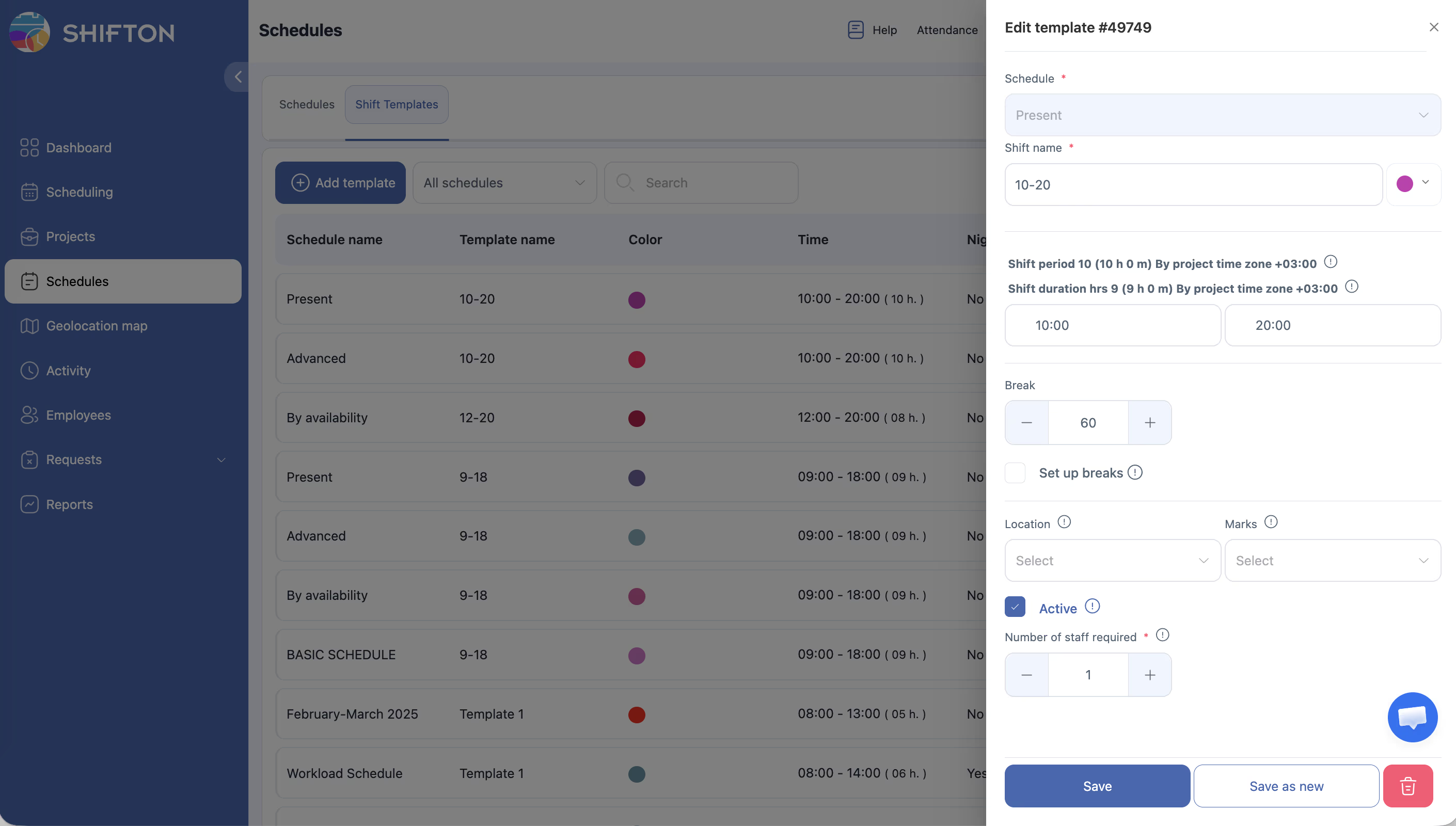
Where to configure: Shift template → Break field (in minutes).
The simplest type. You specify how many minutes to deduct from the shift duration when calculating pay. There is no interface for the employee.
Note:
- Shift period: 09:00–18:00 = 9 hours.
- Break: 60 min.
- Paid shift duration: 8 hours.
If the Pay employees for breaks parameter is enabled in Salary Settings, the break is considered paid and the duration remains 9 hours.
When to use: for a standard lunch break that is the same for everyone.
2. Scheduled Break
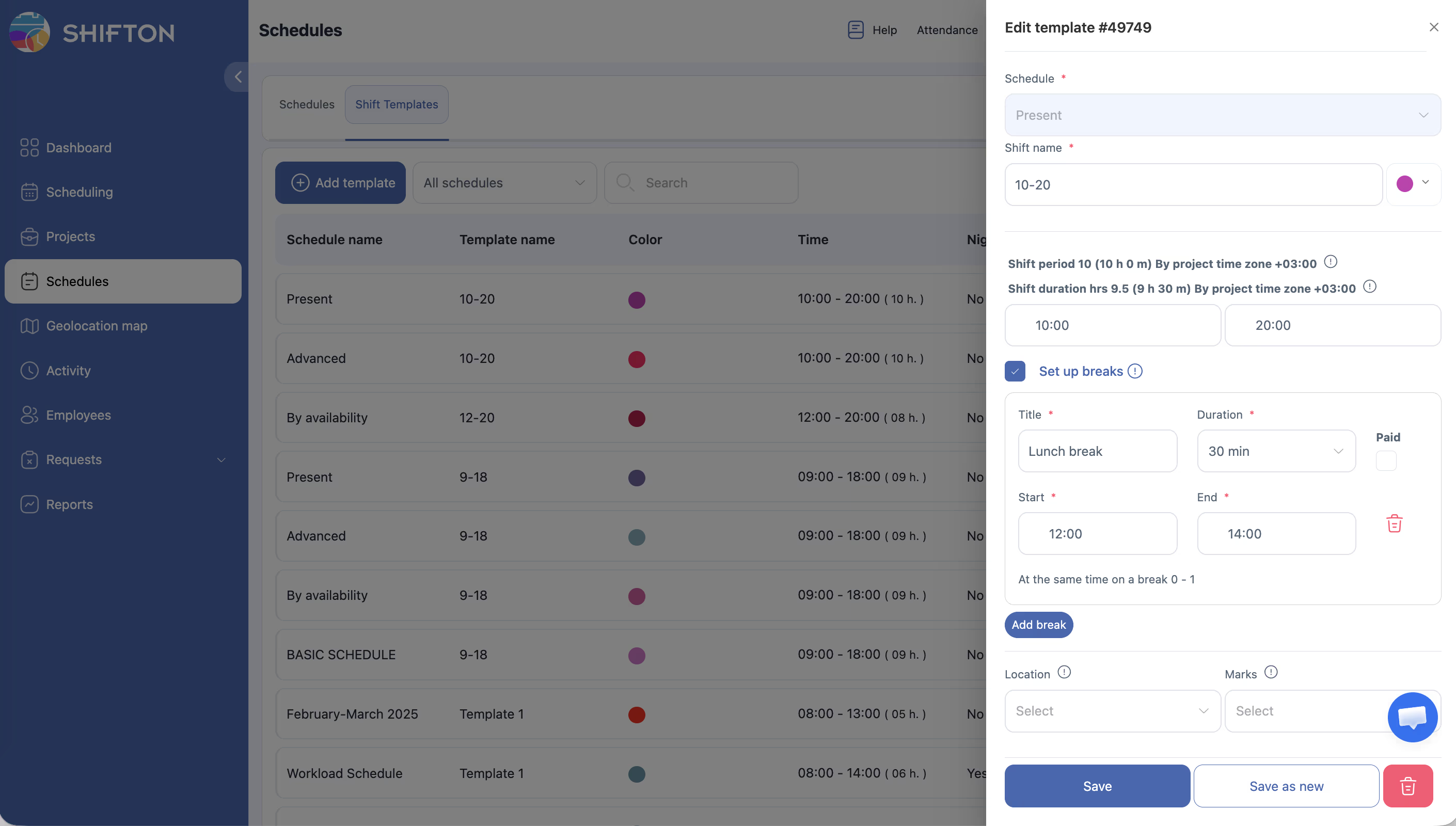
Where to configure: Shift template → Set up breaks checkbox → Add break.
A break with a clearly defined time window. Multiple breaks can be added to a single template.
Fields when creating:
| Field | Description |
|---|---|
| Title | Break name (e.g., “Lunch”, “Coffee”) |
| Duration | Duration from 5 to 240 minutes (in 5-minute increments) |
| Paid | If enabled — break time is paid |
| Start | Start of the time window |
| End | End of the time window |
| At the same time | Maximum number of employees on break simultaneously |
Cascading queue. With At the same time = 1, the system queues employees:
- Employee 1: 10:00–10:05
- Employee 2: 10:05–10:10
- Employee 3: 10:10–10:15
The Attendance module is not required for Scheduled breaks. Breaks are defined in the shift template.
Missed break: marked gray on the schedule; the manager receives a notification (if notifications are enabled).
When to use: when it is important that breaks do not overlap and leave the team short-staffed.
3. Unscheduled Break
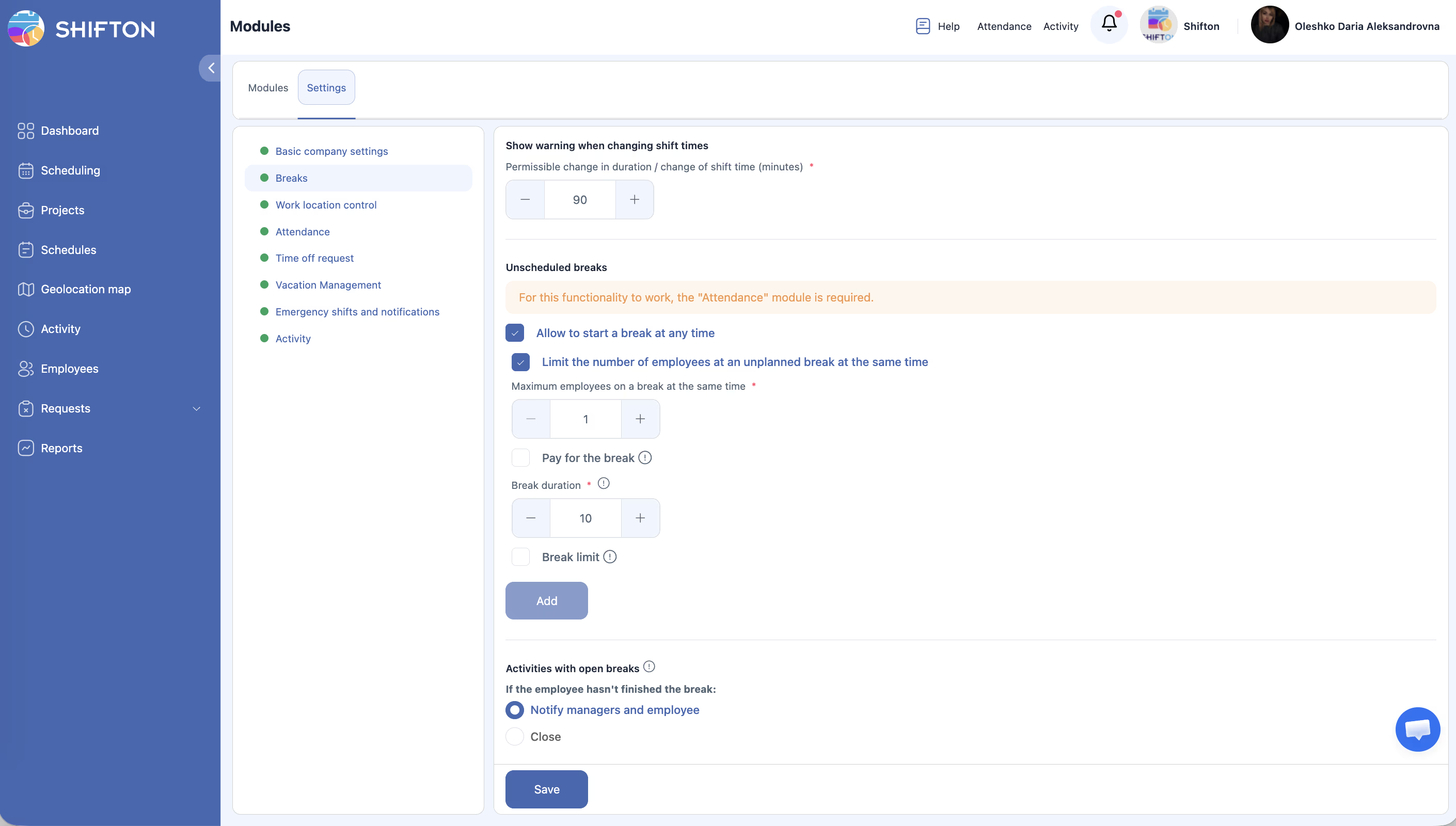
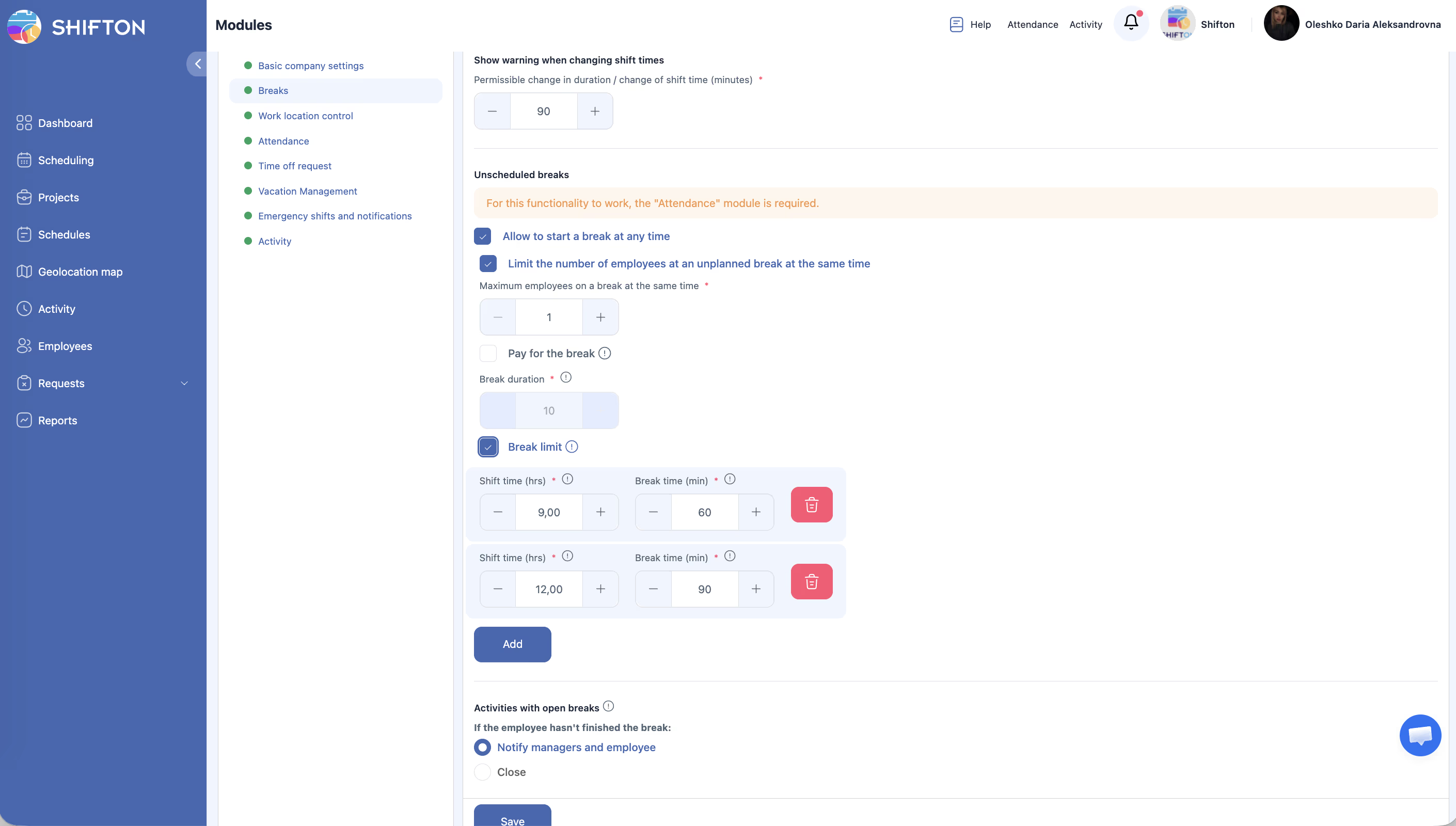
Where to configure:Module Settings → Breaks (Unscheduled breaks section).
Requires:Breaks + Attendance modules (both must be enabled).
The employee starts and ends the break themselves through the app. You only set the limits.
Configuration parameters:
| Parameter | Description |
|---|---|
| Allow to start break at any time | Allow a free break |
| Limit number of employees on break | Limit the number of employees on break |
| Max employees on break at same time | Maximum number (e.g., 1) |
| Pay for the break | Whether the break is considered paid |
| Break duration (min) | Break duration |
Limits by shift length (Break limit section):
| Shift Length | Max Break |
|---|---|
| ≥ 9 hours | 60 min |
| ≥ 12 hours | 90 min |
Unclosed break. In Activities with open breaks, choose the behavior:
– Notify managers and employee — send a notification.
– Close — close the break automatically.
How an employee takes an unscheduled break:
| Step | Action | Expected Result |
|---|---|---|
| 1 | During an active shift, open Attendance in the top bar | Your active shift is displayed with a Start break button |
| 2 | Tap Start break | The break timer begins |
| 3 | Open the Attendance list when the break is over | You see an End break button and elapsed time |
| 4 | Tap End break | The break is recorded, shift timer resumes |
If the Start break button is not visible — check that the Breaks module is enabled, the Attendance module is enabled, and the employee has an active shift.
When to use: for a dynamic environment where the exact break time is not known in advance.
4. Break Request
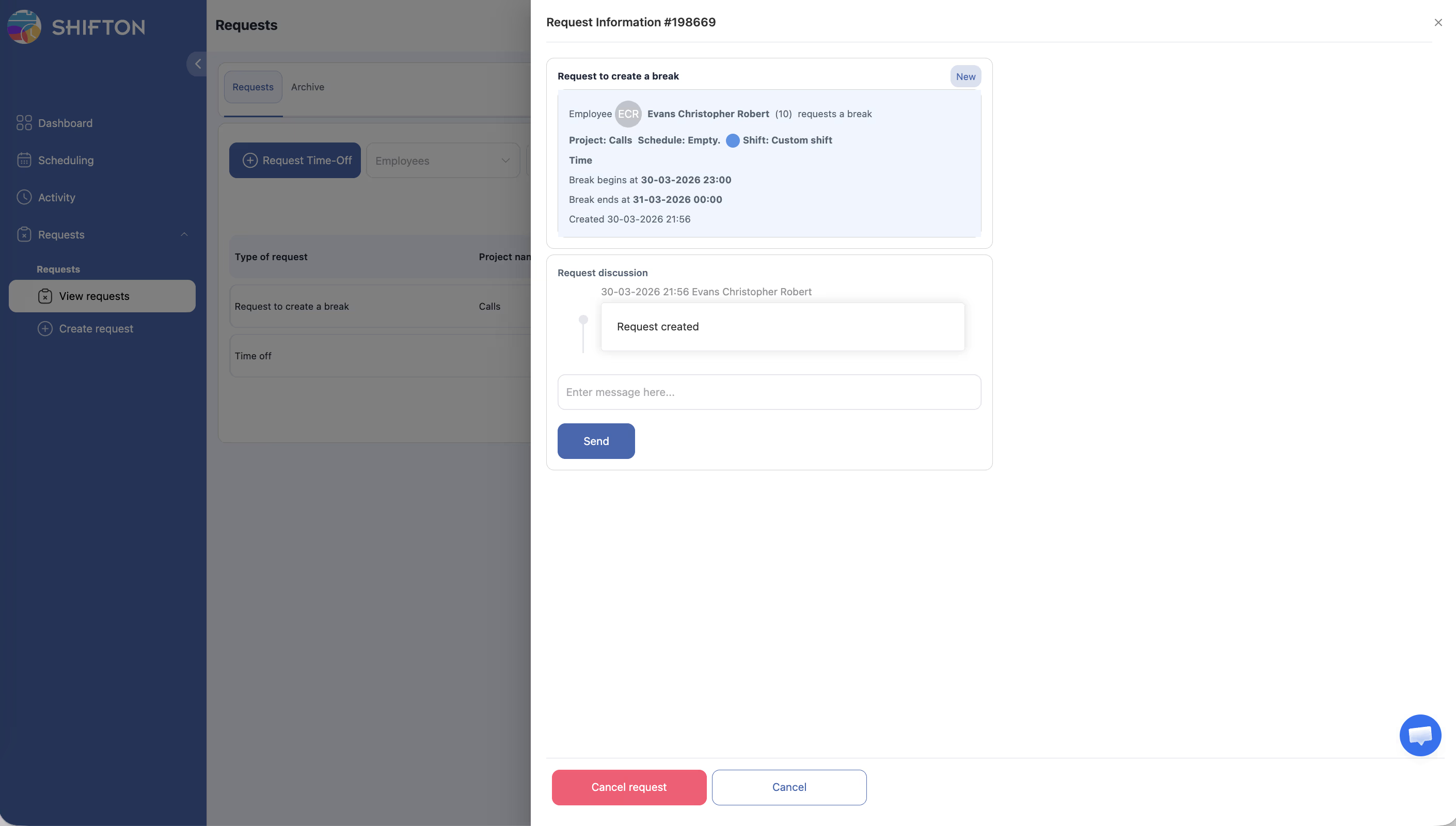
Where to configure: Schedule settings → Allow employees to create breaks.
Requires: the Breaks module enabled.
The employee sends a request, the manager approves or declines. After approval, the break appears in the schedule.
Workflow:
For details on submitting and approving requests, see Break Creation Request.
When to use: when it is important to coordinate breaks and control team workload.
Breaks Module: Activation and Settings
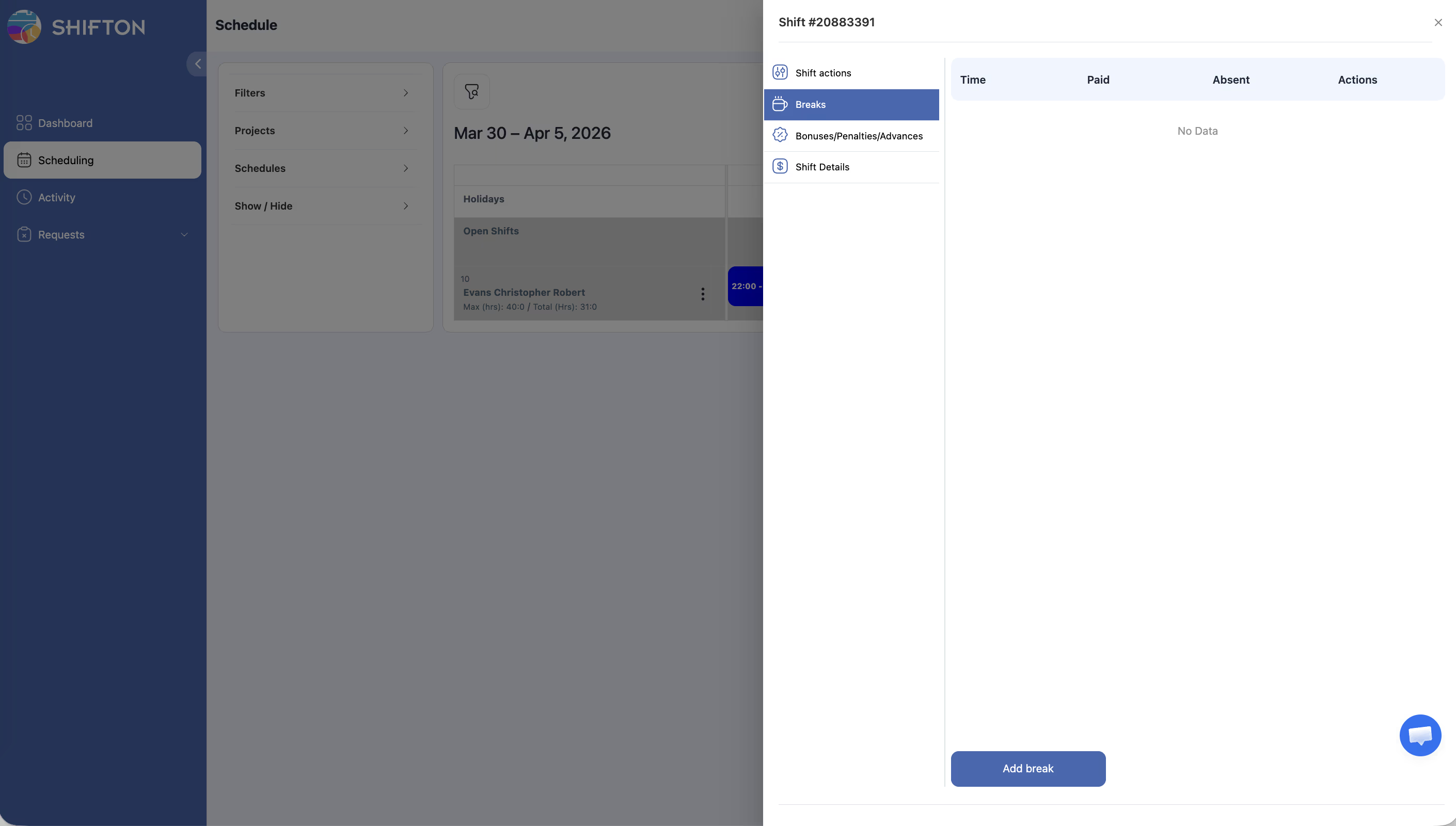
How to enable the module
Cost: $0/month + $0.50/employee/month. Trial period: up to 60 days.
Unscheduled breaks also require an active Attendance module.
Module Settings → Breaks Parameters
| Parameter | Description |
|---|---|
| Show warning when changing shift times | Warn when shift times are changed |
| Permissible change in duration (min) | Allowable deviation in shift duration (default 90 min) |
| Unscheduled breaks | Unscheduled break settings (see section 3 above) |
| Break limit | Limits by shift length |
| Activities with open breaks | What to do with unclosed breaks: Notify / Close |
Impact of Breaks on Salary Calculation
Paid vs Unpaid
| Break Type | Unpaid (default) | Paid |
|---|---|---|
| Simple break | Deducted from paid hours | Not deducted |
| Scheduled break | Configured per break (Paid field) | Configured per break |
| Unscheduled break | Configured in Module Settings | Configured in Module Settings |
Global override. In Company Settings → Salary Settings, the Pay employees for breaks checkbox — if enabled, all company breaks are considered paid.
How an Unpaid Break Affects a Shift
| Shift | Break | Paid Hours |
|---|---|---|
| 09:00–18:00 | 60 min, unpaid | 8 h |
| 09:00–18:00 | 60 min, paid | 9 h |
| 09:00–18:00 | 30 min, unpaid | 8.5 h |
| 09:00–18:00 | 0 min | 9 h |
Effect on Other Modules
Break Swap
Exchange scheduled break slots with a colleague. To activate:
After this, employees can send each other break swap requests.
Related Articles
- Breaks During Shifts — How to Start and End
- Breaks Module
- Attendance Overview
- Adding Shifts
- Break Creation Request
- Break Swap
- Salary Settings
FAQ
Q: Can I use multiple break types at the same time?
A: Yes. For example, a shift can have a Simple break (60 min for lunch) while also allowing Unscheduled breaks for short pauses.
Q: Can I combine a Simple break and a Scheduled break in the same shift?
A: Yes. A Simple break sets the standard deduction, while a Scheduled break adds specific time windows for breaks.
Q: What is the difference between scheduled and unscheduled breaks?
A: Scheduled breaks are built into the shift template and visible in advance. Unscheduled breaks are taken spontaneously by the employee during the shift.
Q: Is the Attendance module required for Scheduled breaks?
A: No. Scheduled breaks are defined in the shift template and do not require Attendance. Attendance is only needed for Unscheduled breaks.
Q: How do I add a break to a shift template?
A: When creating or editing a shift template — check the Set up breaks checkbox → click Add break → fill in Title, Duration, Start/End window, At the same time.
Q: How many breaks can be added to a single shift template?
A: There is no limit. Multiple Scheduled breaks with different time windows can be added.
Q: Can I set a default break for all new shifts?
A: Yes. In the shift template, specify the break duration in minutes — it will be applied automatically.
Q: Can I set different break durations for different shift templates?
A: Yes. Each shift template has its own break field — set the desired duration when creating the template.
Q: Why doesn’t the employee see the start break button?
A: For Unscheduled breaks, both modules are required: Breaks and Attendance. An active shift is also needed.
Q: An employee cannot start a break — why?
A: The concurrent employee limit has been reached, or the maximum break time for the shift has been exhausted.
Q: How do I limit the number of employees on break simultaneously?
A: For Unscheduled: Module Settings → Breaks → Limit number of employees on break → enter the number.
For Scheduled: in the shift template break settings, set At the same time → desired number.
Q: What does “At the same time” = 0 mean?
A: A value of 0 means an unlimited number of employees on break simultaneously.
Q: What happens if an employee goes on break and does not return?
A: The system records an open break. According to the Activities with open breaks setting, it will either send a notification or close automatically at the end of the shift.
Q: What happens if the employee forgets to tap End Break?
A: If the Close option is enabled in the unscheduled break settings, the system automatically closes the break after the allotted time.
Q: What happens if an employee misses a scheduled break?
A: The missed break is marked gray on the schedule, and the manager receives a notification (if notifications are enabled).
Q: Where is the break pay priority set?
A: Salary Settings → Pay employees for breaks (global) overrides all individual settings. If disabled, each break’s own settings apply.
Q: Is a Simple break paid by default?
A: No. A Simple break is deducted from paid hours. To make it paid, enable Pay employees for breaks in Salary Settings.
Q: Break time is not showing in payroll.
A: Enable “Pay for break” in Module Settings or in Salary Settings.
Q: Are breaks deducted from working hours in reports?
A: It depends on the Pay for break setting. If disabled, break time is deducted from paid time.
Q: How do I view break history in reports?
A: Reports → Employee Working Hours — the “Breaks” column shows total break time for the period.
Q: Can the employee see the current break time?
A: Yes. The Attendance list shows a timer with elapsed break time.
Q: Can I exchange break slots with a colleague?
A: Yes. The Break Swap feature is available when the Allow employees to swap breaks option is enabled in schedule settings.
Q: Different break rules for different projects?
A: No — break settings are configured at the company level in Module Settings.
Q: Can I set different break limits for different projects?
A: No. Break settings are configured at the company level in Module Settings.
Q: Is the Attendance module required to use breaks?
A: For scheduled breaks (Scheduled/Simple) — no. For unscheduled breaks — yes.
Q: How much does the Breaks module cost?
A: $0/month + $0.50 per active employee per month. Trial period: up to 60 days. Example: 30 employees = $15/month.
Q: Is Break request time counted in working hours?
A: It depends on the settings. An unpaid Break request is deducted from working time. A paid one is not.
Q: Can a manager decline a Break request?
A: Yes. A Break request goes through an approval/decline process — the manager makes the decision manually.
Q: Where does the employee see a Break request after creating it?
A: In the Requests section of the page or in the mobile app — Requests section.
Q: Can I set up automatic break closure when time expires?
A: Yes. The Activities with open breaks → Close setting. When enabled, the system automatically closes uncompleted breaks.
Q: How does an employee start a scheduled break?
A: In the mobile app or web interface during an active shift — tap the Start Break button. The start time is recorded by the system.